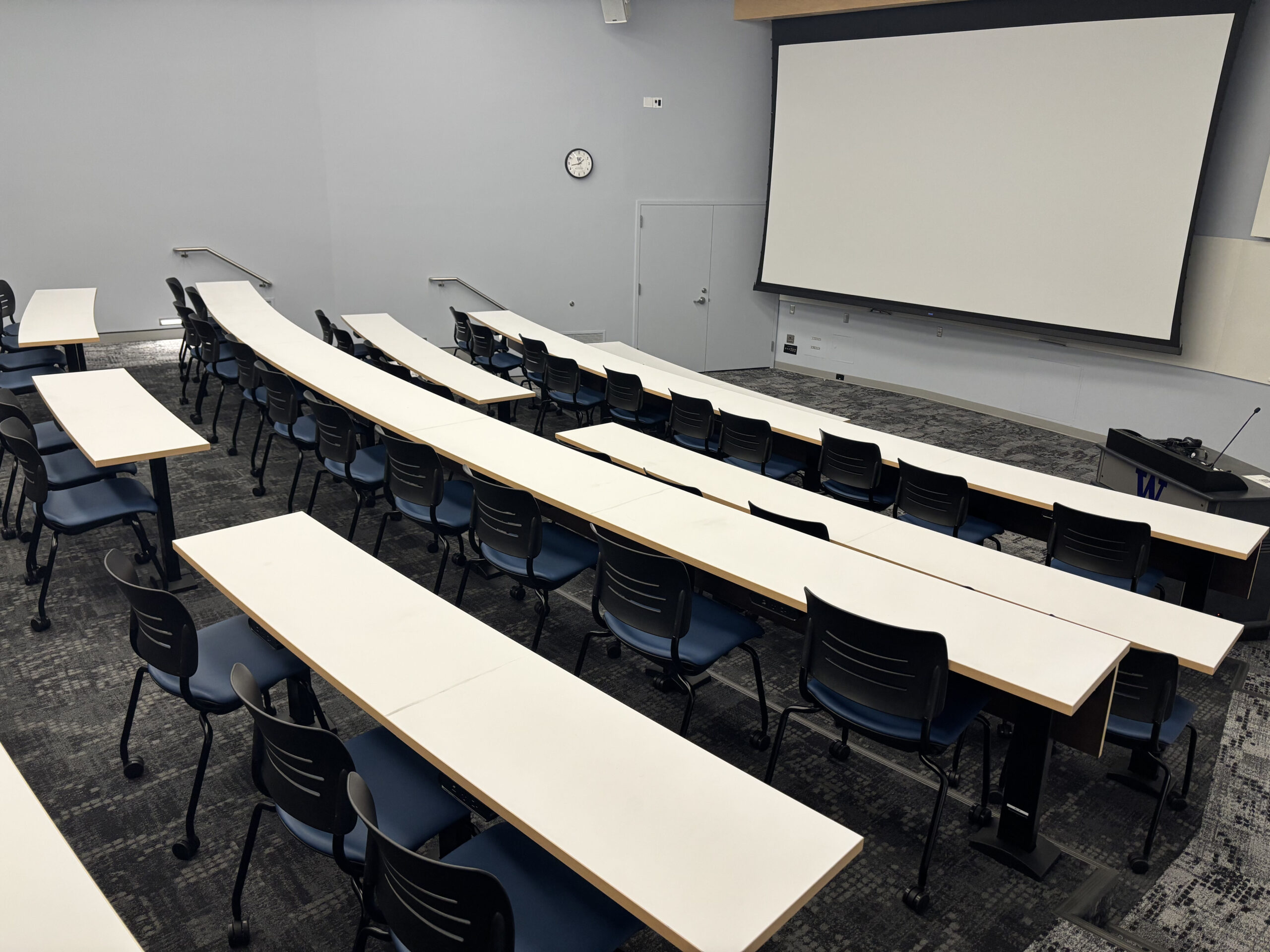
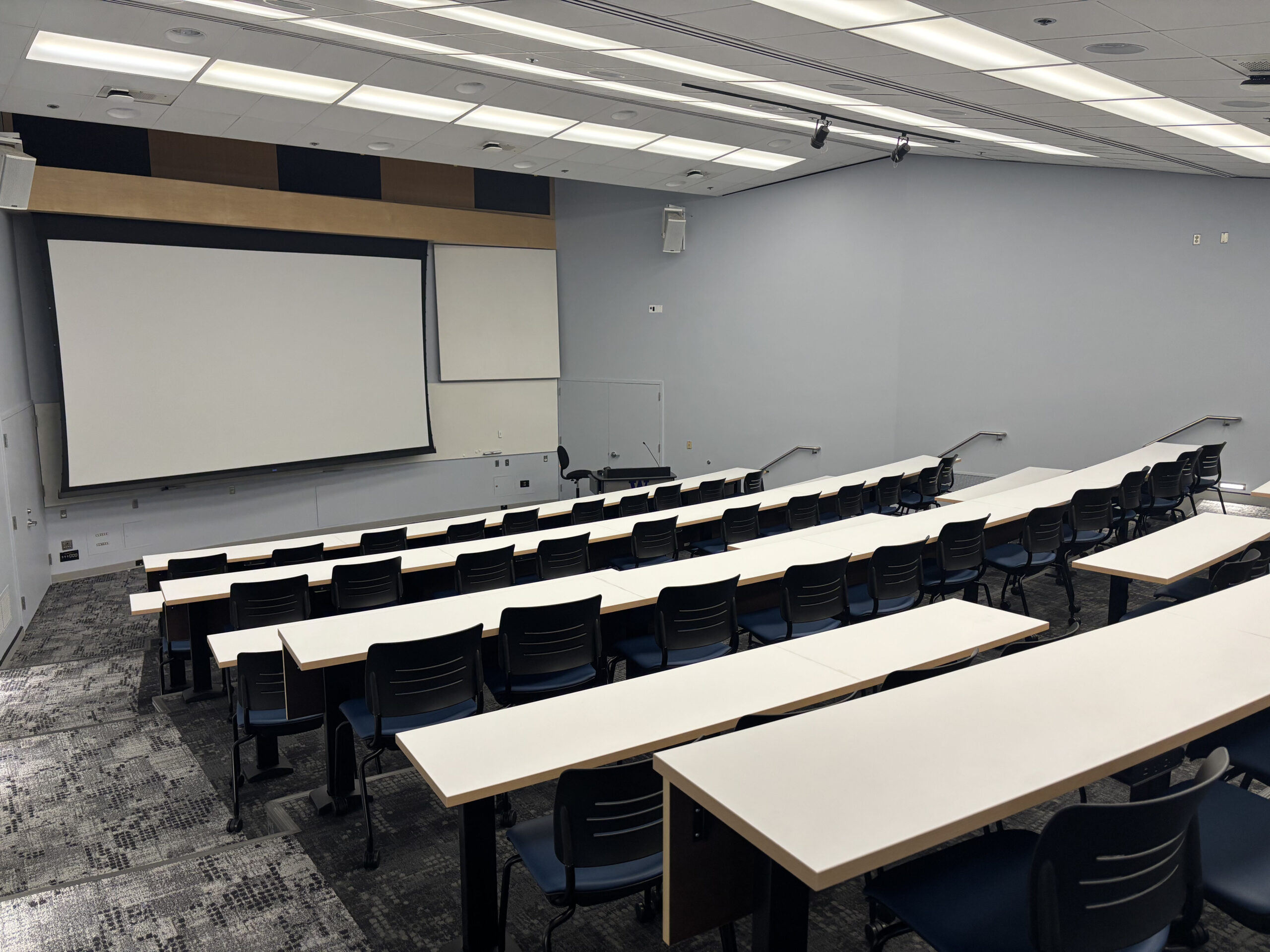
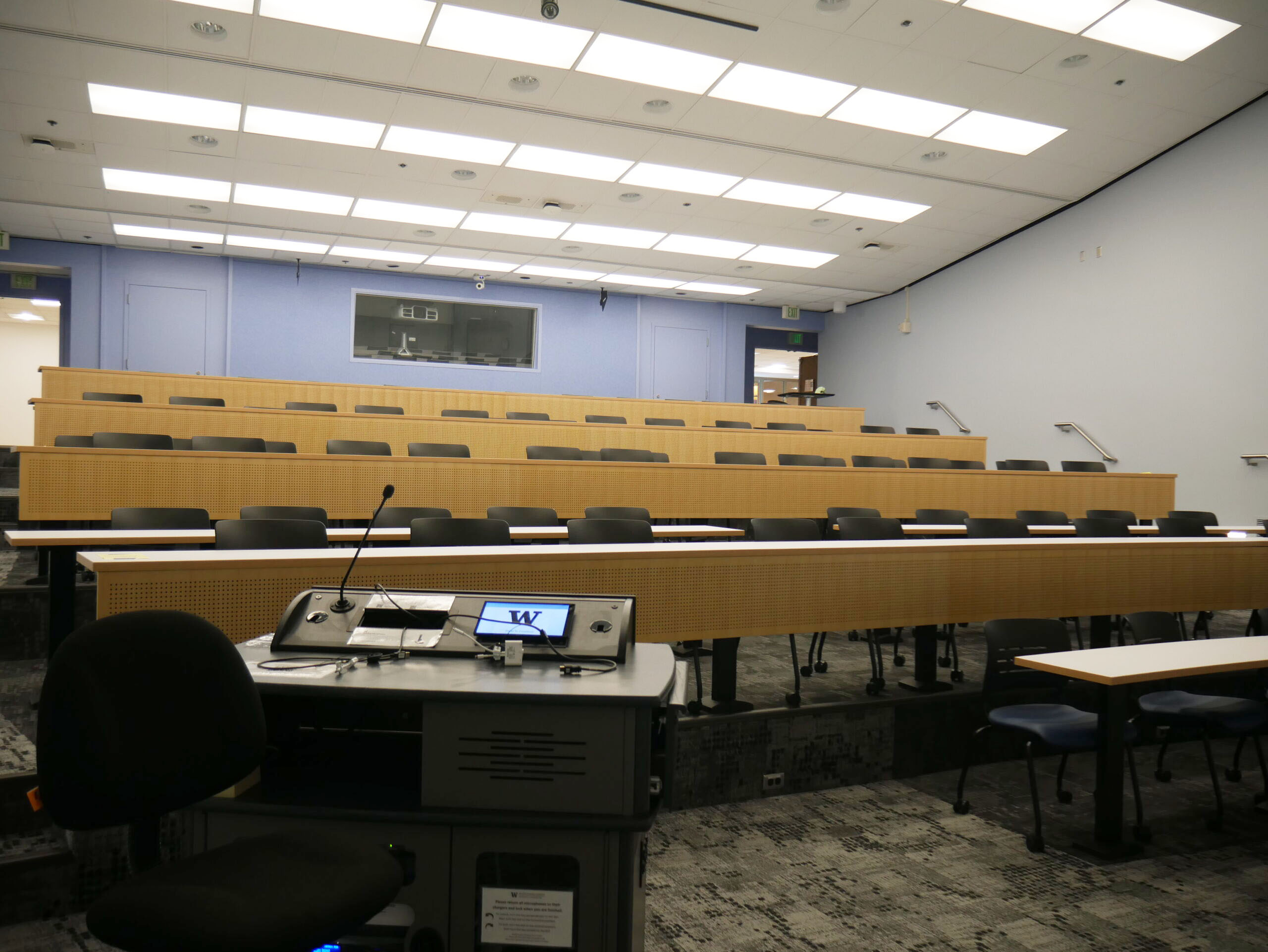
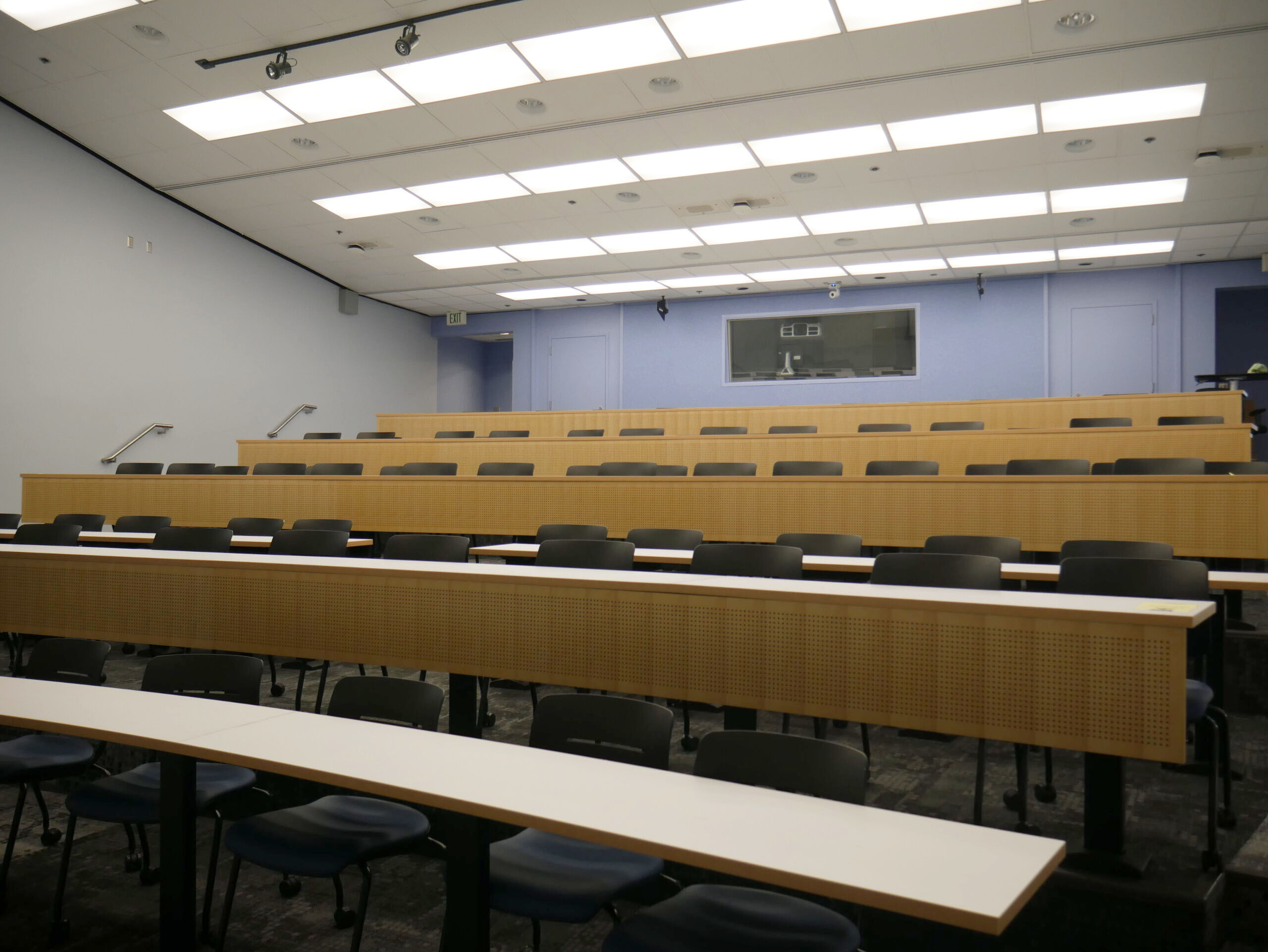
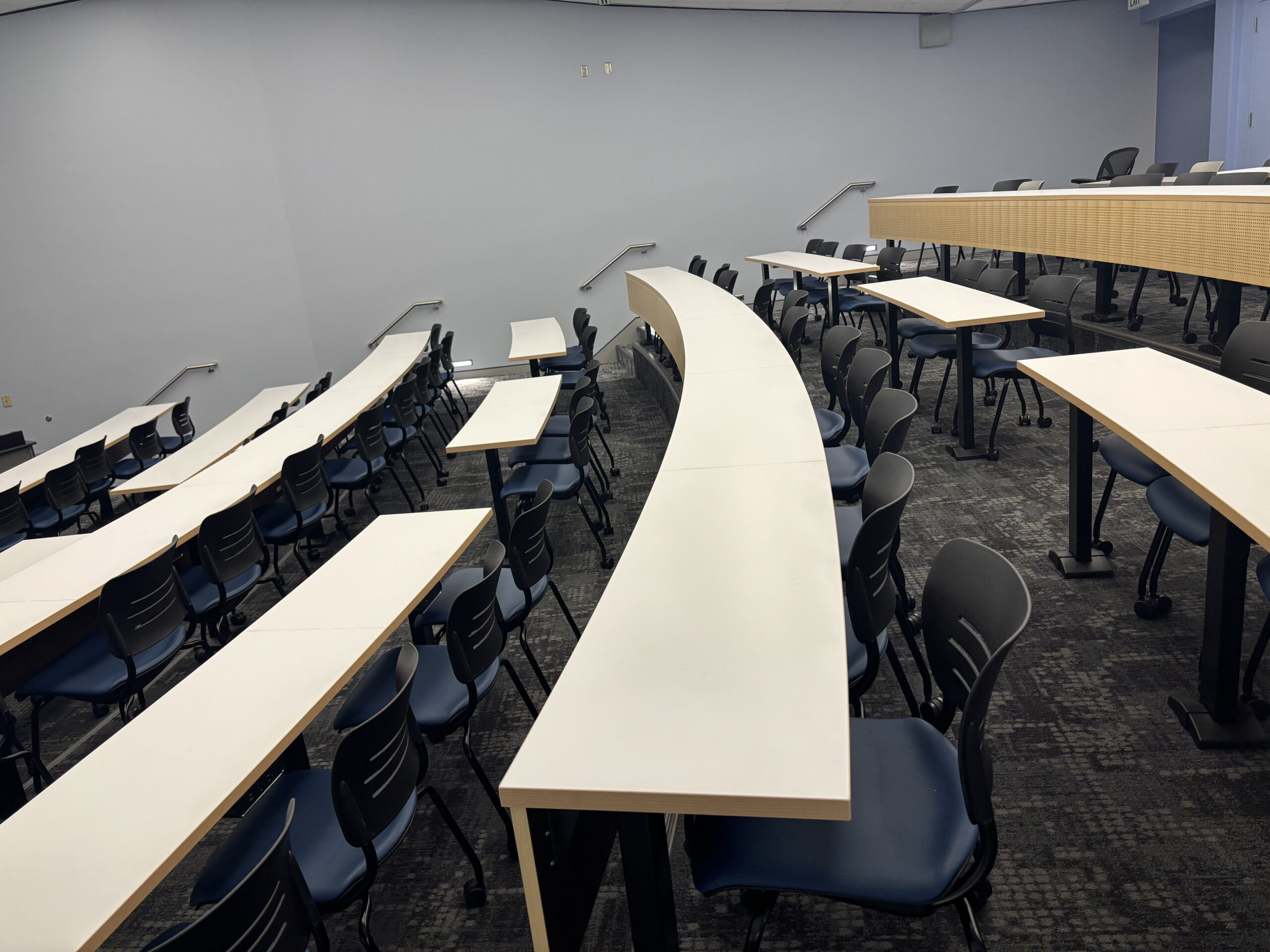
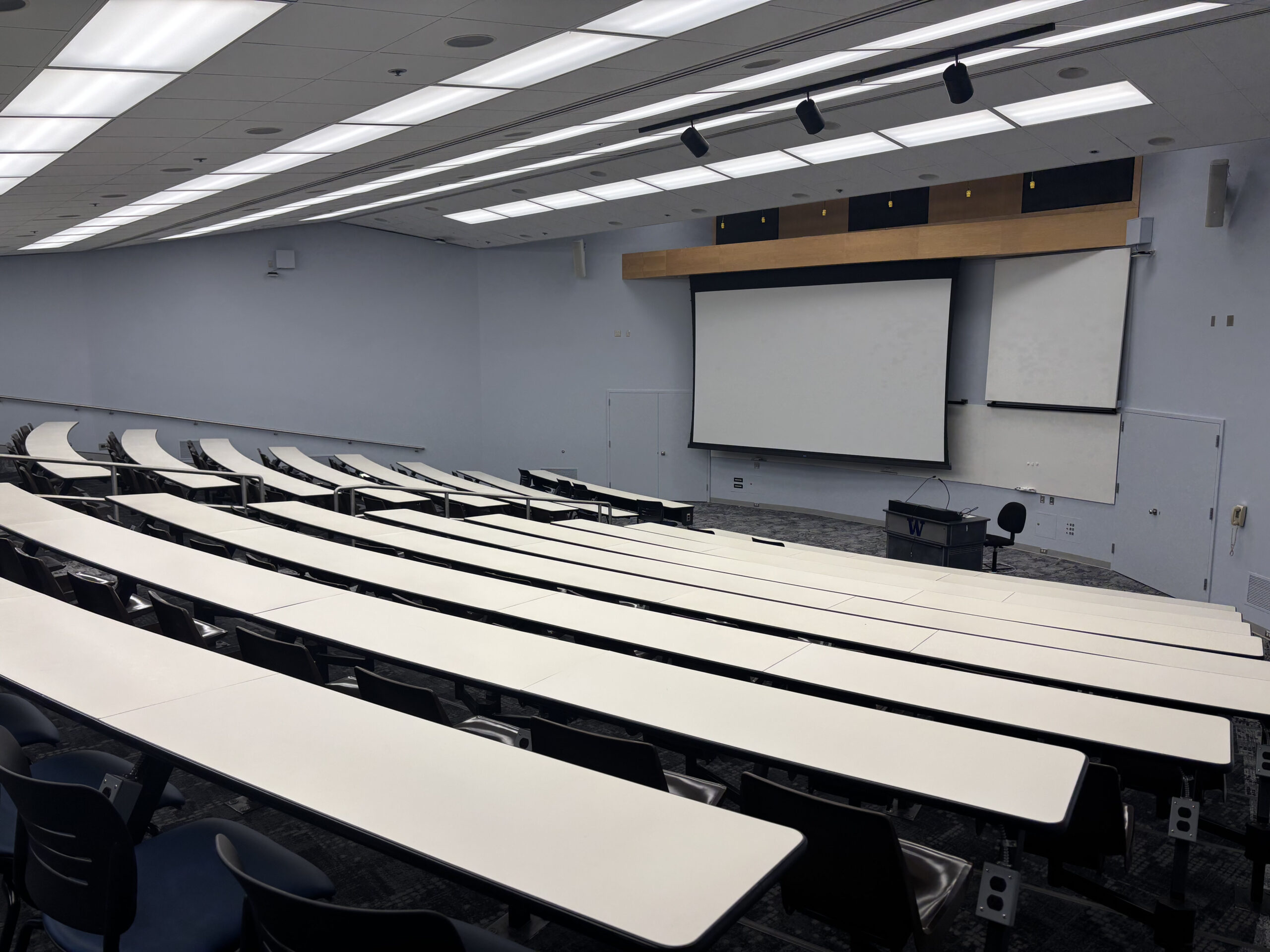
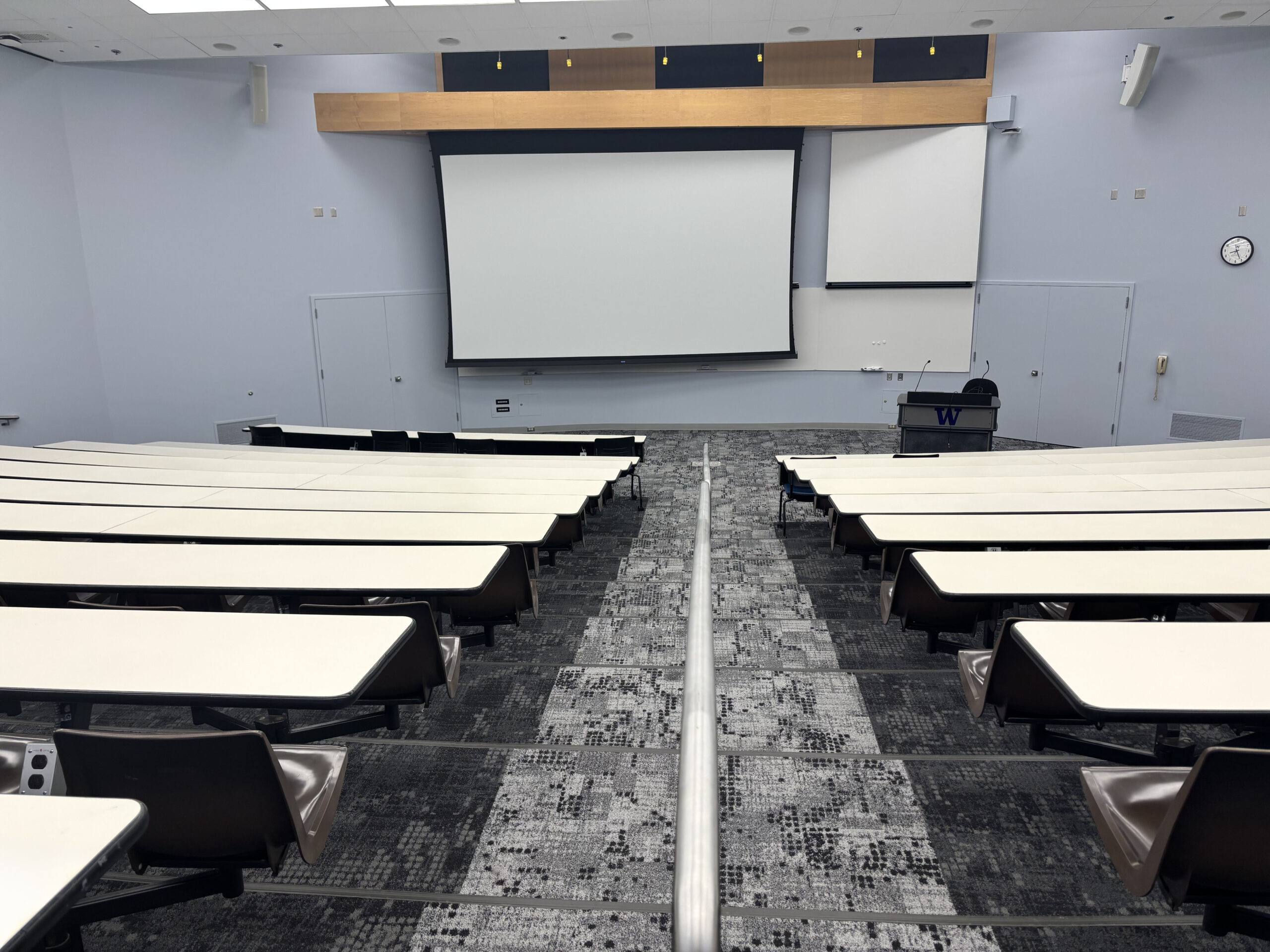
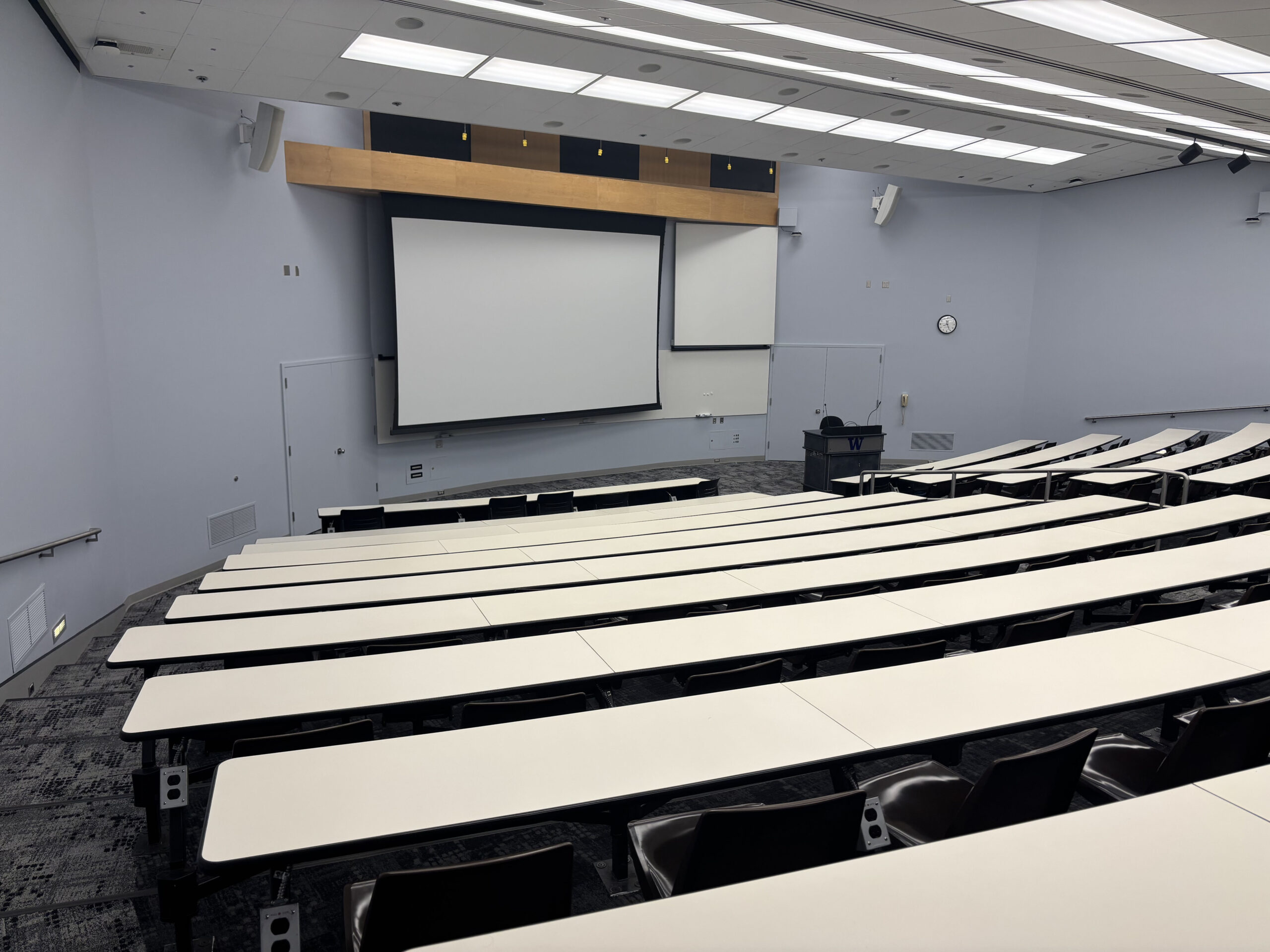
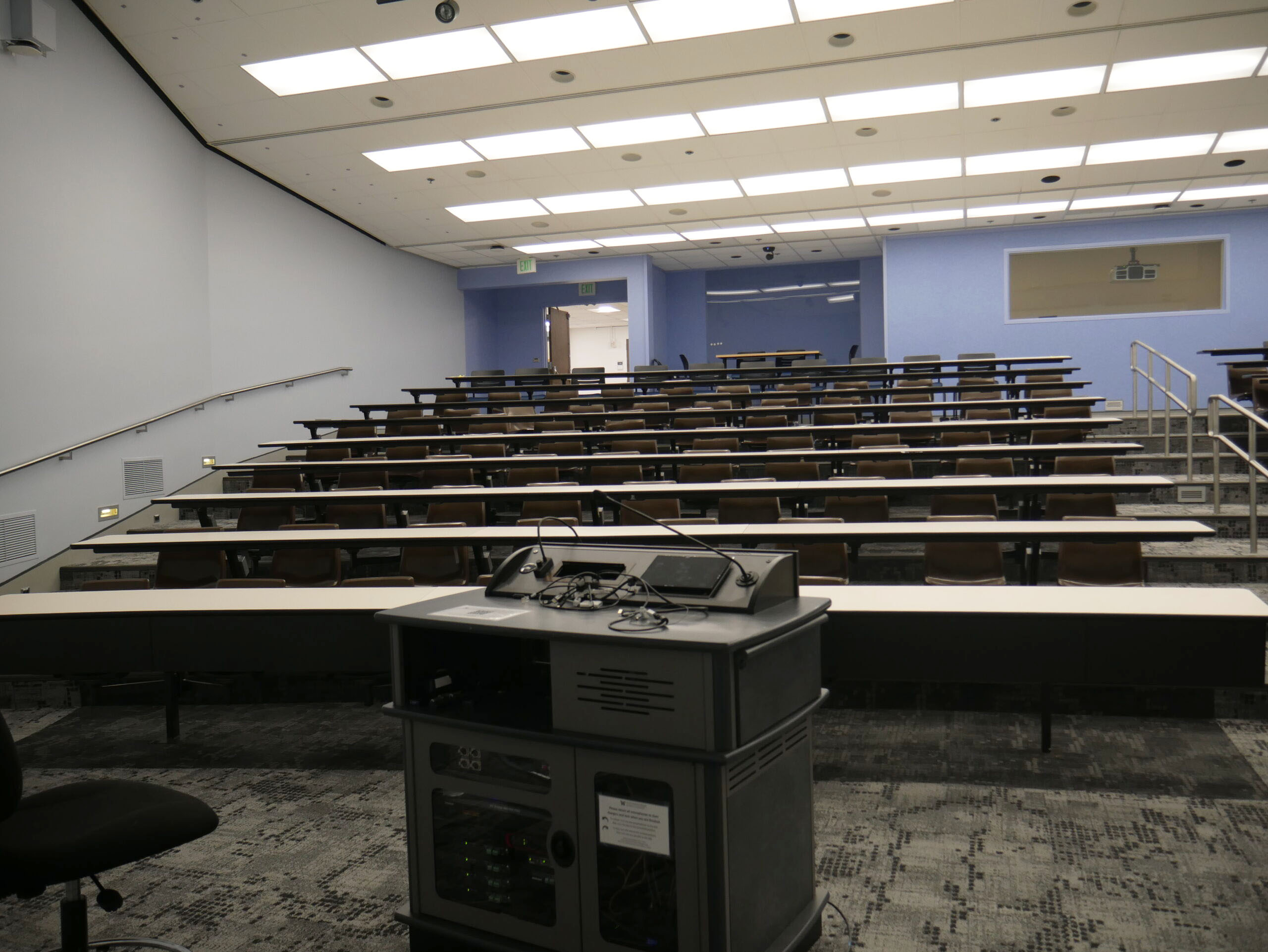
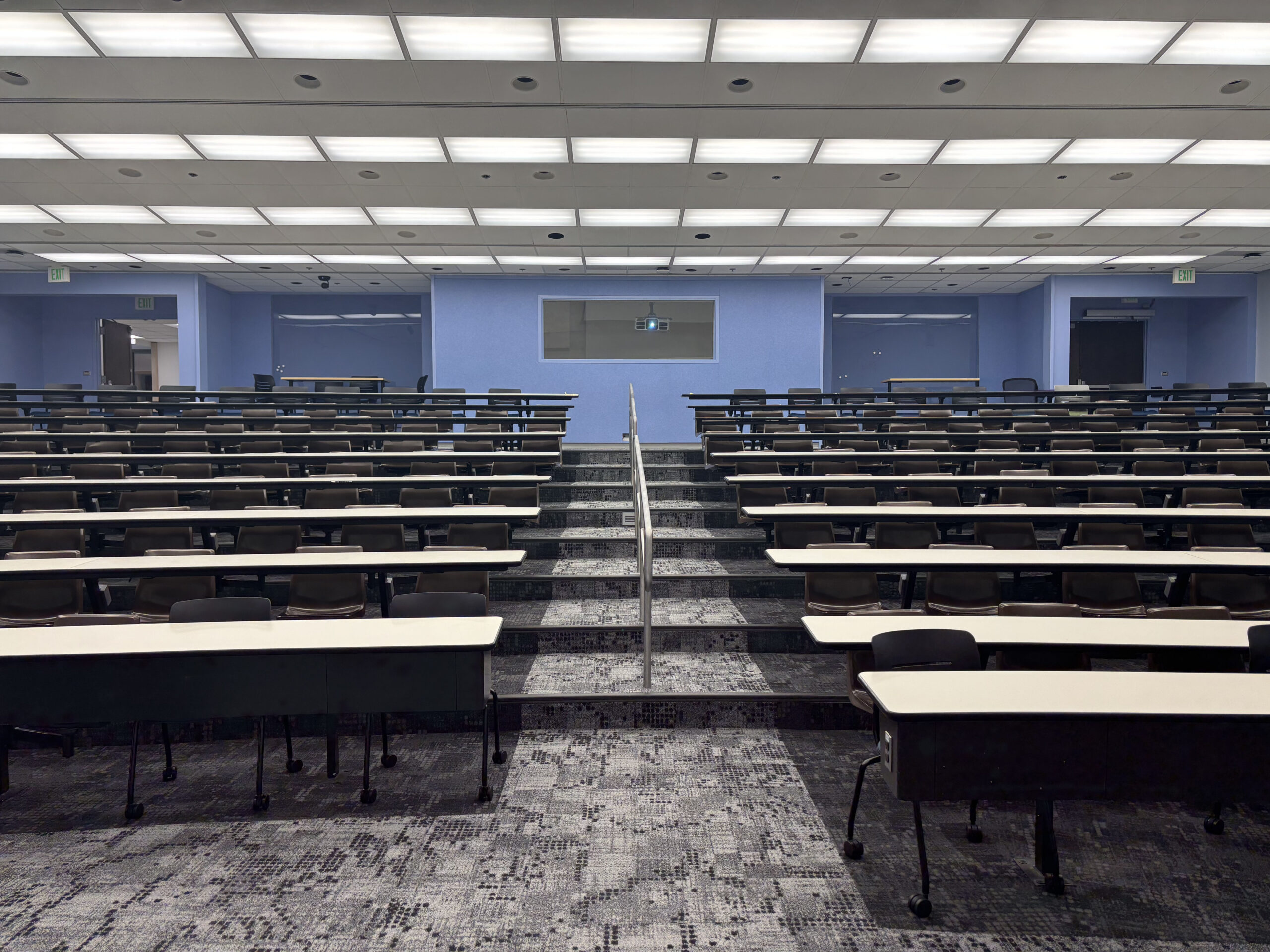
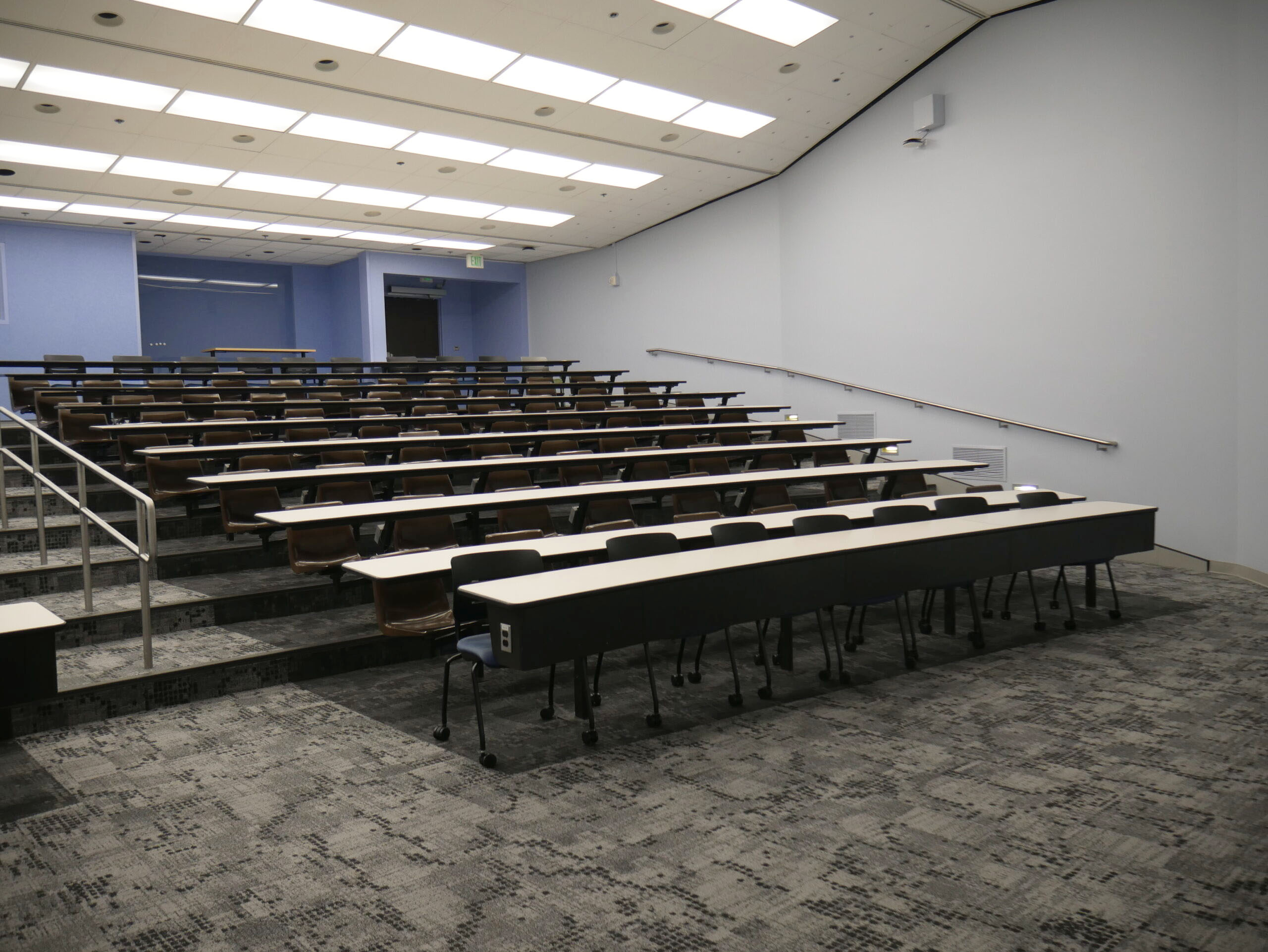
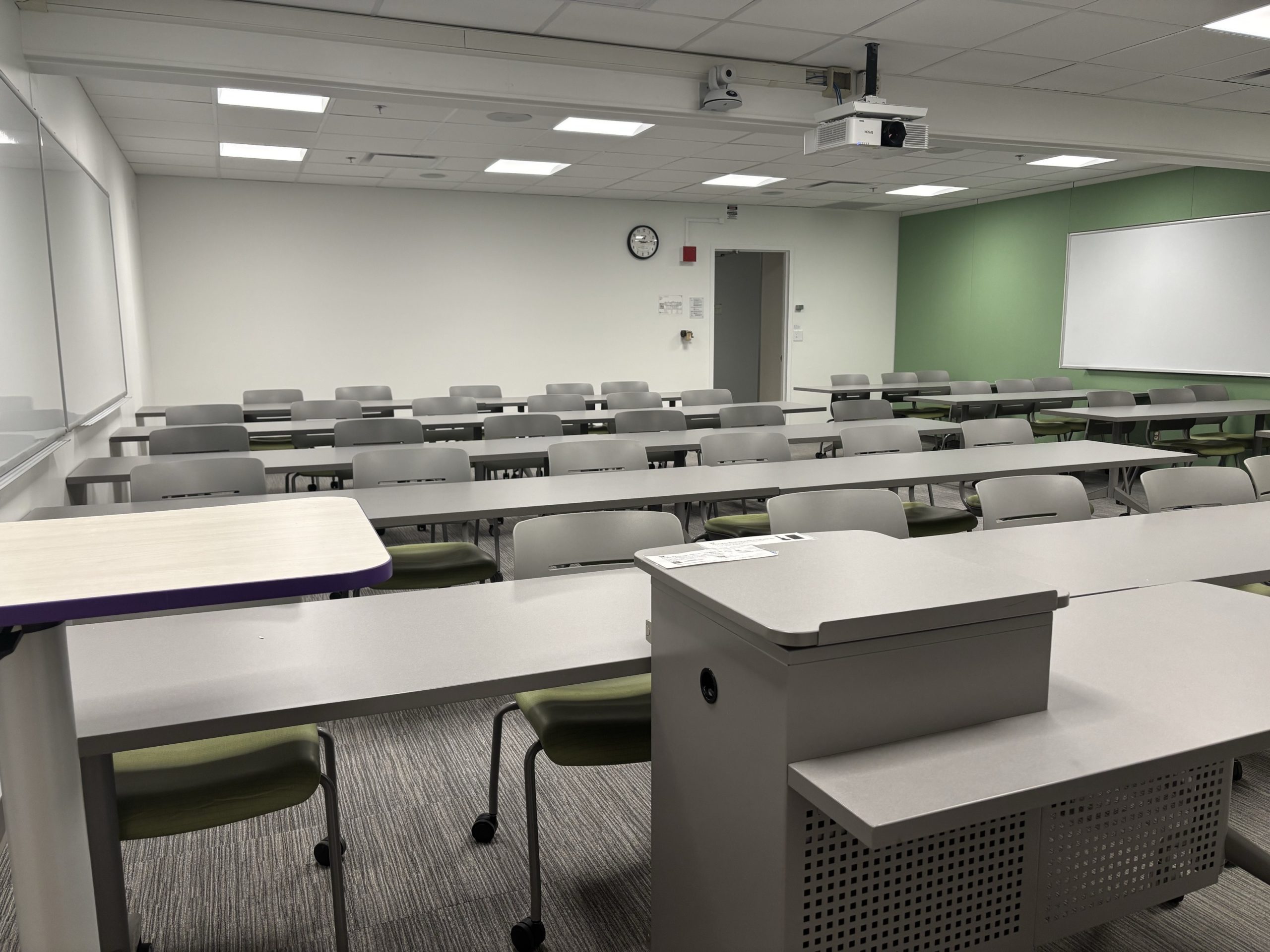
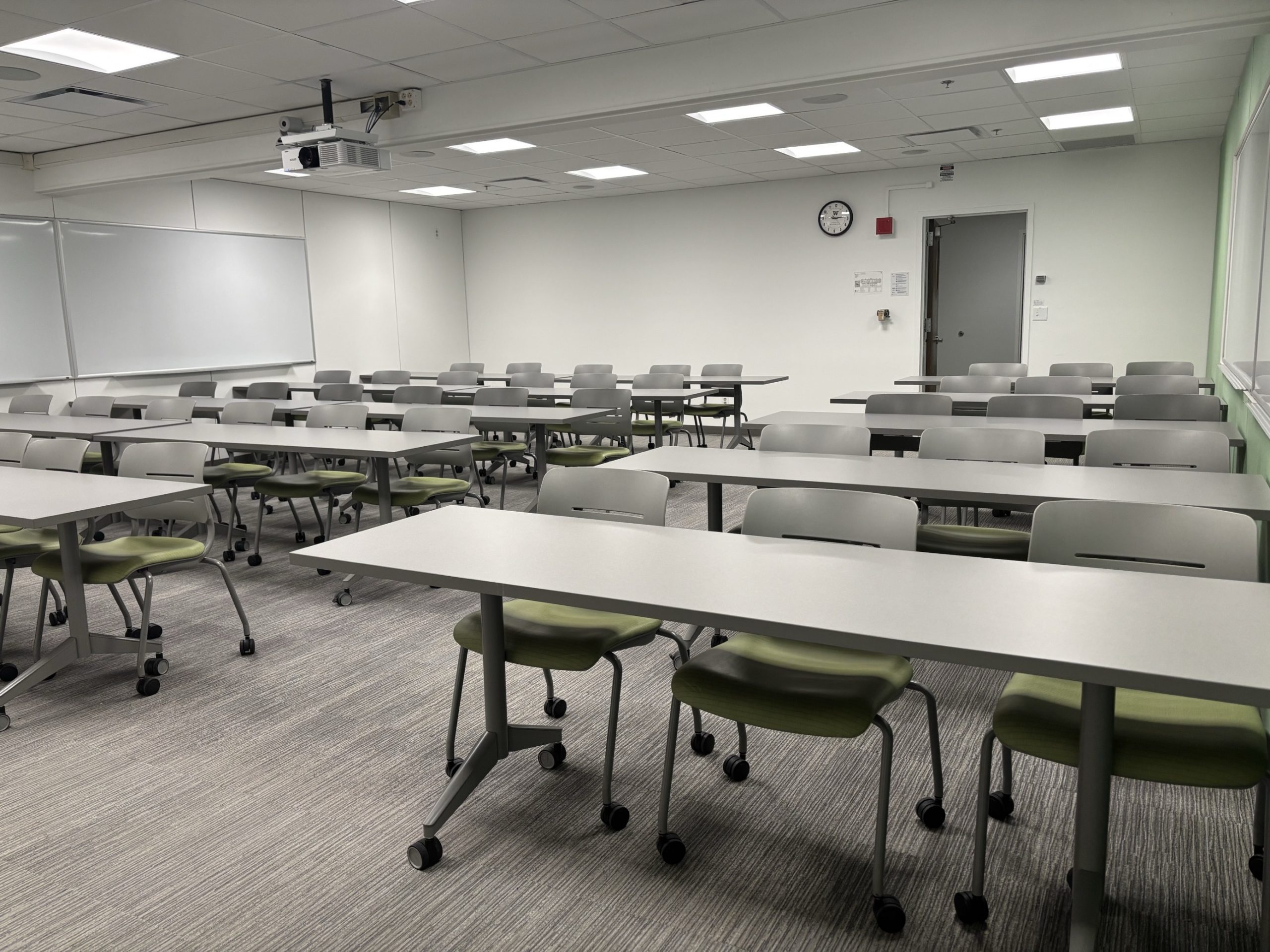
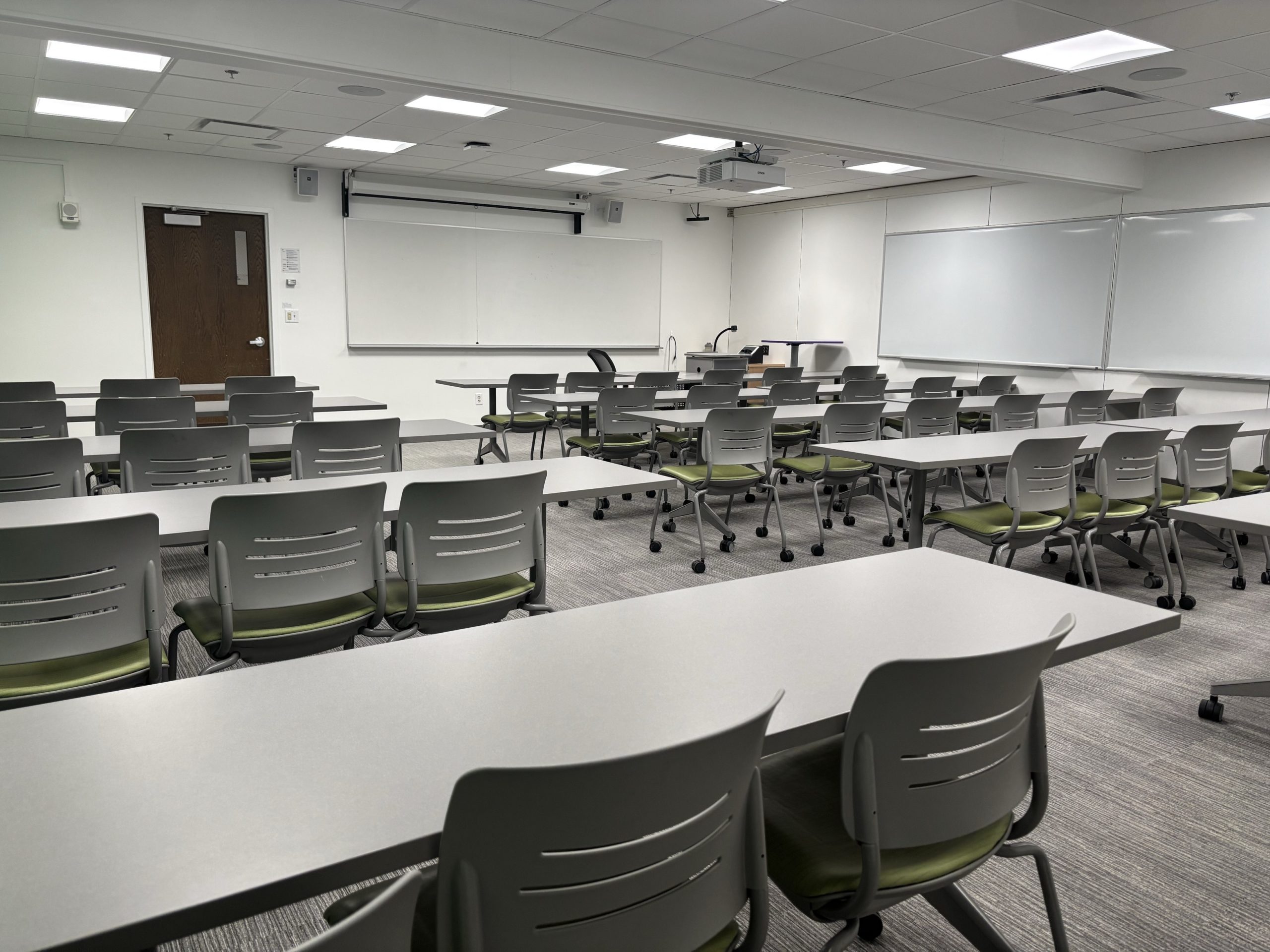
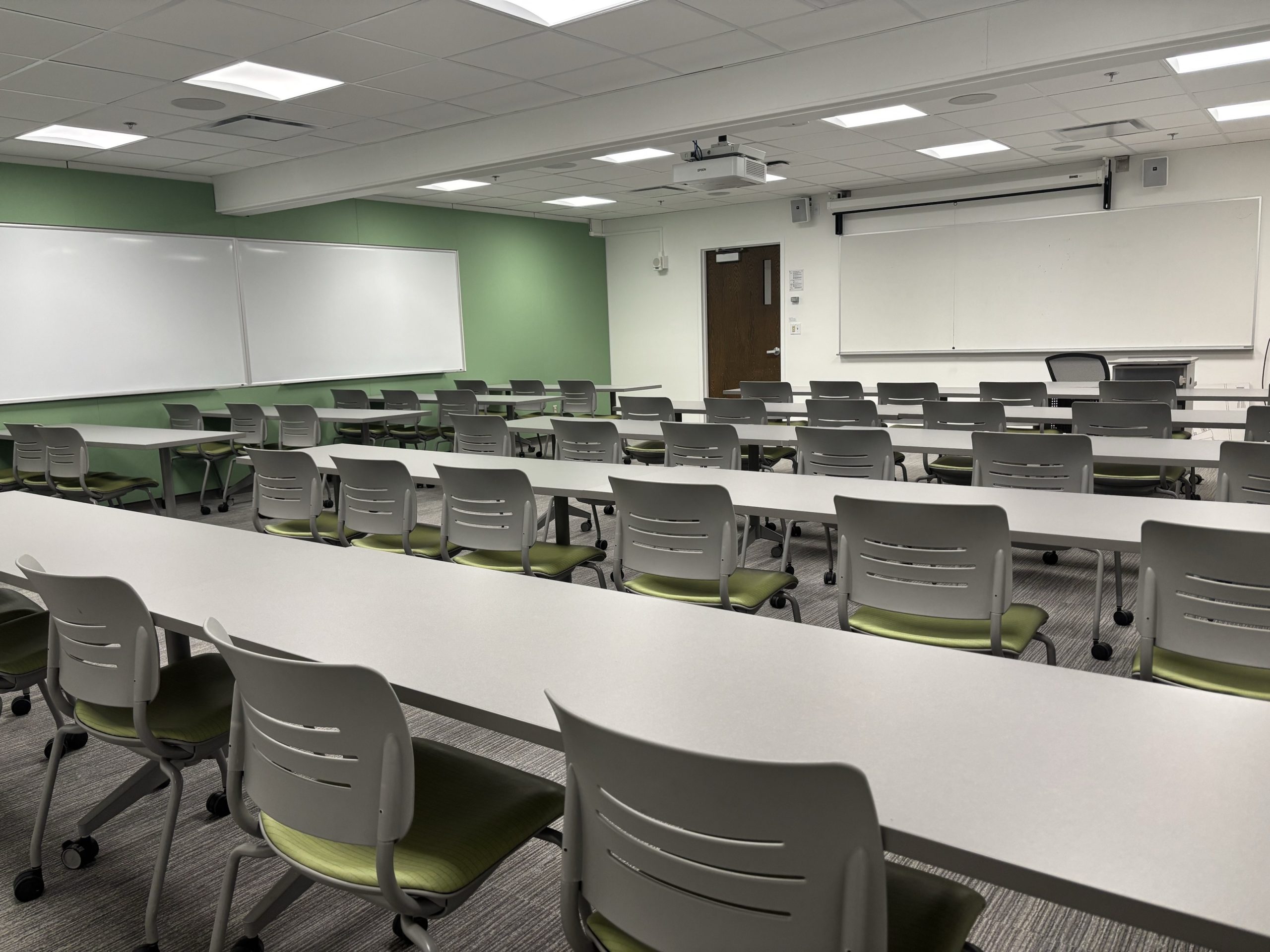
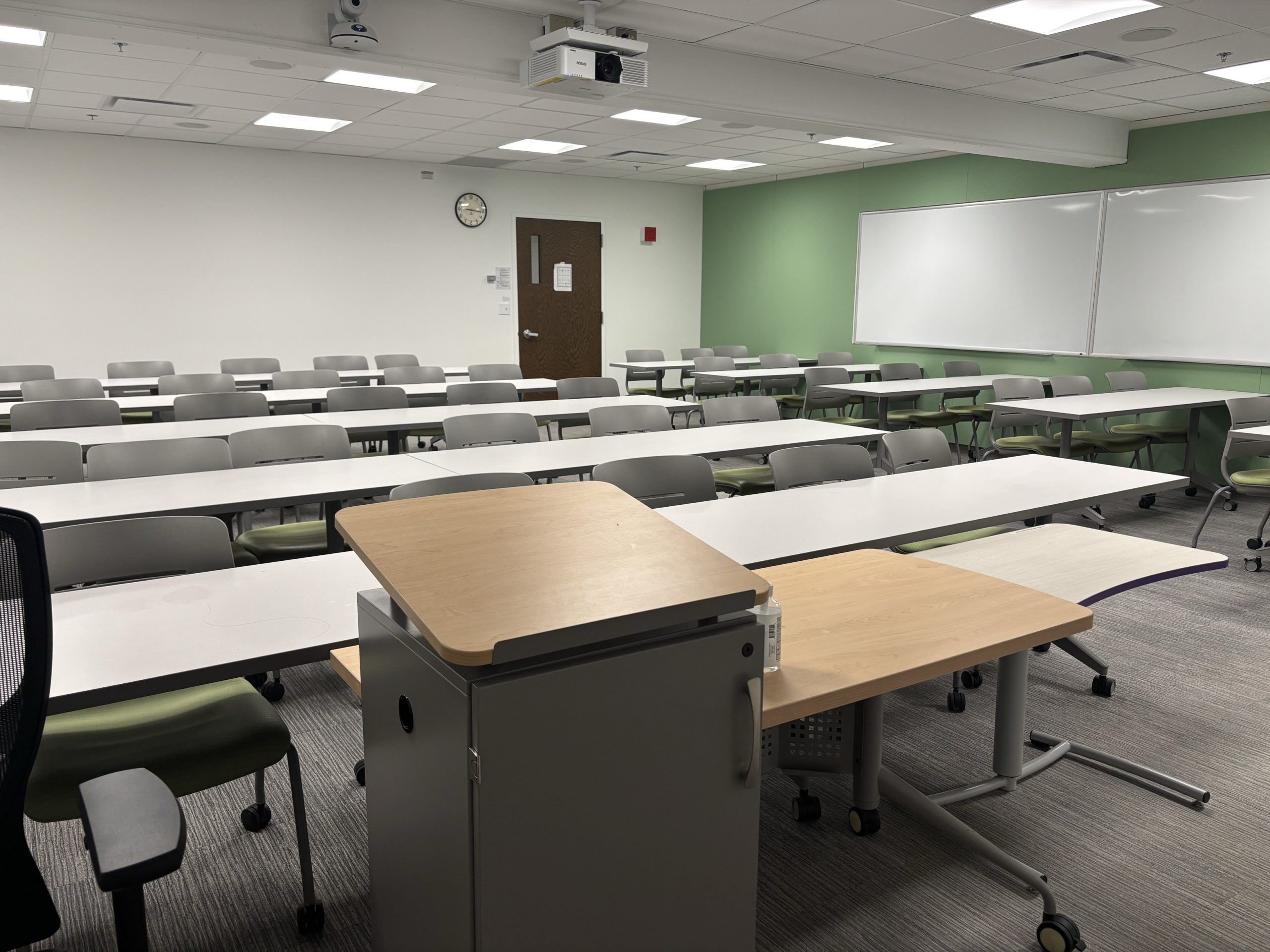
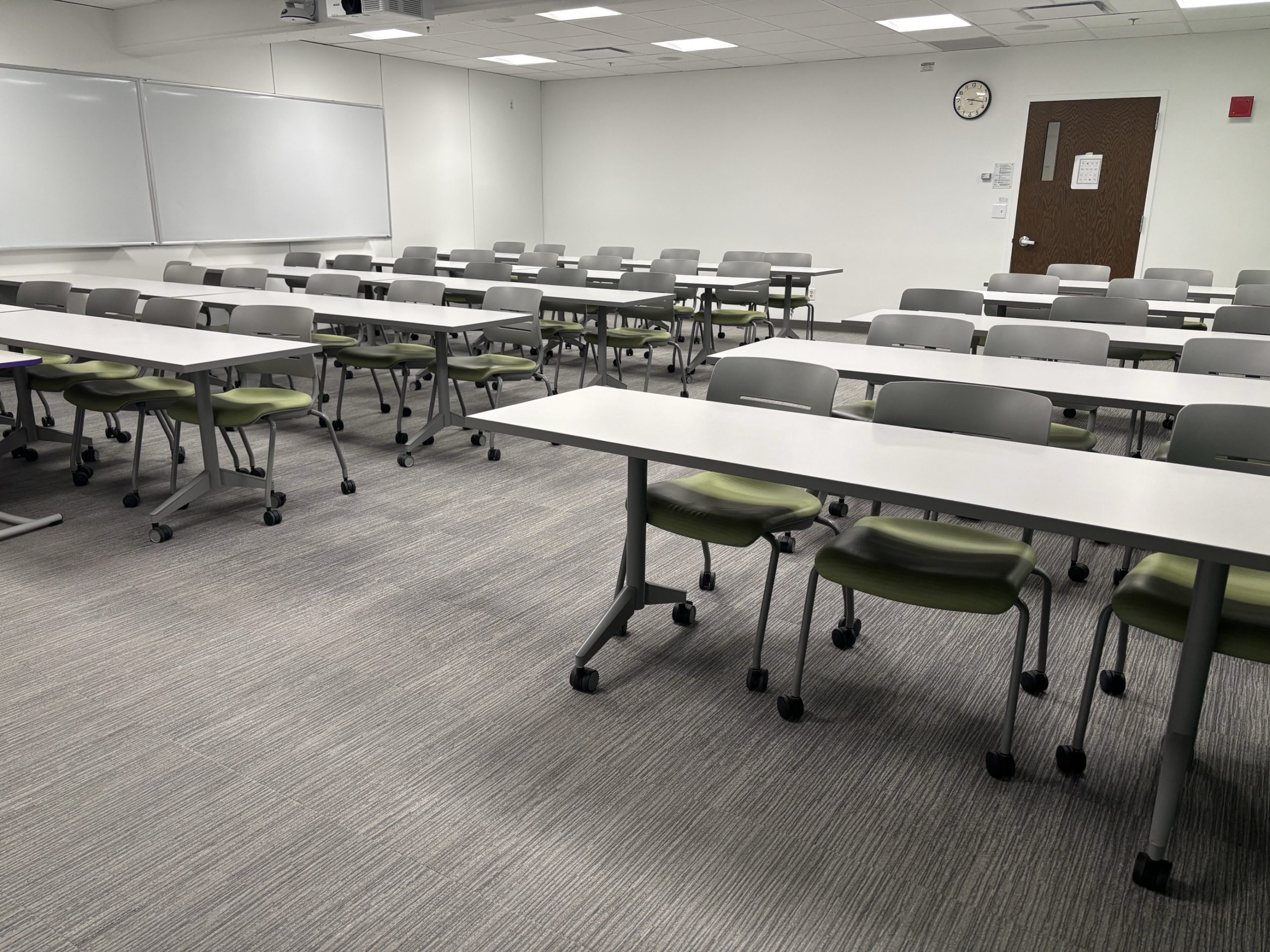
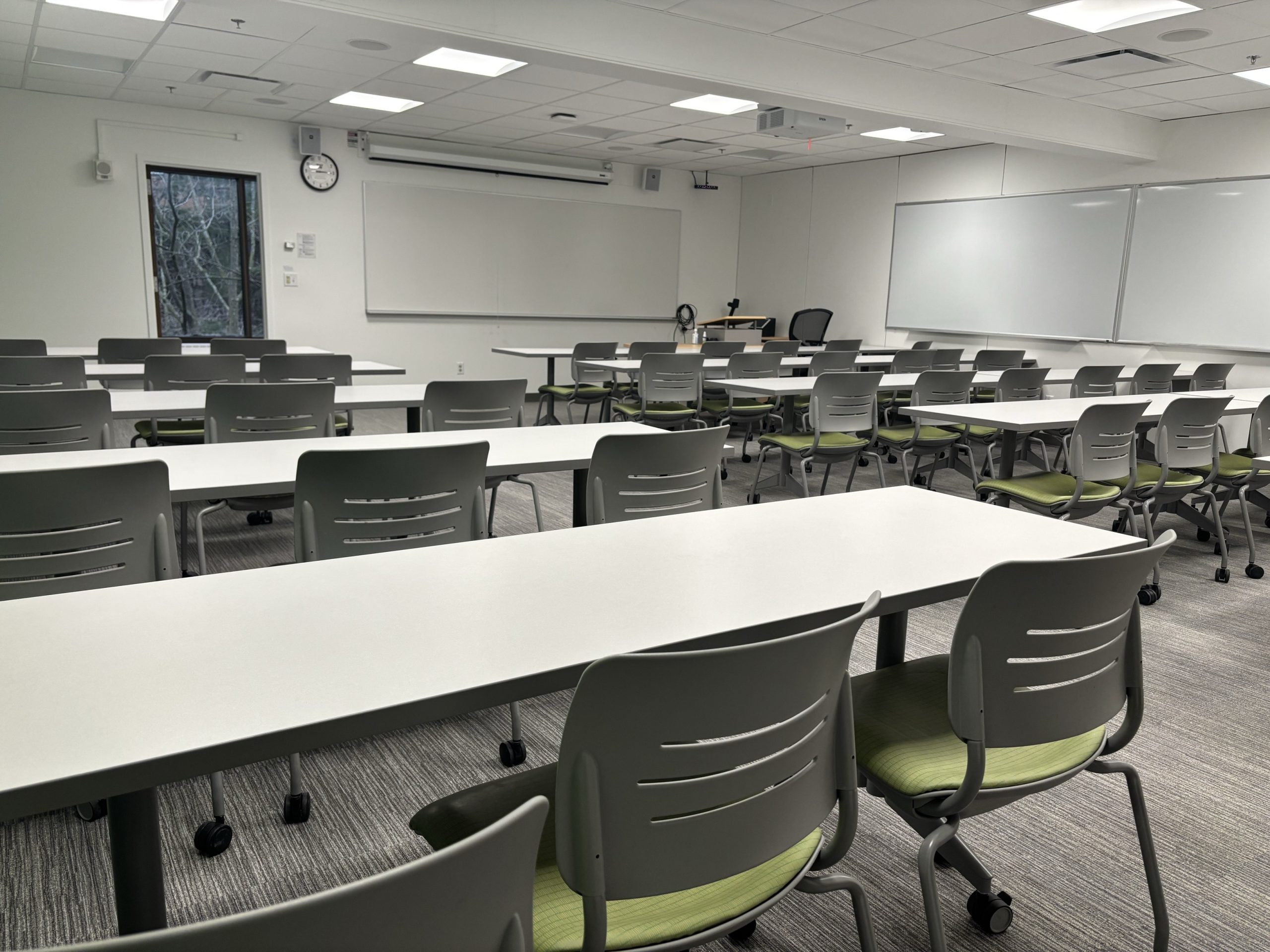
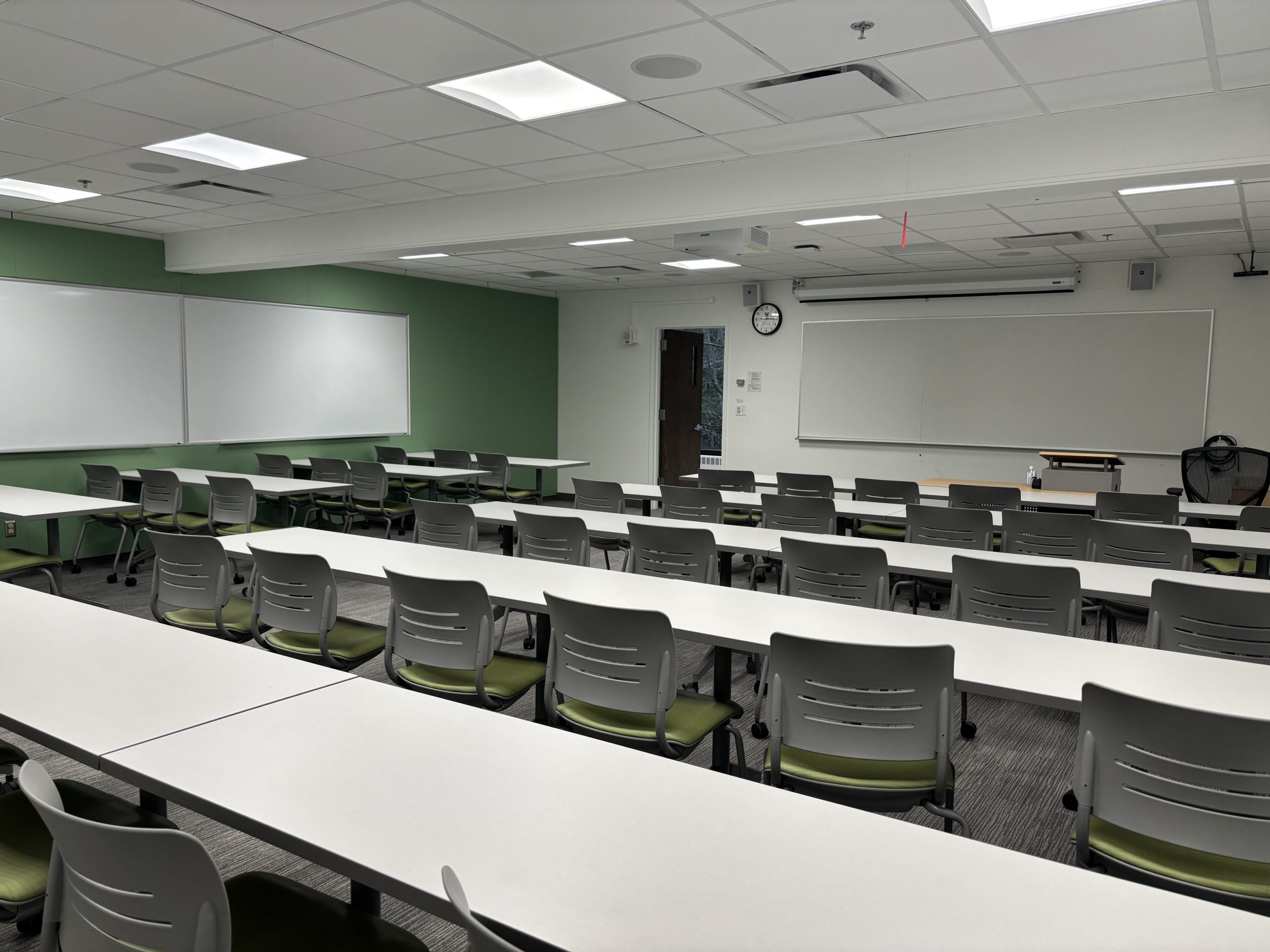
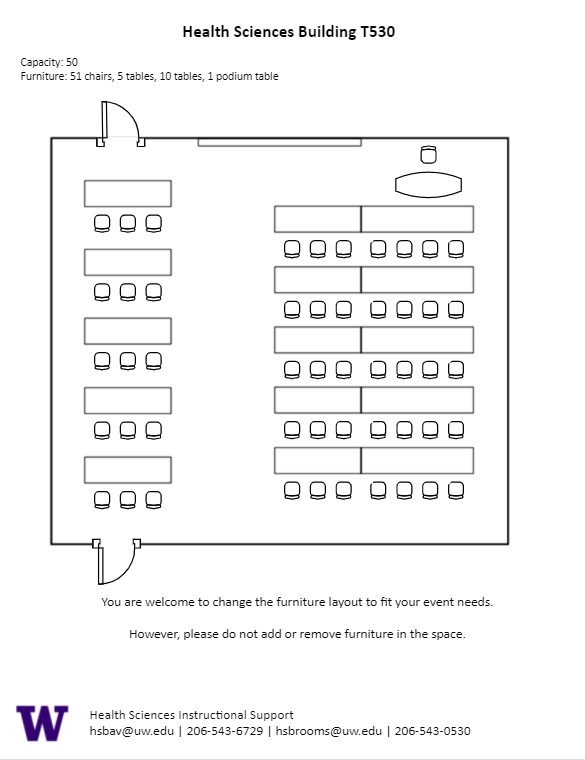
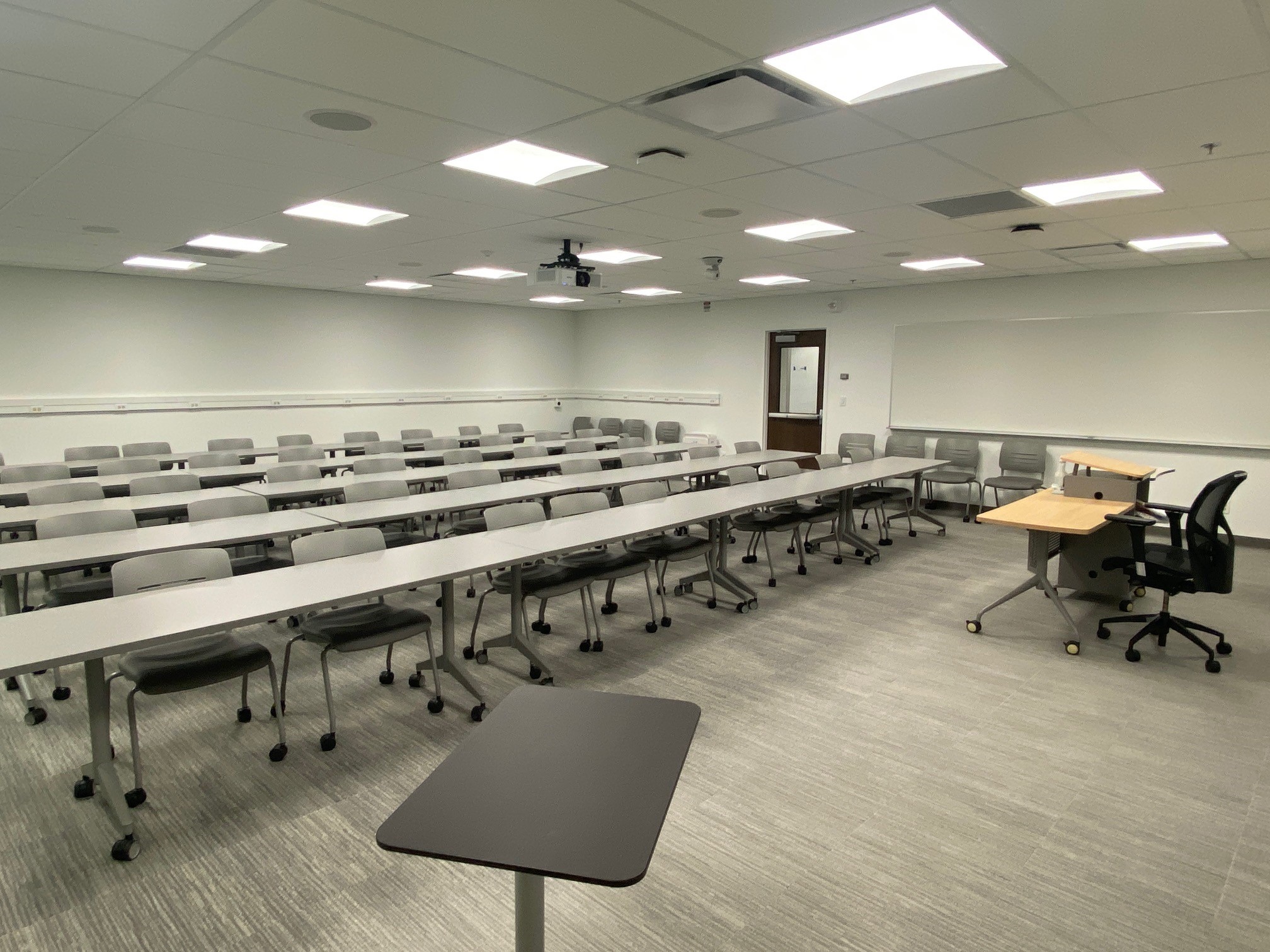
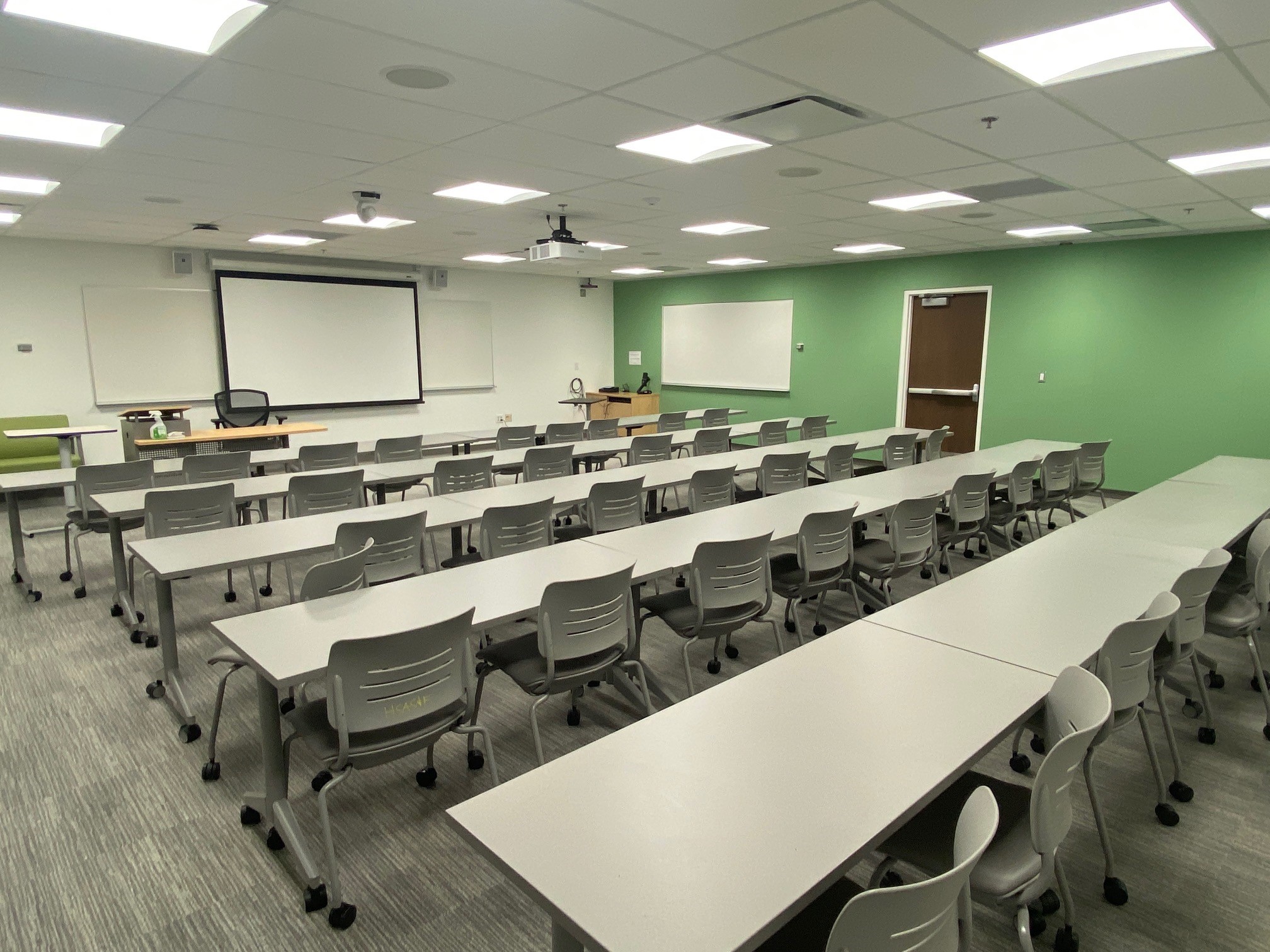
T 639, located in UWS Magnuson Health Sciences, is a general assignment lecture hall with seating for 90 people.
AV Tutorials
AV Tutorial
VIDEO
Basic Instructions
Turn on the room by touching the touch panel
Connect your device with the HDMI cable with adaptors to fit your device
Select Laptop or Wireless
Select how you would like to display your device on the touch panel
You can adjust the volume of your device with the program volume
If you are using mics, the mic tab on the bottom right will show you
Make sure to select shut down when you are done with the space
Wireless
VIDEO
Windows Devices
Press Windows + K on your keyboard to open wireless display options
Select the room you’re in
Enter the 4-digit code on the screen
Apple Devices
Connect through Apple Airplay by going to the top right and select the Control Center
Select Screen Mirror
Select the room you are in
Input the 4-digit code that pops up on the room screen
Unable to Connect through Airplay
Download the Mersive Solstice app if not already installed
Open the Mersive Solstice app
There will be a pop-up that will ask for access to screen record, select Accept
Input the IP address of the Solstice pod into your app
Input the 4-digit code that pops up on the room screen
Choose what content you want to display into the room
AV Bridge
Instructions for Zoom
Plug in the USB cable into your device
Once Zoom is opened up, click on the arrow by the camera
Select AV Bridge for the camera in the room
Click on the arrow by the microphone and select AV Bridge input for microphone
For the speaker, select Extron or Crestron
To confirm that the audio is working properly, select Test Speaker & Microphone
Instructions for Panopto
Plug in the USB cable into your device
Once Panopto is opened up, click on the video input tab
Select AV Bridge for the camera in the room
Click on the audio input tab
Select AV Bridge for the audio input
For additional information or assistance with Zoom or Panopto, please email UW-IT at help@uw.edu or call them at 206-221-5000.
How to Lock the Podium
Unlock
Turn the key perpendicular to the dial
Turn the dial to the horizontal position
Lock
Turn the dial to the vertical position
Turn the key parallel to the dial
HST T639 Features
HST T 639 Features
Location: Health Sciences Building T-wingThis room is on the Campus Automated Access Management System (CAAMS).
90-person seating capacity
Stadium seating with fixed desks and rolling chairs
Fixed podium
Whiteboard
Seats will come with outlets
Contact Building Management at 206-685-0143 or hsbuild@uw.edu to get key for ramp access to front of room
Laser projector
Connection types: HDMI w/adaptor ring | wireless video
A/V bridge
Camera directed toward podium
Document camera
Microphones:
One (1) gooseneck
Two (2) wireless lavalier (podium key required)
Two (2) wireless handheld (podium key required)
Eight (8) boundary mics (podium key required)
Food and drink are permitted outside this space.
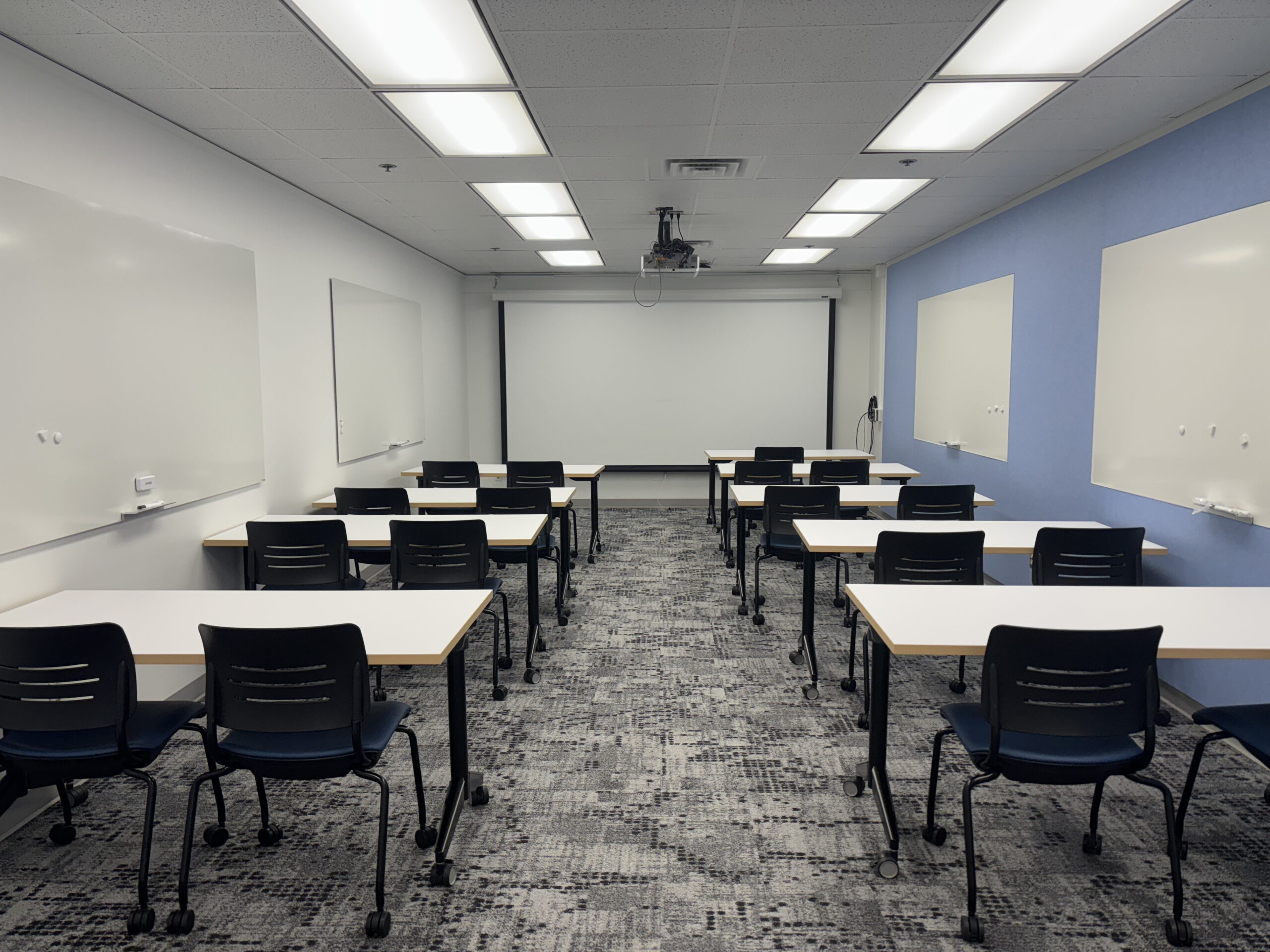
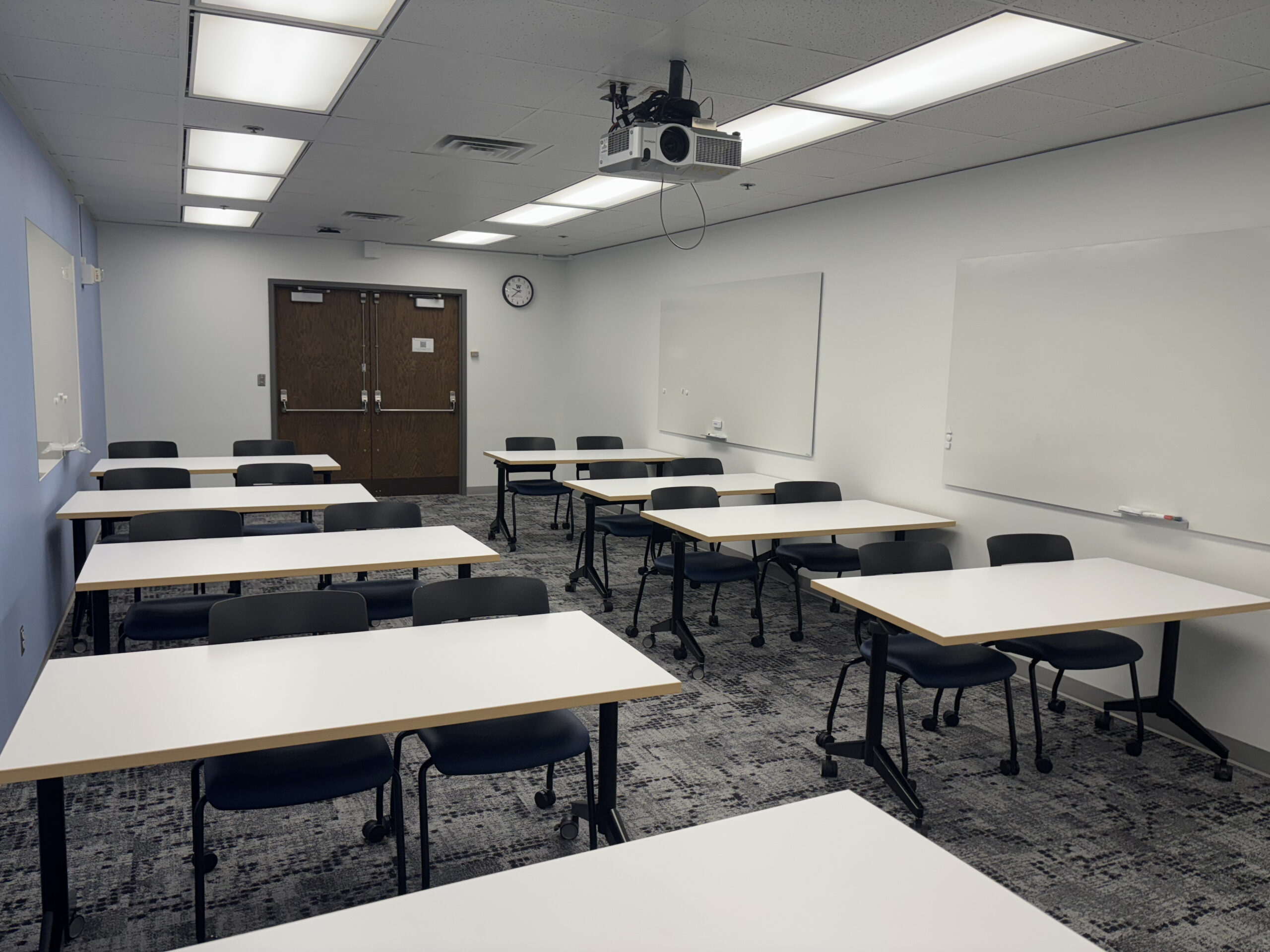
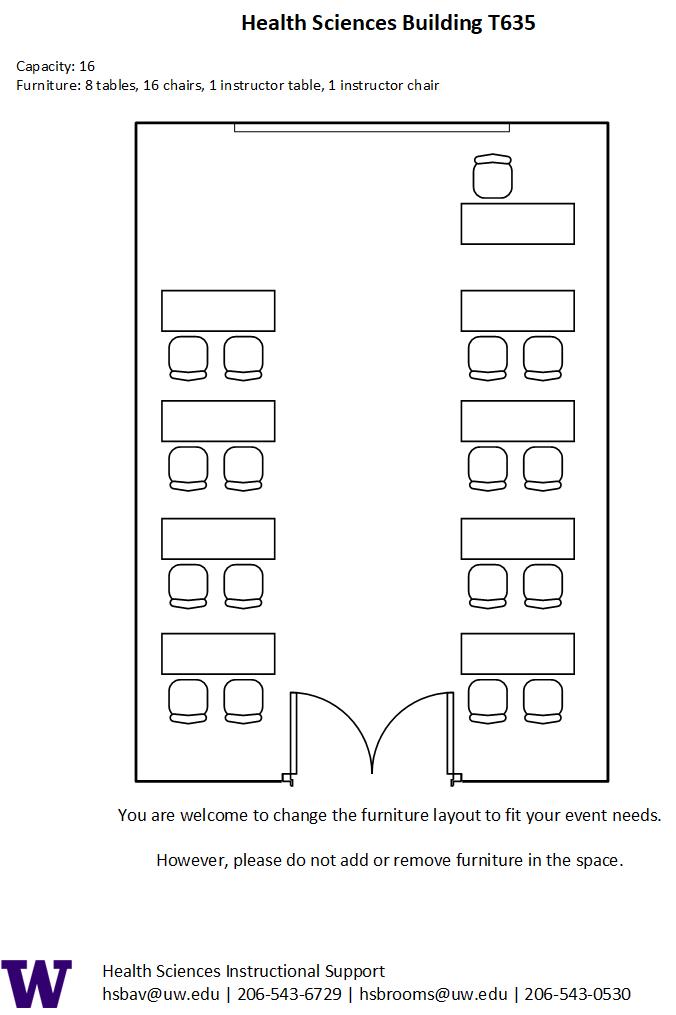
T 635, located in UWS Magnuson Health Sciences, is a general assignment classroom with seating for 16 people.
AV Tutorials
AV Tutorial
VIDEO
Basic Instructions
Turn on the room by touching the touch panel
Connect your device with the HDMI cable with adaptors to fit your device
Select Laptop or Wireless
Select how you would like to display your device on the touch panel
You can adjust the volume of your device with the program volume
If you are using mics, the mic tab on the bottom right will show you
Make sure to select shut down when you are done with the space
HST T635 Features
HST T 635 Features
Location: Health Sciences Building T-wing
16-person seating capacity
Rolling tables and chairs
Rolling table and chair (instructor area)
Whiteboards
Laser projector
Connection type: HDMI w/adaptor ring
Food and drink are NOT permitted in this space.
T 625, located in UWS Magnuson Health Sciences, is a general assignment lecture hall with seating for 185 people.
AV Tutorials
AV Tutorial
VIDEO
Basic Instructions
Turn on the room by touching the touch panel
Connect your device with the HDMI cable with adaptors to fit your device
Select Laptop or Wireless
Select how you would like to display your device on the touch panel
You can adjust the volume of your device with the program volume
If you are using mics, the mic tab on the bottom right will show you
Make sure to select shut down when you are done with the space
Wireless
VIDEO
Windows Devices
Press Windows + K on your keyboard to open wireless display options
Select the room you’re in
Enter the 4-digit code on the screen
Apple Devices
Connect through Apple Airplay by going to the top right and select the Control Center
Select Screen Mirror
Select the room you are in
Input the 4-digit code that pops up on the room screen
Unable to Connect through Airplay
Download the Mersive Solstice app if not already installed
Open the Mersive Solstice app
There will be a pop-up that will ask for access to screen record, select Accept
Input the IP address of the Solstice pod into your app
Input the 4-digit code that pops up on the room screen
Choose what content you want to display into the room
AV Bridge
Instructions for Zoom
Plug in the USB cable into your device
Once Zoom is opened up, click on the arrow by the camera
Select AV Bridge for the camera in the room
Click on the arrow by the microphone and select AV Bridge input for microphone
For the speaker, select Extron or Crestron
To confirm that the audio is working properly, select Test Speaker & Microphone
Instructions for Panopto
Plug in the USB cable into your device
Once Panopto is opened up, click on the video input tab
Select AV Bridge for the camera in the room
Click on the audio input tab
Select AV Bridge for the audio input
For additional information or assistance with Zoom or Panopto, please email UW-IT at help@uw.edu or call them at 206-221-5000.
How to Lock the Podium
Unlock
Turn the key perpendicular to the dial
Turn the dial to the horizontal position
Lock
Turn the dial to the vertical position
Turn the key parallel to the dial
HST T625 Features
HST T 625 Features
Location: Health Sciences Building T-wingThis room is on the Campus Automated Access Management System (CAAMS).
Laser projector
Connection types: HDMI w/adaptor ring | wireless video
A/V bridge
Ceiling mounted cameras
Digital document camera
Microphones:
One (1) gooseneck
Two (2) wireless lavalier (podium key required)
Two (2) wireless handheld (podium key required)
Two (2) boundary microphone (podium key required)
Food and drink are permitted outside this space.
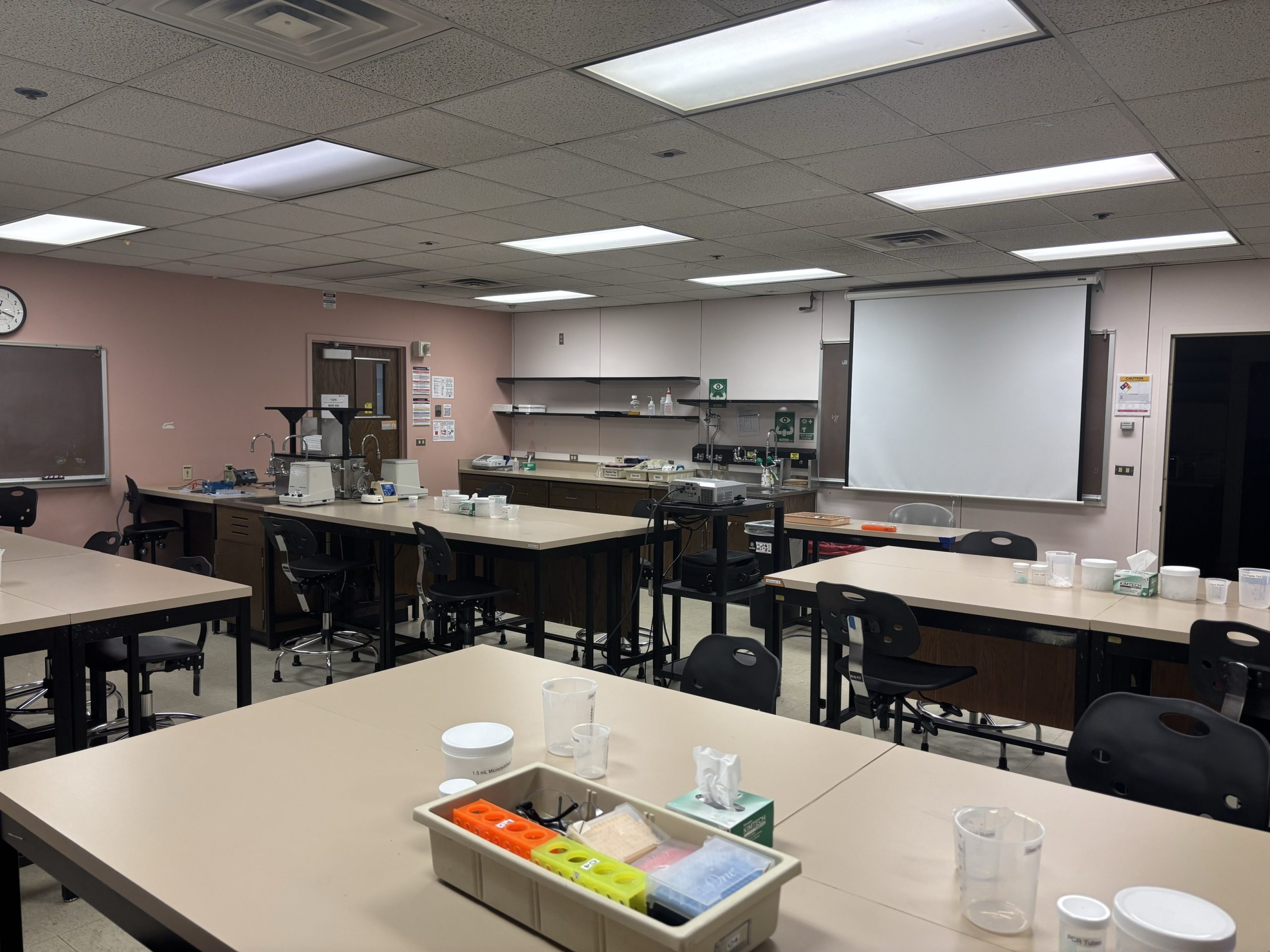
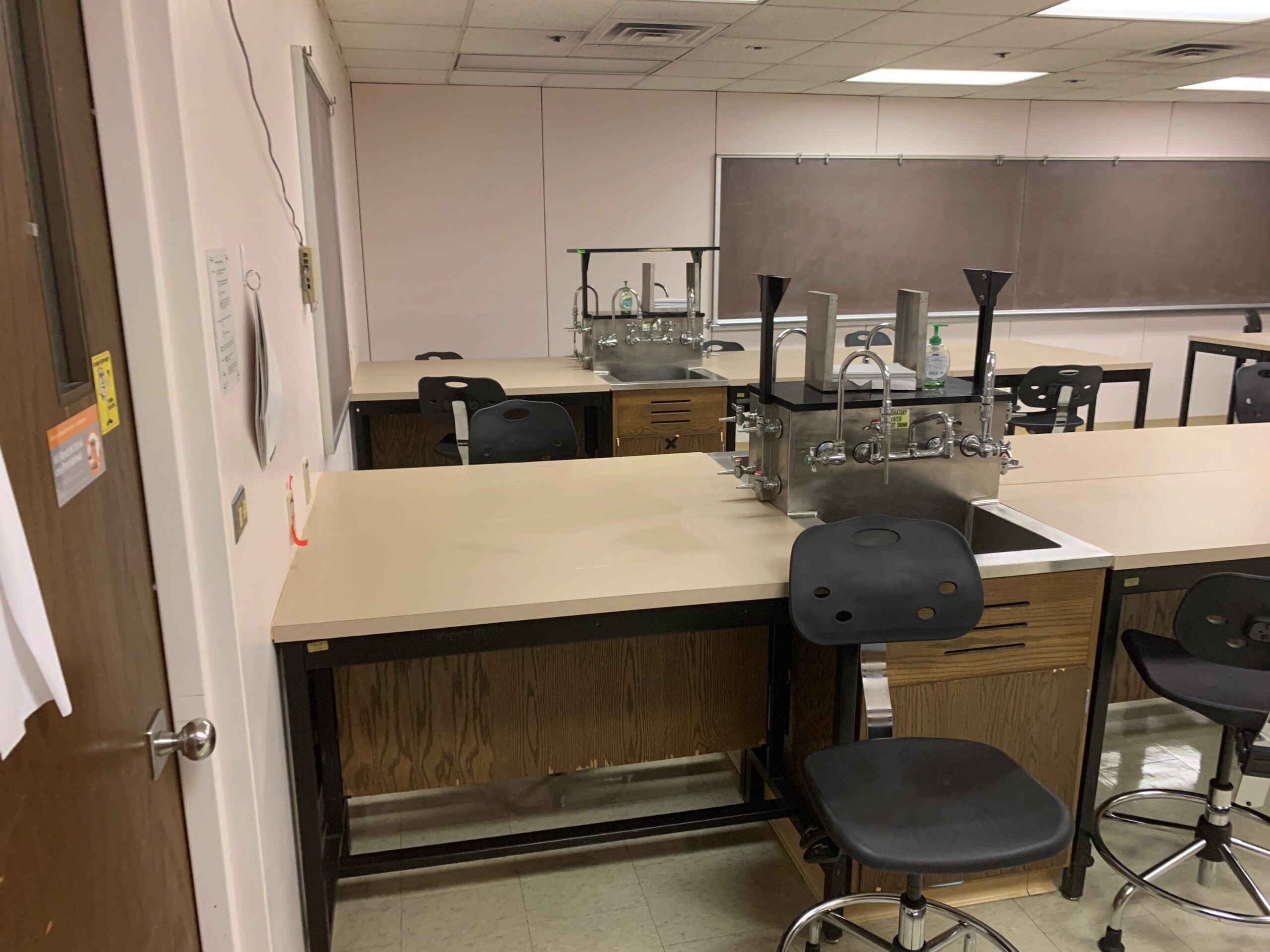
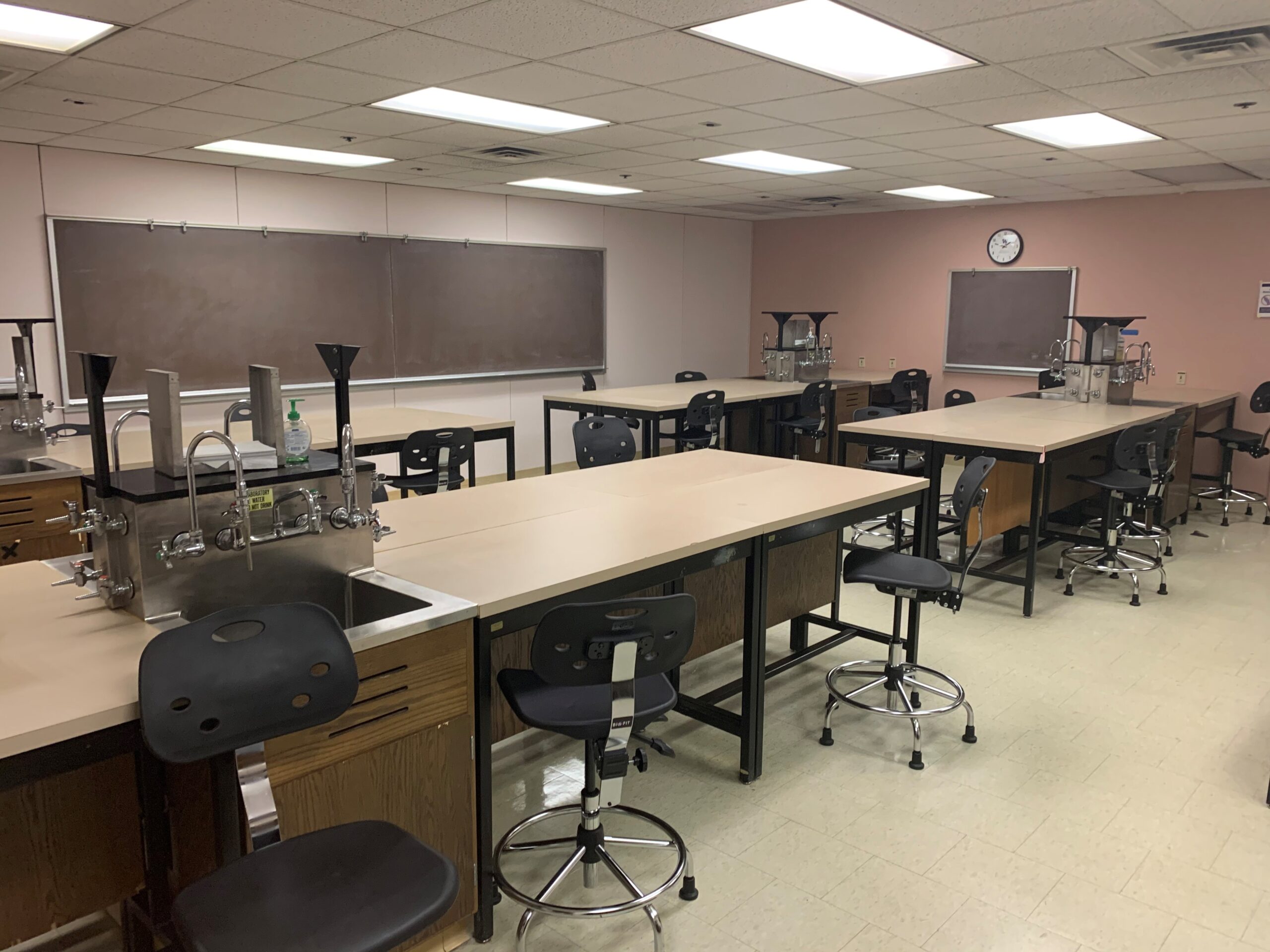
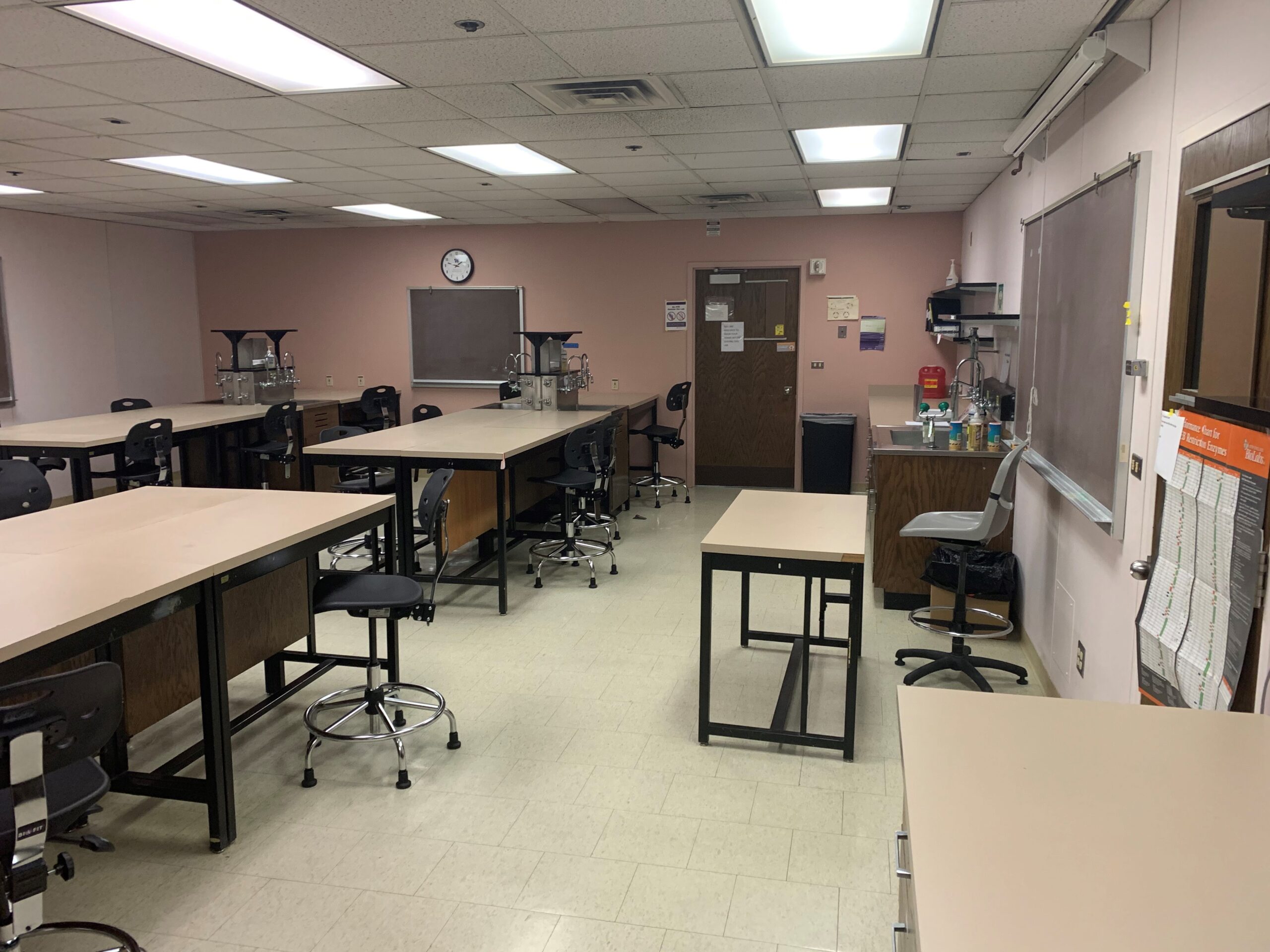
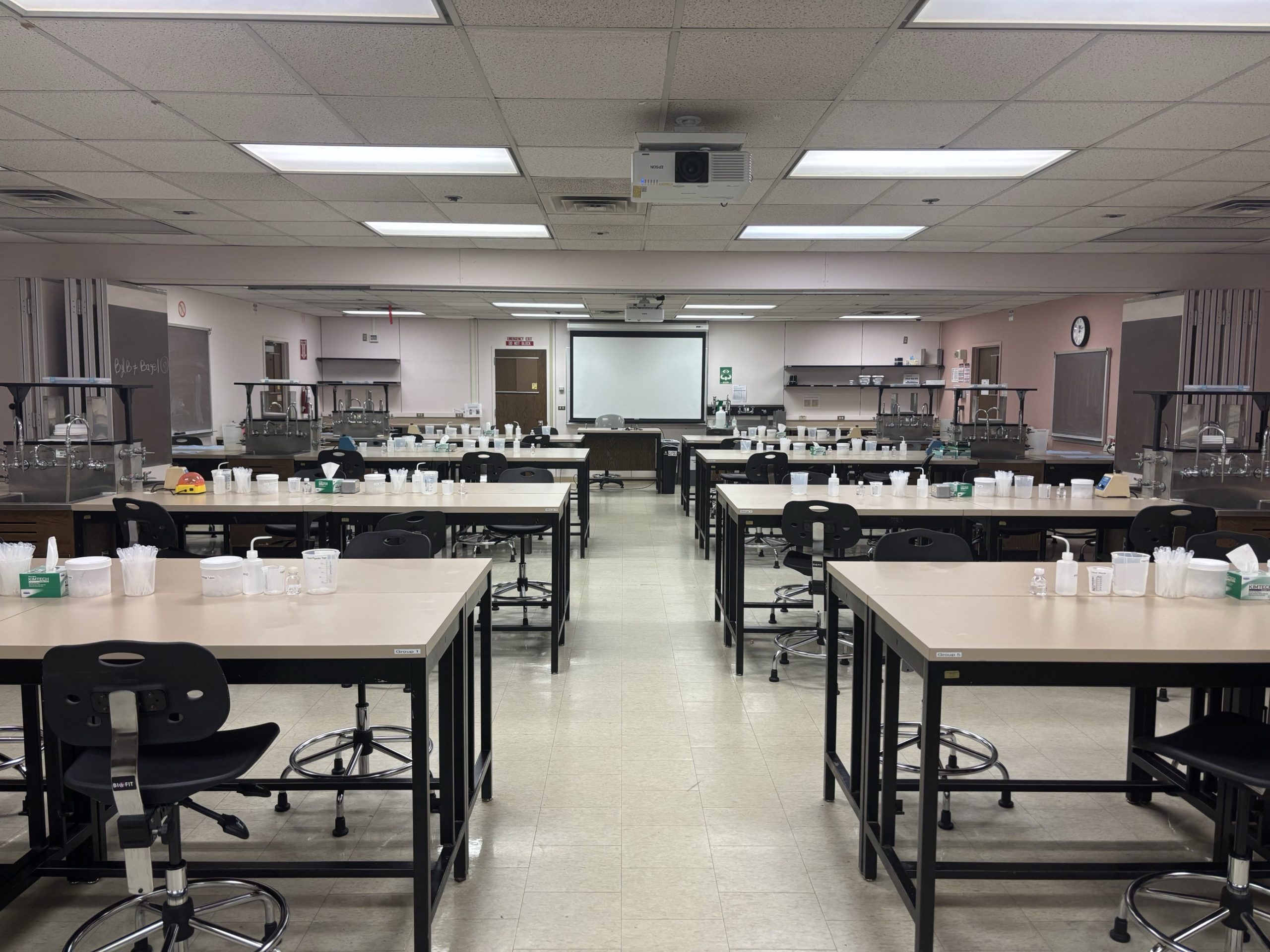
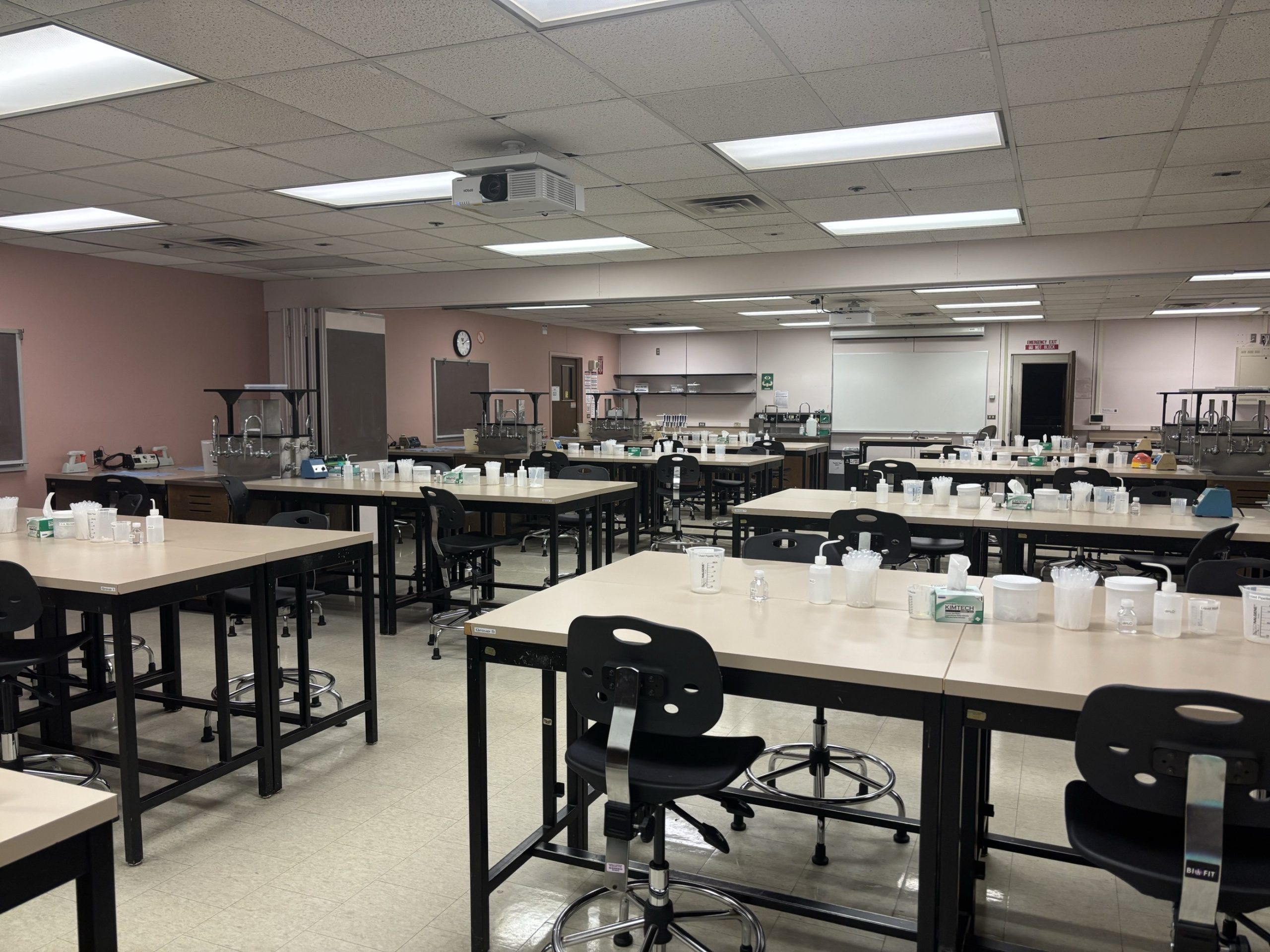
T 579, located in UWS Magnuson Health Sciences, is a general assignment Wet Lab with seating for 24 people.
HST T579 Features
HST T T579 Features
Location: Health Sciences Building T-wingThis room requires a key from Health Sciences Building Management. After you make a reservation, keys must be requested in advance via the Health Sciences Key Checkout Request .
24-person seating capacity
Fixed tables and adjustable height stools
Chalkboards
Laser projector
Connection types: HDMI w/ adaptor ring | VGA
Food and drink are NOT permitted in this space.
T 578, located in UWS Magnuson Health Sciences, is a general assignment Wet Lab with seating for 24 people.
HST T578 Features
HST T 578 Features
Location: Health Sciences Building T-wingThis room requires a key from Health Sciences Building Management. After you make a reservation, keys must be requested in advance via the Health Sciences Key Checkout Request .
24-person seating capacity
Fixed tables and adjustable height stools
Chalkboards
Food and drink are NOT permitted in this space.
T 568-74, located in UWS Magnuson Health Sciences, is a general assignment Wet Lab with seating for 48 people.
AV Tutorials
AV Tutorial
VIDEO
Basic Instructions
Turn on the room by touching the touch panel
Connect your device with the HDMI cable with adaptors to fit your device
Select Laptop or Wireless
Select how you would like to display your device on the touch panel
You can adjust the volume of your device with the program volume
If you are using mics, the mic tab on the bottom right will show you
Make sure to select shut down when you are done with the space
HST T568-74 Features
HST T T568-74 Features
Location: Health Sciences Building T-wingThis room requires a key from Health Sciences Building Management. After you make a reservation, keys must be requested in advance via the Health Sciences Key Checkout Request .
48-person seating capacity
A sliding partition may be closed to separate the space into two labs seating 24 people each
Fixed tables and adjustable height stools
Chalkboards
Laser projector (each side of the room)
Connection types: HDMI w/adaptor ring
Food and drink are NOT permitted in this space.
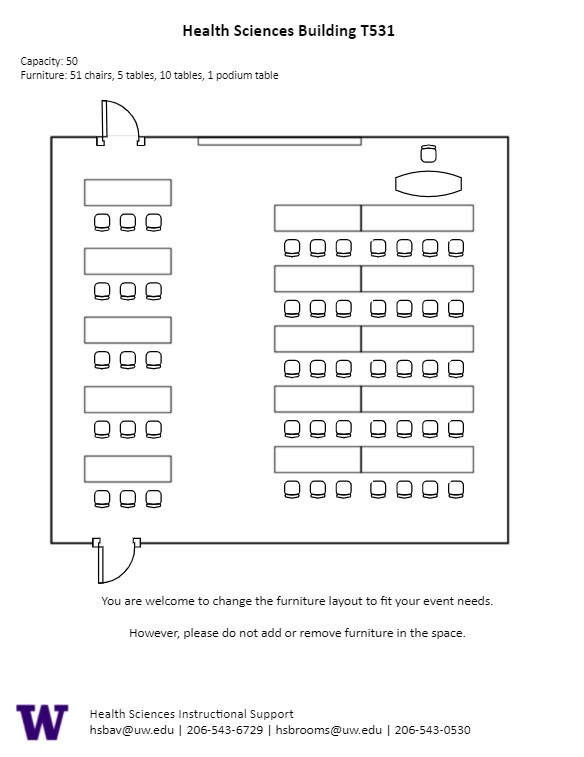
T 531, located in UWS Magnuson Health Sciences, is a general assignment classroom with seating for 50 people.
AV Tutorials
AV Tutorial
VIDEO
Basic Instructions
Turn on the room by touching the touch panel
Connect your device with the HDMI cable with adaptors to fit your device
Select Laptop or Wireless
Select how you would like to display your device on the touch panel
You can adjust the volume of your device with the program volume
If you are using mics, the mic tab on the bottom right will show you
Make sure to select shut down when you are done with the space
Wireless
VIDEO
Windows Devices
Press Windows + K on your keyboard to open wireless display options
Select the room you’re in
Enter the 4-digit code on the screen
Apple Devices
Connect through Apple Airplay by going to the top right and select the Control Center
Select Screen Mirror
Select the room you are in
Input the 4-digit code that pops up on the room screen
Unable to Connect through Airplay
Download the Mersive Solstice app if not already installed
Open the Mersive Solstice app
There will be a pop-up that will ask for access to screen record, select Accept
Input the IP address of the Solstice pod into your app
Input the 4-digit code that pops up on the room screen
Choose what content you want to display into the room
AV Bridge
Instructions for Zoom
Plug in the USB cable into your device
Once Zoom is opened up, click on the arrow by the camera
Select AV Bridge for the camera in the room
Click on the arrow by the microphone and select AV Bridge input for microphone
For the speaker, select Extron or Crestron
To confirm that the audio is working properly, select Test Speaker & Microphone
Instructions for Panopto
Plug in the USB cable into your device
Once Panopto is opened up, click on the video input tab
Select AV Bridge for the camera in the room
Click on the audio input tab
Select AV Bridge for the audio input
For additional information or assistance with Zoom or Panopto, please email UW-IT at help@uw.edu or call them at 206-221-5000.
How to Lock the Podium
Unlock
Insert the key and turn left
Door(s) should unlock and can be opened
Lock
Close the door(s)
Turn the key back to its original position
HST T531 Features
HST T 531 Features
Location: Health Sciences Building T-wing
50-person seating capacity
Rolling tables and chairs
Rolling podium/desk
Whiteboard
Laser projector
Connection types: HDMI w/adaptor ring | wireless video
A/V bridge
Assisted listening device (available upon request)
Ceiling mounted cameras
Digital document camera
Microphones:
One (1) wireless lavalier (podium key required)
One (1) wireless handheld (podium key required)
Four (4) wireless boundary microphones (podium key required)
Food and drink are NOT permitted in this space.
T 530, located in UWS Magnuson Health Sciences, is a general assignment classroom with seating for 50 people.
AV Tutorials
AV Tutorial
VIDEO
Basic Instructions
Turn on the room by touching the touch panel
Connect your device with the HDMI cable with adaptors to fit your device
Select Laptop or Wireless
Select how you would like to display your device on the touch panel
You can adjust the volume of your device with the program volume
If you are using mics, the mic tab on the bottom right will show you
Make sure to select shut down when you are done with the space
Wireless
VIDEO
Windows Devices
Press Windows + K on your keyboard to open wireless display options
Select the room you’re in
Enter the 4-digit code on the screen
Apple Devices
Connect through Apple Airplay by going to the top right and select the Control Center
Select Screen Mirror
Select the room you are in
Input the 4-digit code that pops up on the room screen
Unable to Connect through Airplay
Download the Mersive Solstice app if not already installed
Open the Mersive Solstice app
There will be a pop-up that will ask for access to screen record, select Accept
Input the IP address of the Solstice pod into your app
Input the 4-digit code that pops up on the room screen
Choose what content you want to display into the room
AV Bridge
Instructions for Zoom
Plug in the USB cable into your device
Once Zoom is opened up, click on the arrow by the camera
Select AV Bridge for the camera in the room
Click on the arrow by the microphone and select AV Bridge input for microphone
For the speaker, select Extron or Crestron
To confirm that the audio is working properly, select Test Speaker & Microphone
Instructions for Panopto
Plug in the USB cable into your device
Once Panopto is opened up, click on the video input tab
Select AV Bridge for the camera in the room
Click on the audio input tab
Select AV Bridge for the audio input
For additional information or assistance with Zoom or Panopto, please email UW-IT at help@uw.edu or call them at 206-221-5000.
How to Lock the Podium
Unlock
Insert the key and turn left
Door(s) should unlock and can be opened
Lock
Close the door(s)
Turn the key back to its original position
HST T530 Features
HST T 530 Features
Location: Health Sciences Building T-wing
50-person seating capacity
Rolling tables and chairs
Rolling podium/desk
Whiteboard
Laser projector
Connection types: HDMI w/adaptor ring | wireless video
A/V bridge
Assisted listening device (available upon request)
Ceiling mounted cameras
Digital document camera
Microphones:
One (1) wireless lavalier (podium key required)
One (1) wireless handheld (podium key required)
Four (4) wireless boundary microphones (podium key required)
Food and drink are NOT permitted in this space.
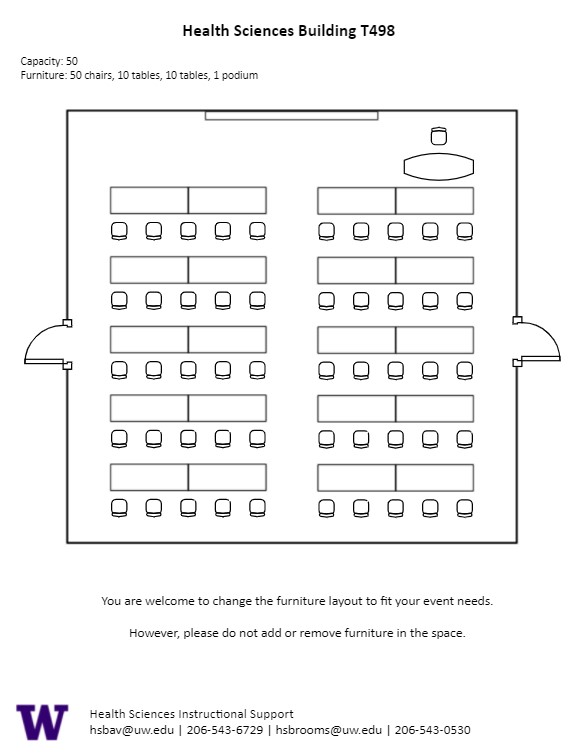
T 498, located in UWS Magnuson Health Sciences, is a general assignment classroom with seating for 50 people.
AV Tutorials
AV Tutorial
VIDEO
Basic Instructions
Turn on the room by touching the touch panel
Connect your device with the HDMI cable with adaptors to fit your device
Select Laptop or Wireless
Select how you would like to display your device on the touch panel
You can adjust the volume of your device with the program volume
If you are using mics, the mic tab on the bottom right will show you
Make sure to select shut down when you are done with the space
Wireless
VIDEO
Windows Devices
Press Windows + K on your keyboard to open wireless display options
Select the room you’re in
Enter the 4-digit code on the screen
Apple Devices
Connect through Apple Airplay by going to the top right and select the Control Center
Select Screen Mirror
Select the room you are in
Input the 4-digit code that pops up on the room screen
Unable to Connect through Airplay
Download the Mersive Solstice app if not already installed
Open the Mersive Solstice app
There will be a pop-up that will ask for access to screen record, select Accept
Input the IP address of the Solstice pod into your app
Input the 4-digit code that pops up on the room screen
Choose what content you want to display into the room
AV Bridge
Instructions for Zoom
Plug in the USB cable into your device
Once Zoom is opened up, click on the arrow by the camera
Select AV Bridge for the camera in the room
Click on the arrow by the microphone and select AV Bridge input for microphone
For the speaker, select Extron or Crestron
To confirm that the audio is working properly, select Test Speaker & Microphone
Instructions for Panopto
Plug in the USB cable into your device
Once Panopto is opened up, click on the video input tab
Select AV Bridge for the camera in the room
Click on the audio input tab
Select AV Bridge for the audio input
For additional information or assistance with Zoom or Panopto, please email UW-IT at help@uw.edu or call them at 206-221-5000.
How to Lock the Podium
Unlock
Insert the key and turn left
Door(s) should unlock and can be opened
Lock
Close the door(s)
Turn the key back to its original position
HST T498 Features
HST T 498 Features
Location: Health Sciences Building T-wing
50-person seating capacity
Rolling tables and chairs
Rolling podium/desk
Whiteboard
Laser projector
Connection types: HDMI w/adaptor ring | wireless video
A/V bridge
Assisted listening device (available upon request)
Camera directed toward podium
Document camera
Microphones:
One (1) Wireless lavalier (podium key required)
One (1) Wireless handheld (podium key required)
Four (4) Wireless boundary microphones (podium key required)
Food and drink are NOT permitted in this space.
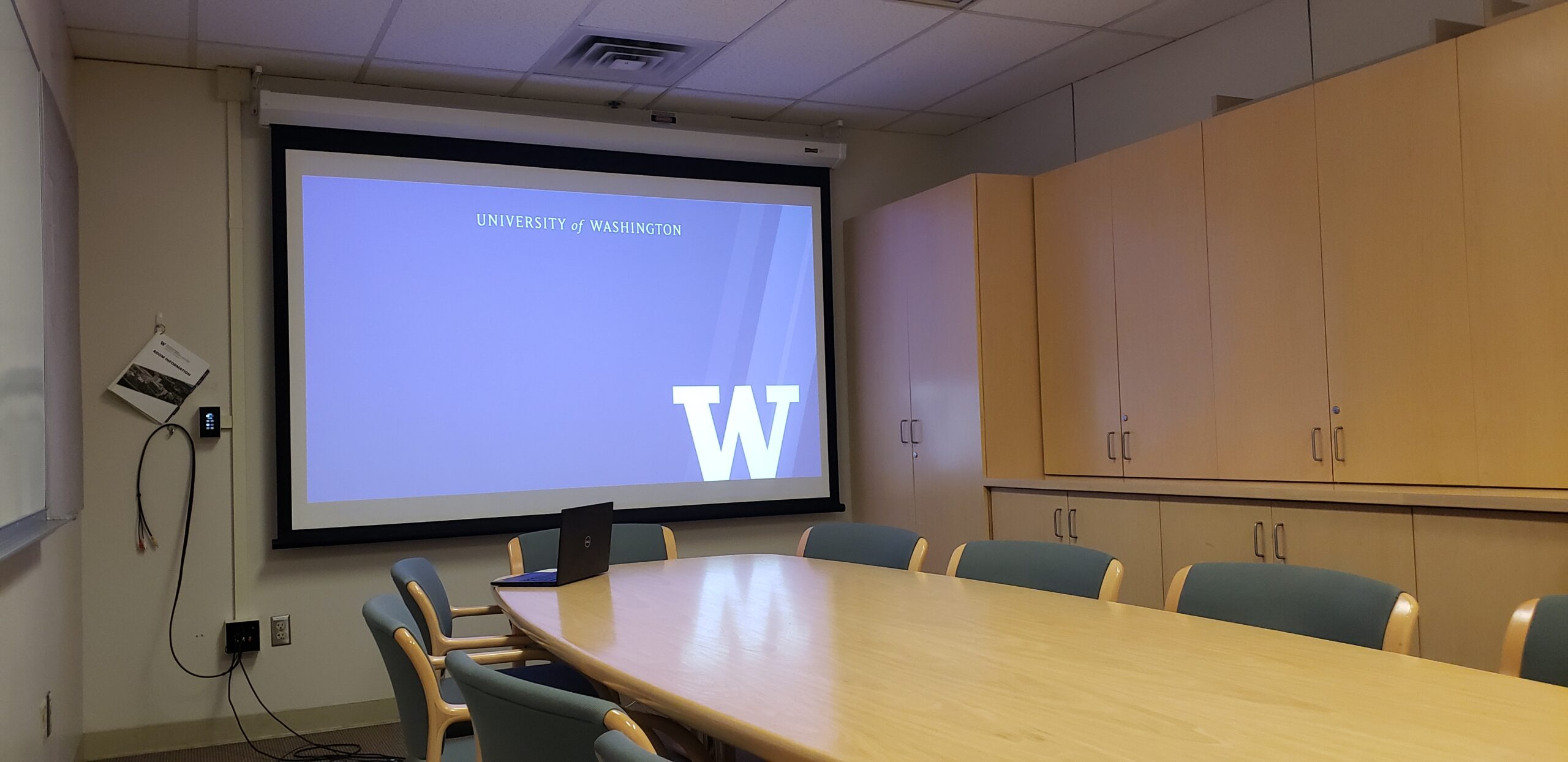
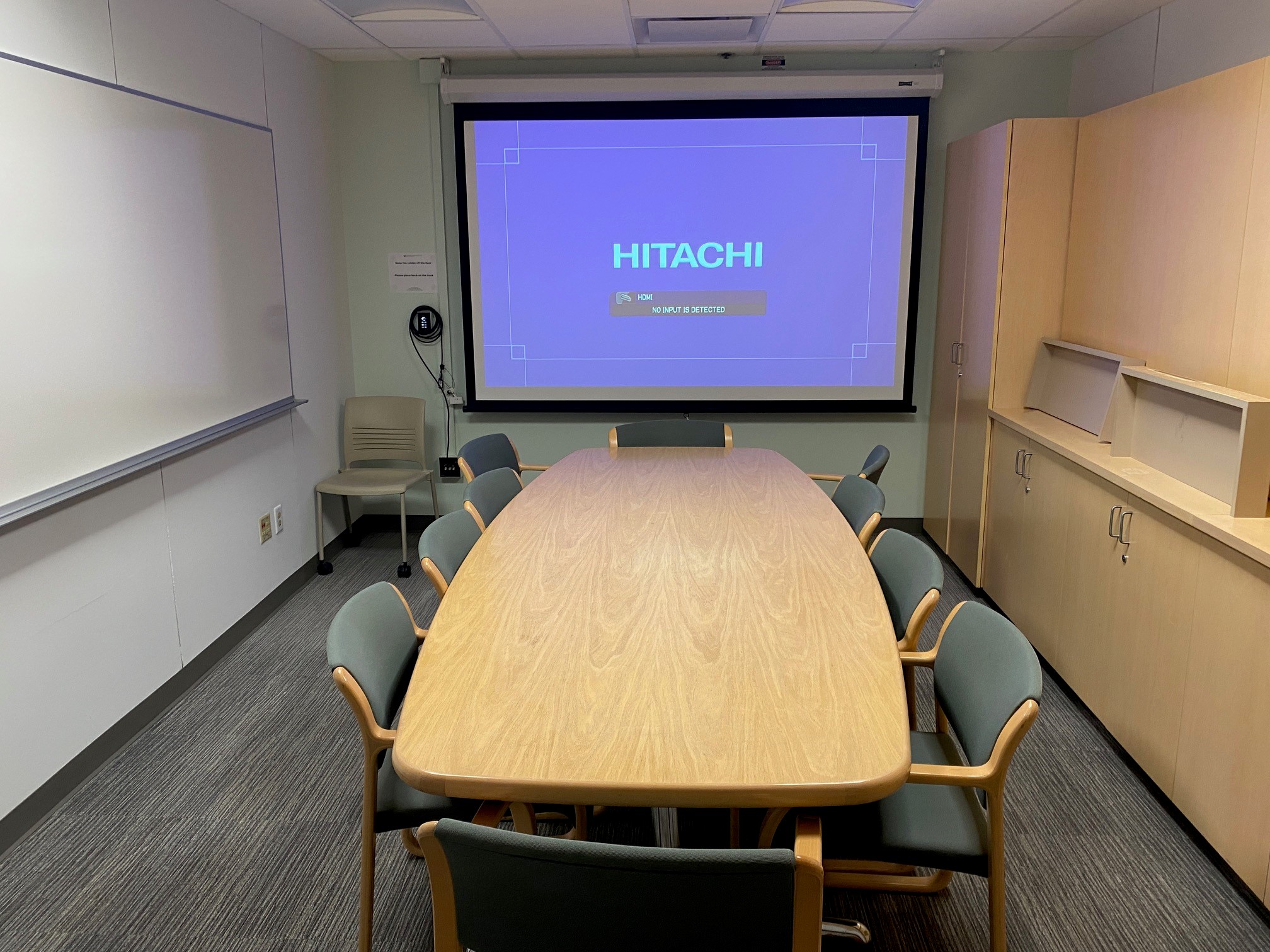
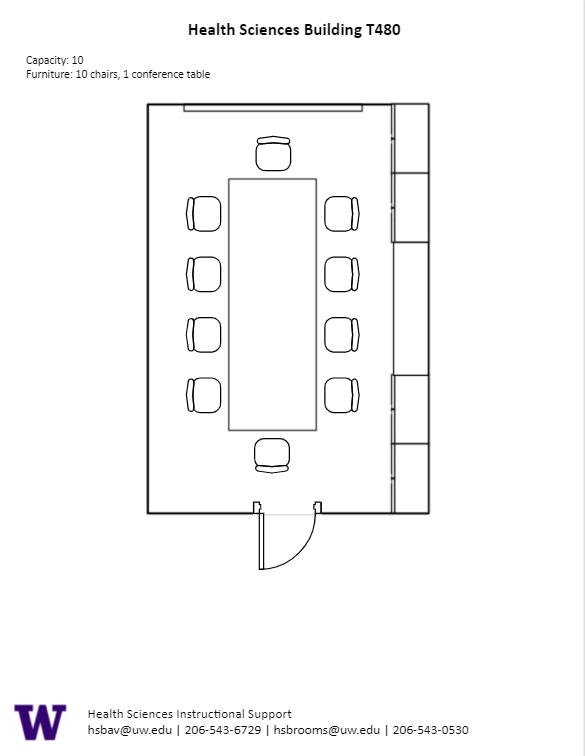
T 480, located in UWS Magnuson Health Sciences, is a general assignment classroom with seating for ten (10) people.
AV Tutorials
AV Tutorial
VIDEO
Basic Instructions
Turn on the room by touching the touch panel
Connect your device with the HDMI cable with adaptors to fit your device
Select Laptop or Wireless
Select how you would like to display your device on the touch panel
You can adjust the volume of your device with the program volume
If you are using mics, the mic tab on the bottom right will show you
Make sure to select shut down when you are done with the space
HST T480 Features
HST T 480 Features
Location: Health Sciences Building T-wingThis room requires a key from Health Sciences Building Management. After you make a reservation, keys must be requested in advance via the Health Sciences Key Checkout Request .
Ten-person seating capacity
Conference table and chairs
Whiteboard
Laser projector
Connection type: HDMI w/adaptor ring
Food and drink are NOT permitted in this space.