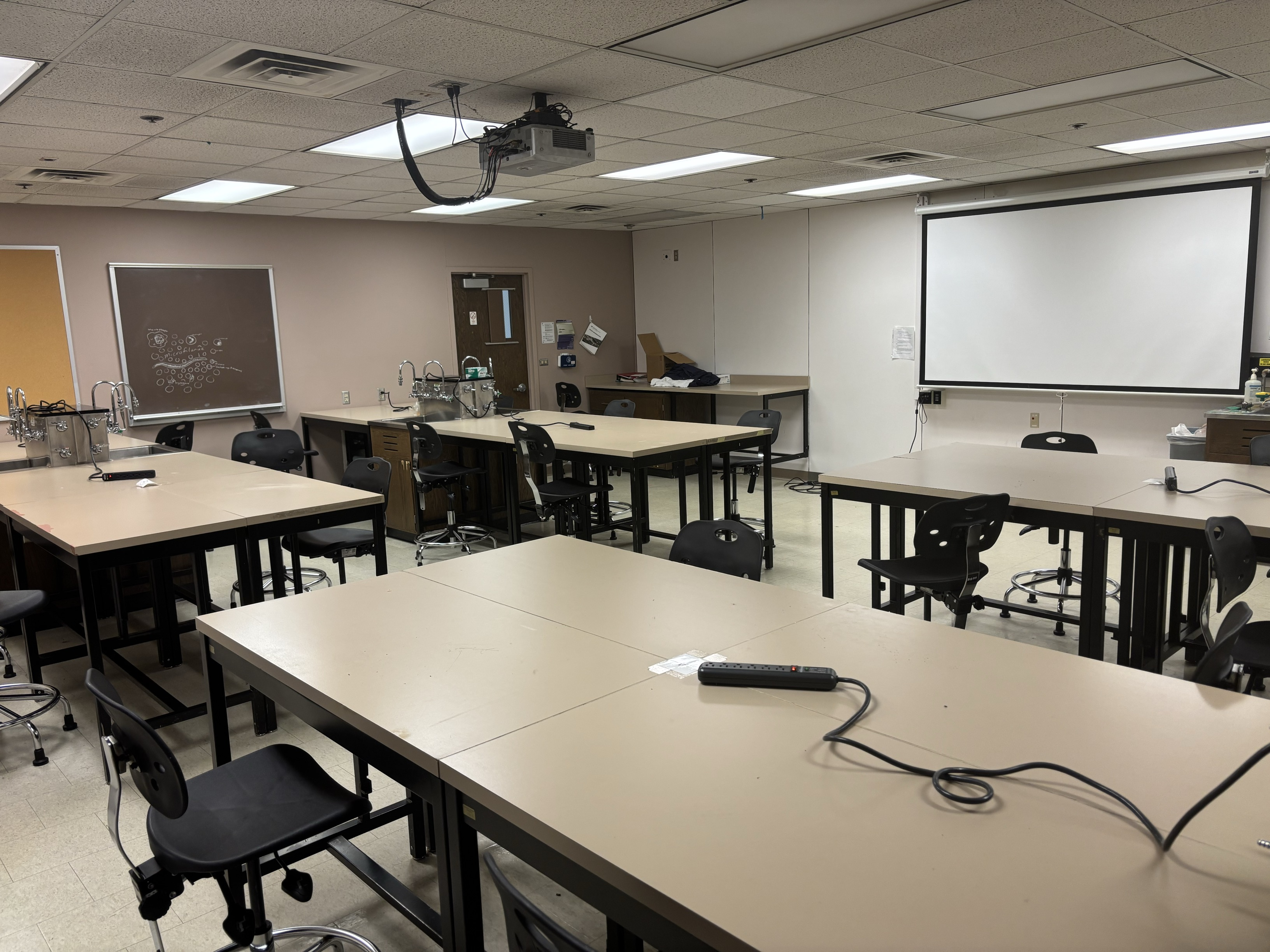
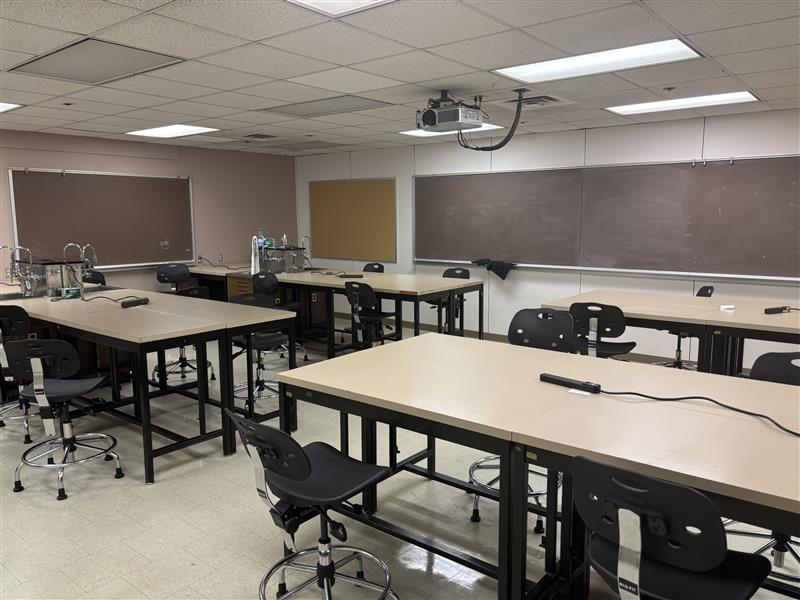
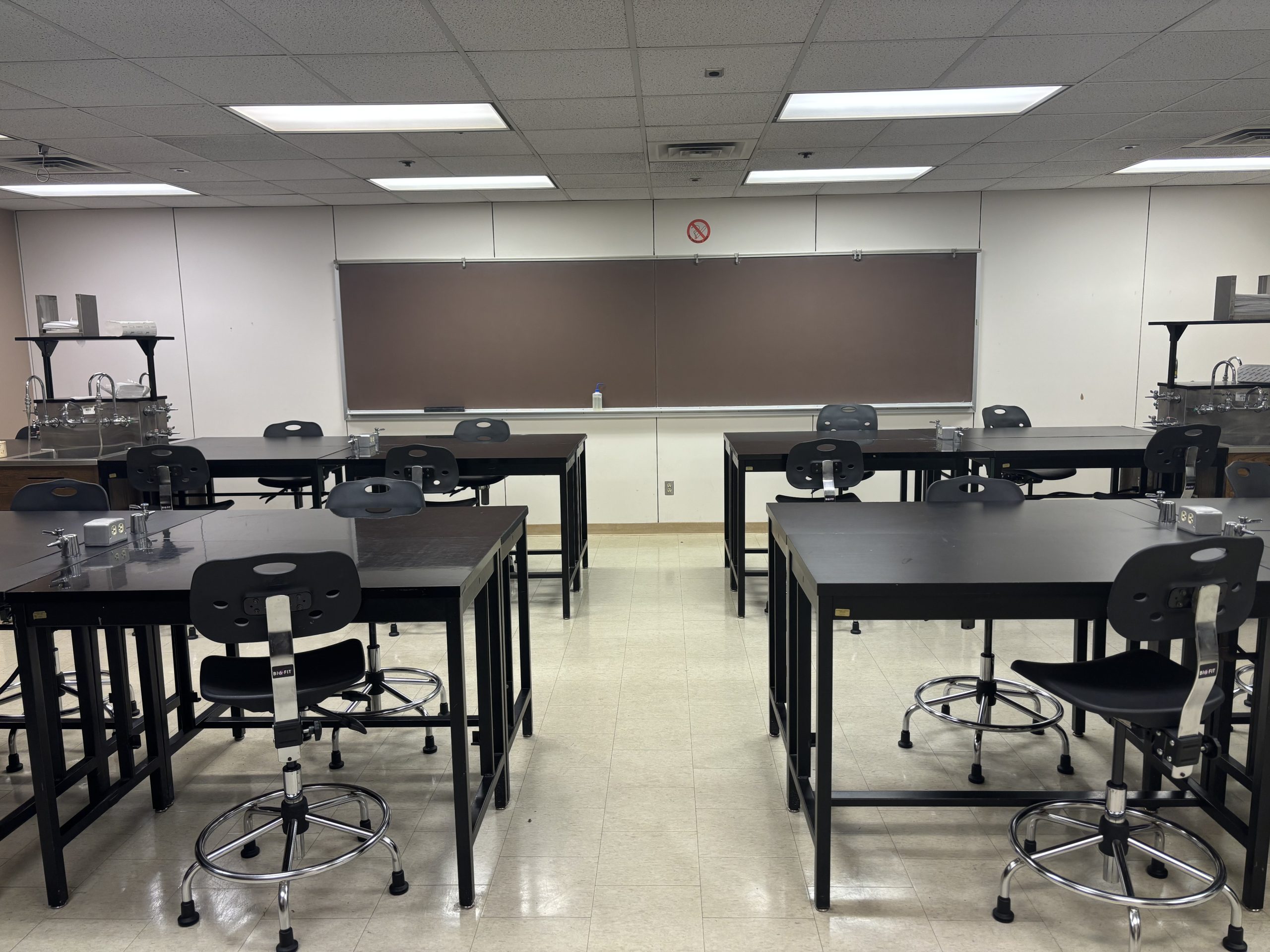
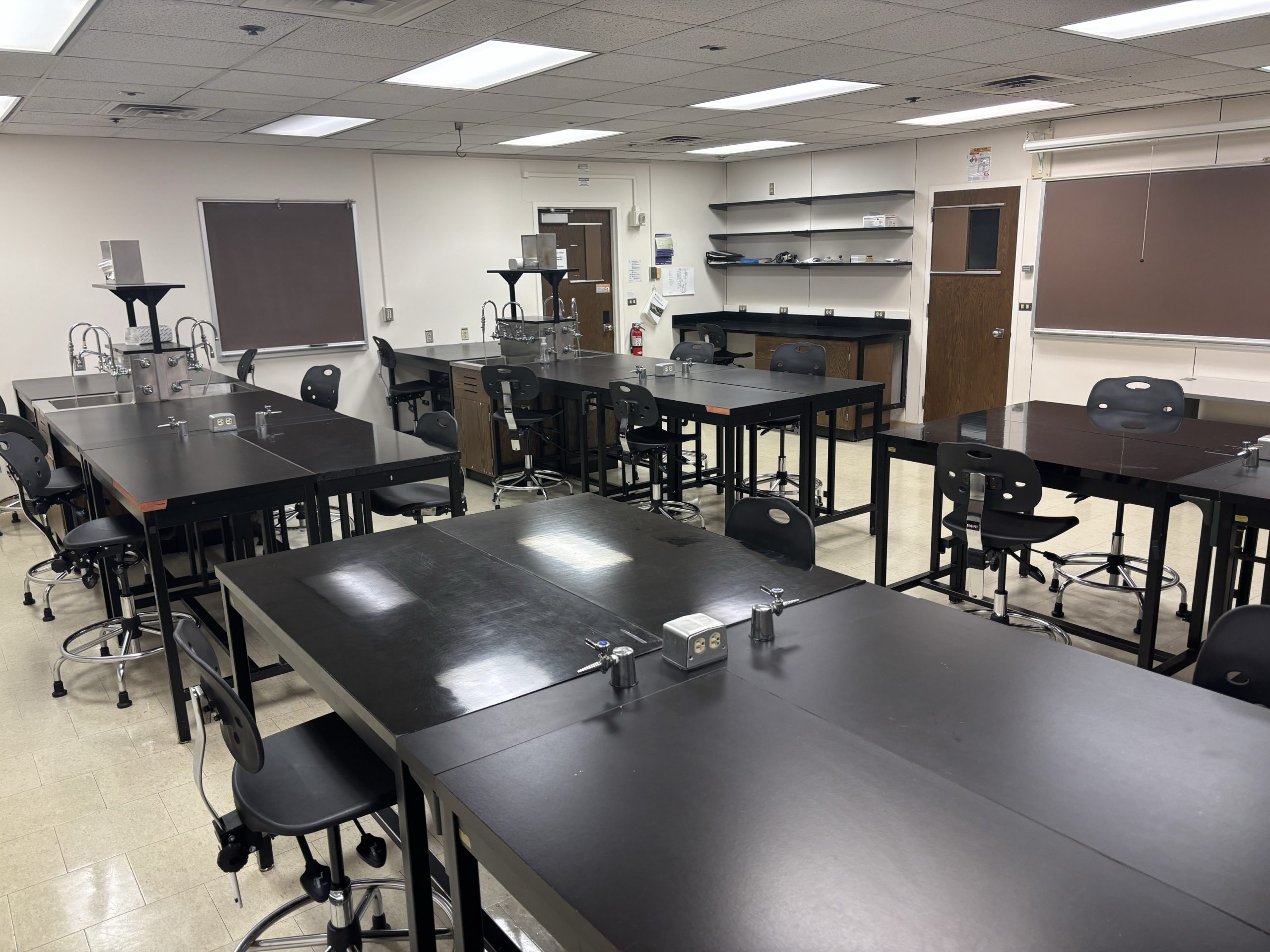
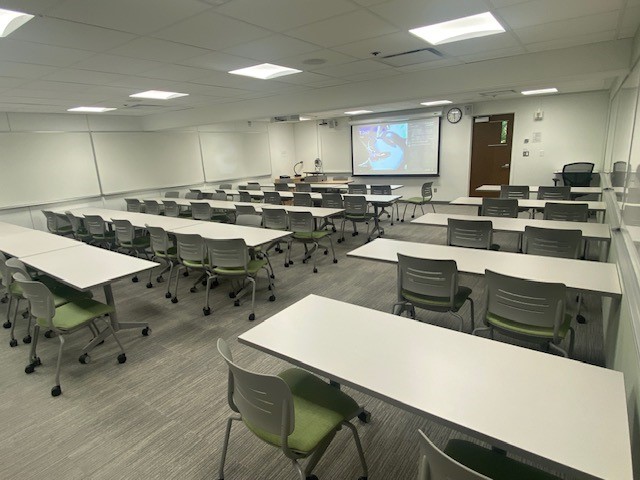
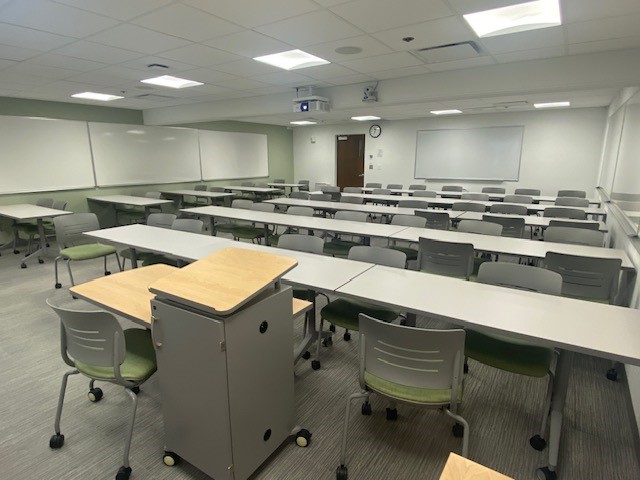
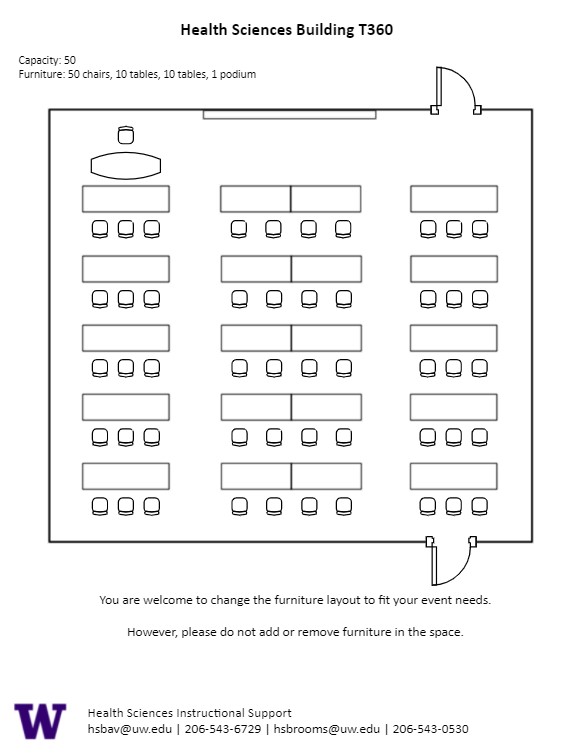
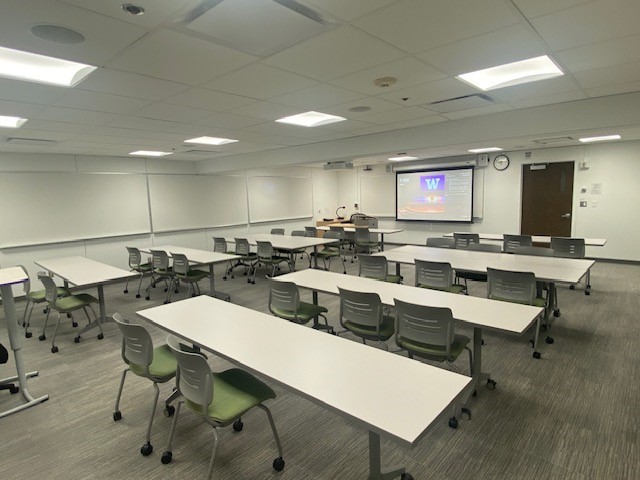
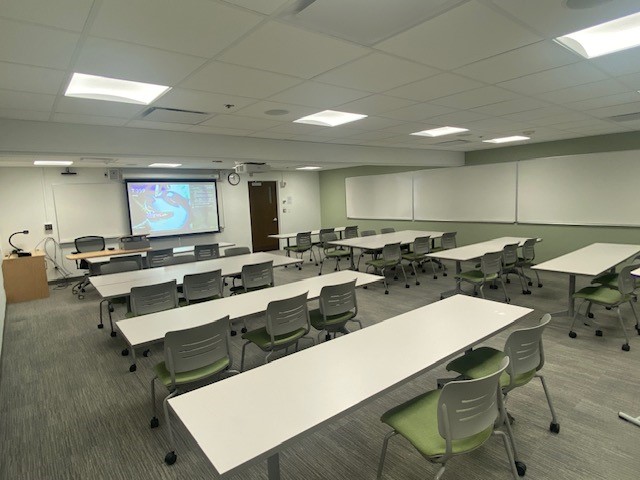
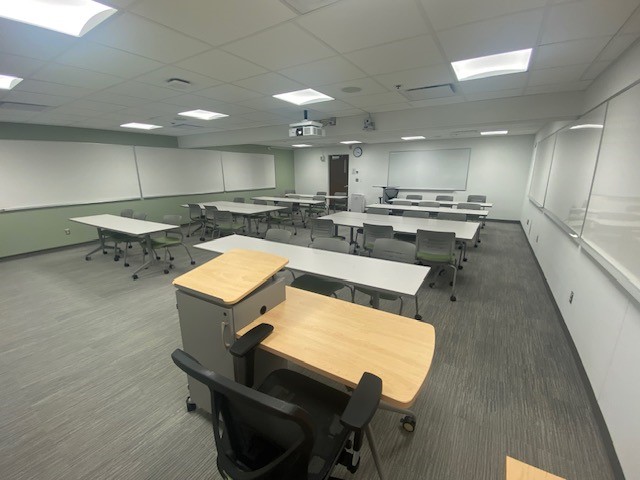
T 479, located in UWS Magnuson Health Sciences, is a general assignment Wet Lab with seating for 24 people.
AV Tutorials
AV Tutorial
VIDEO
Basic Instructions
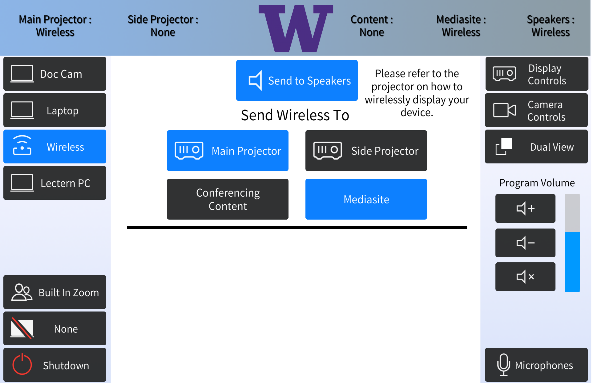
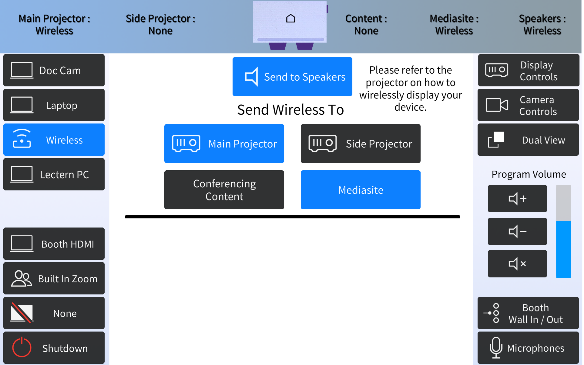
Turn on the room by touching the touch panel
Connect your device with the HDMI cable with adaptors to fit your device
Select Laptop or Wireless
Select how you would like to display your device on the touch panel
You can adjust the volume of your device with the program volume
If you are using mics, the mic tab on the bottom right will show you
Make sure to select shut down when you are done with the space
HST T479 Features
HST T 479 Features
Location: Health Sciences Building T-wingThis room requires a key from Health Sciences Building Management. After you make a reservation, keys must be requested in advance via the Health Sciences Key Checkout Request .
24-person seating capacity
Fixed tables and adjustable height stools
Chalkboards
Laser projector
Connection type: VGA
Food and drink are NOT permitted in this space.
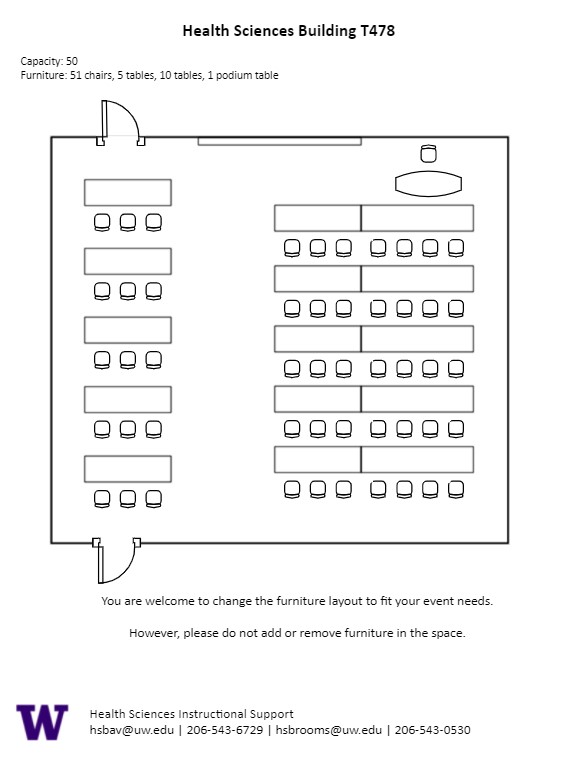
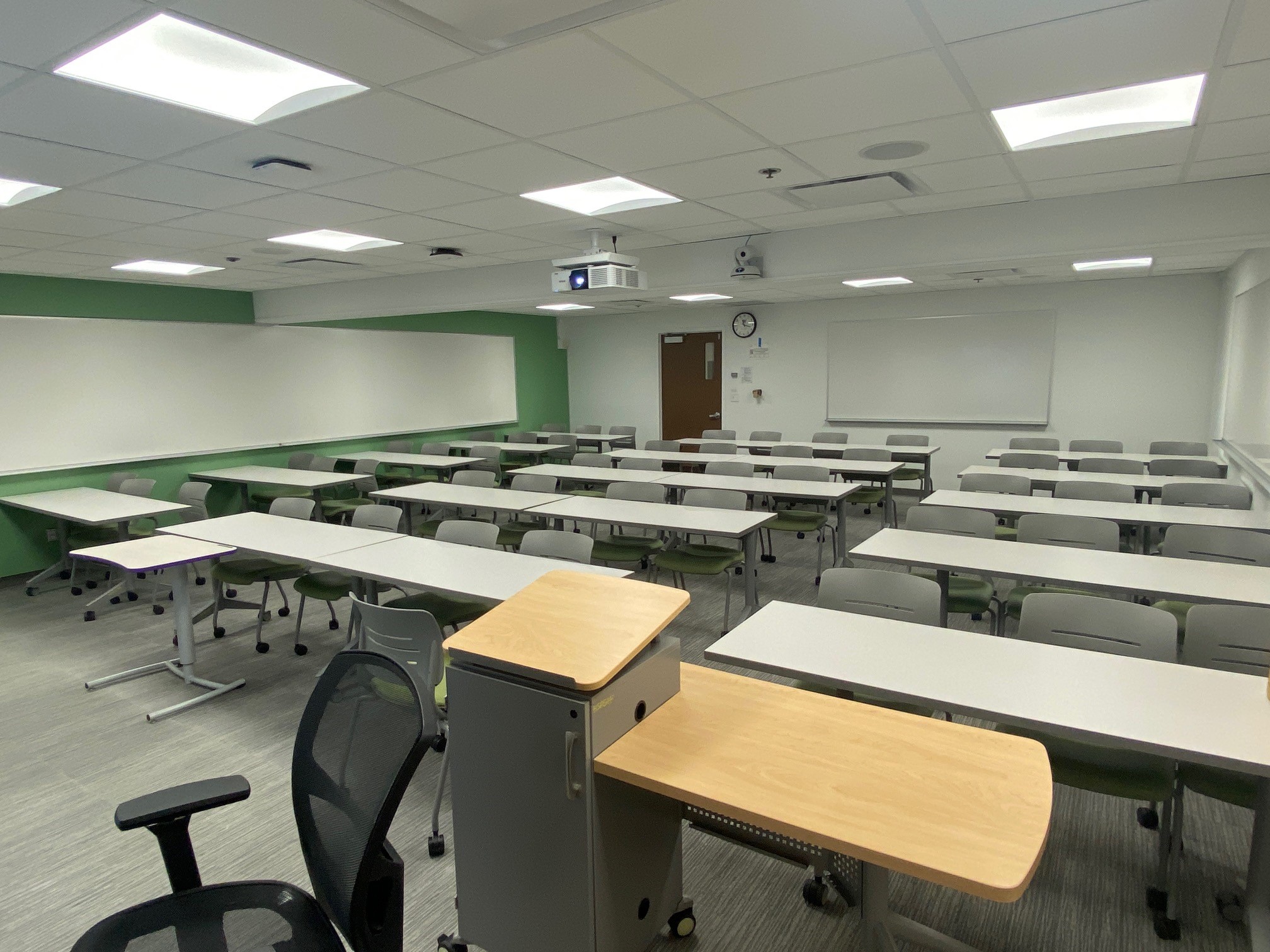
T 478, located in UWS Magnuson Health Sciences, is a general assignment classroom with seating for 50 people.
AV Tutorials
AV Tutorial
VIDEO
Basic Instructions
Turn on the room by touching the touch panel
Connect your device with the HDMI cable with adaptors to fit your device
Select Laptop or Wireless
Select how you would like to display your device on the touch panel
You can adjust the volume of your device with the program volume
If you are using mics, the mic tab on the bottom right will show you
Make sure to select shut down when you are done with the space
Wireless
VIDEO
Windows Devices
Press Windows + K on your keyboard to open wireless display options
Select the room you’re in
Enter the 4-digit code on the screen
Apple Devices
Connect through Apple Airplay by going to the top right and select the Control Center
Select Screen Mirror
Select the room you are in
Input the 4-digit code that pops up on the room screen
Unable to Connect through Airplay
Download the Mersive Solstice app if not already installed
Open the Mersive Solstice app
There will be a pop-up that will ask for access to screen record, select Accept
Input the IP address of the Solstice pod into your app
Input the 4-digit code that pops up on the room screen
Choose what content you want to display into the room
AV Bridge
Instructions for Zoom
Plug in the USB cable into your device
Once Zoom is opened up, click on the arrow by the camera
Select AV Bridge for the camera in the room
Click on the arrow by the microphone and select AV Bridge input for microphone
For the speaker, select Extron or Crestron
To confirm that the audio is working properly, select Test Speaker & Microphone
Instructions for Panopto
Plug in the USB cable into your device
Once Panopto is opened up, click on the video input tab
Select AV Bridge for the camera in the room
Click on the audio input tab
Select AV Bridge for the audio input
For additional information or assistance with Zoom or Panopto, please email UW-IT at help@uw.edu or call them at 206-221-5000.
How to Lock the Podium
Unlock
Insert the key and turn left
Door(s) should unlock and can be opened
Lock
Close the door(s)
Turn the key back to its original position
HST T478 Features
HST T 478 Features
Location: Health Sciences Building T-wing
50-person seating capacity
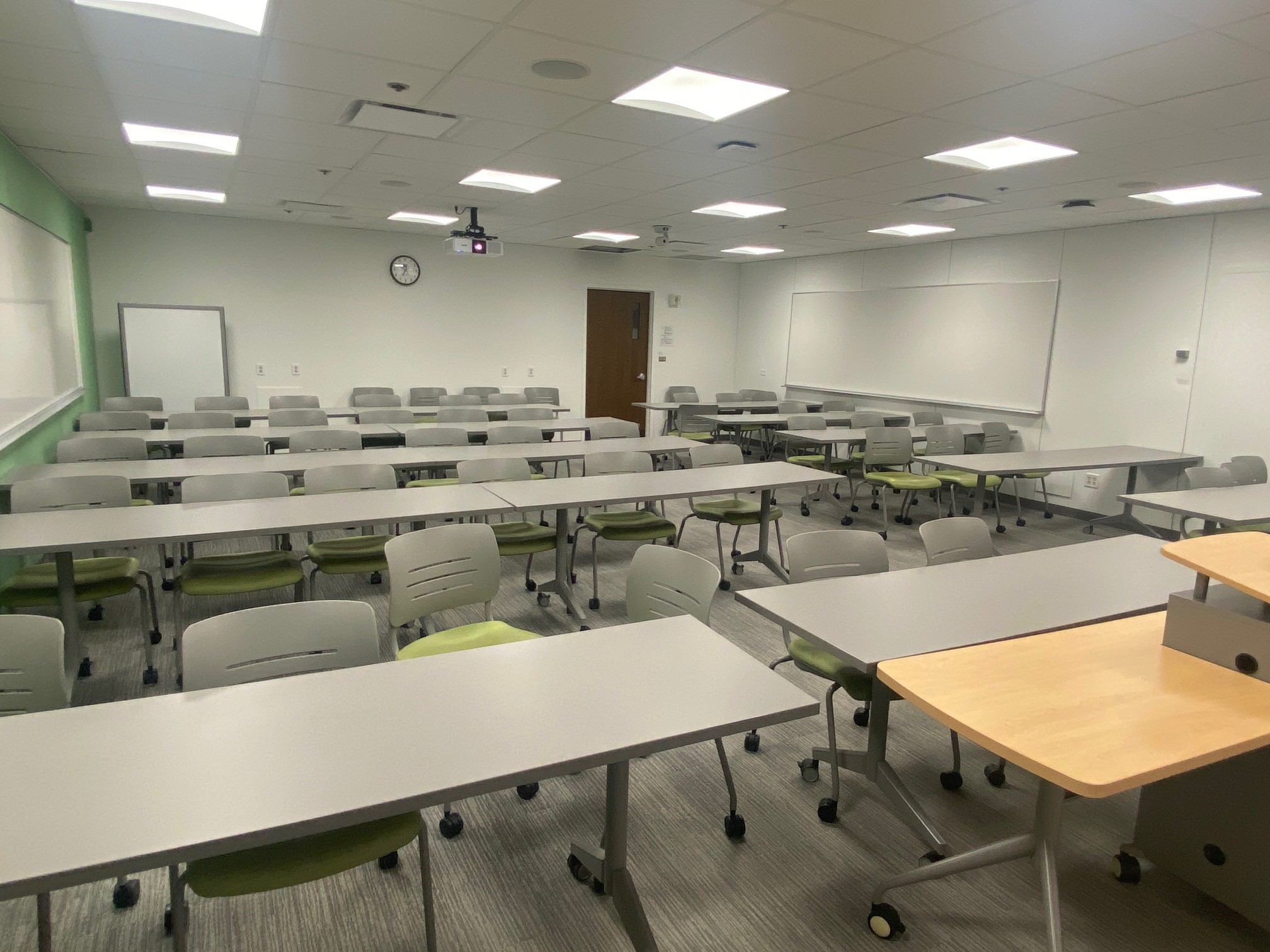
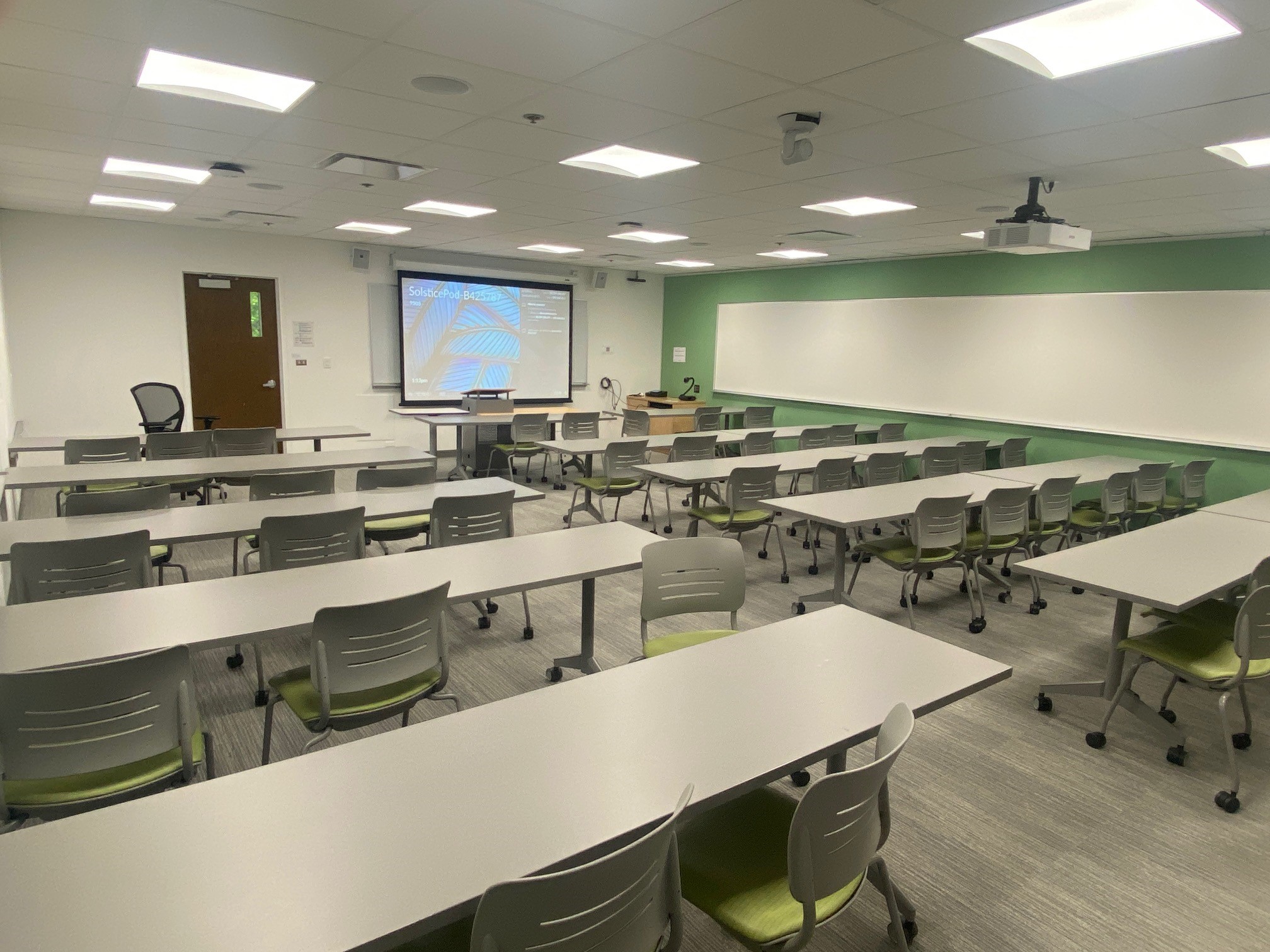
Rolling tables and chairs
Rolling spectrum podium
Whiteboards
Laser projector
Connection types: HDMI w/adaptor ring | wireless video
A/V bridge
Assisted listening device (available upon request)
Ceiling mounted cameras
Digital document camera
Microphones:
One (1) wireless lavalier (podium key required)
One (1) wireless handheld (podium key required)
Four (4) wireless boundary microphones (podium key required)
Food and drink are NOT permitted in this space.
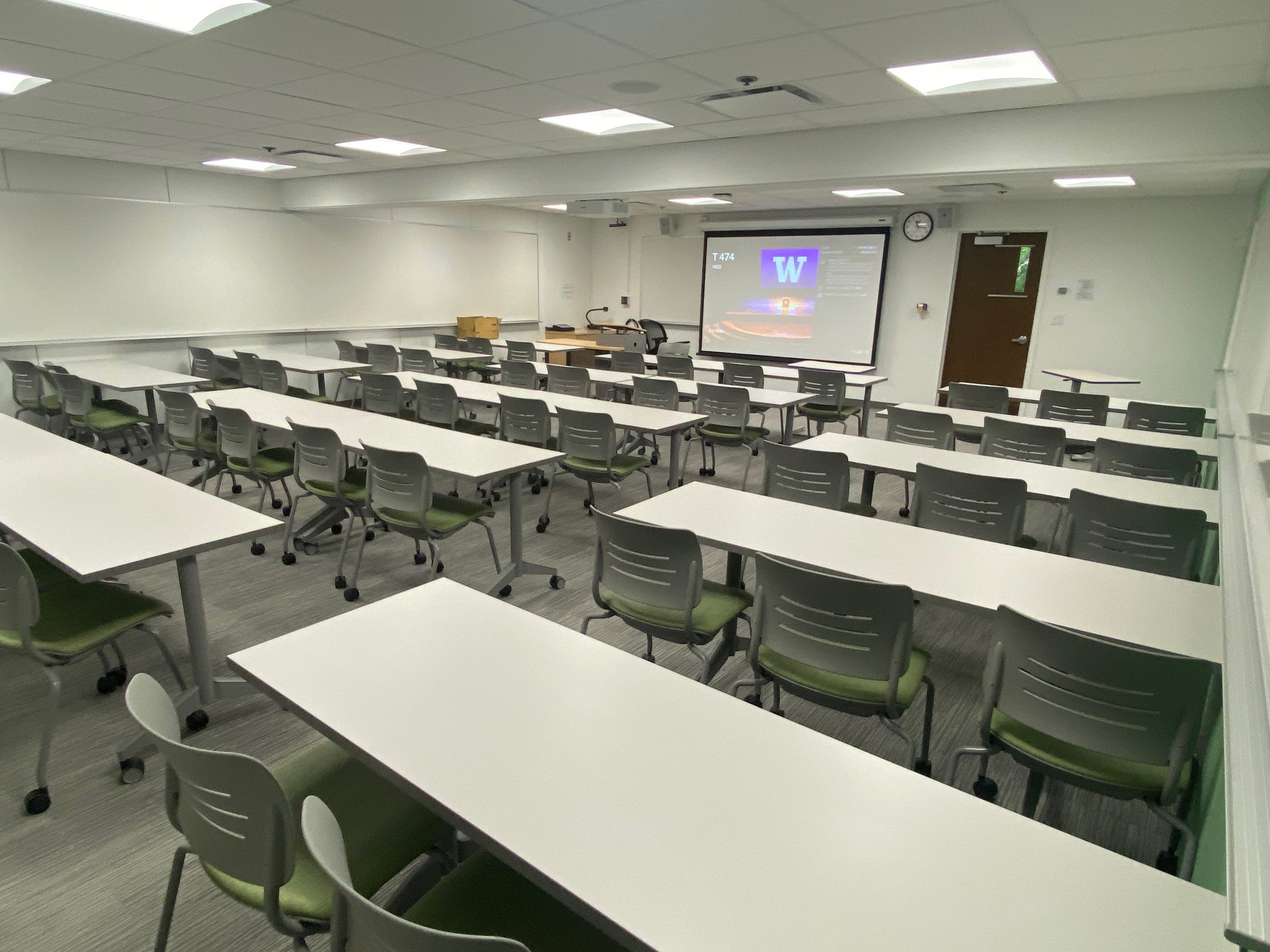
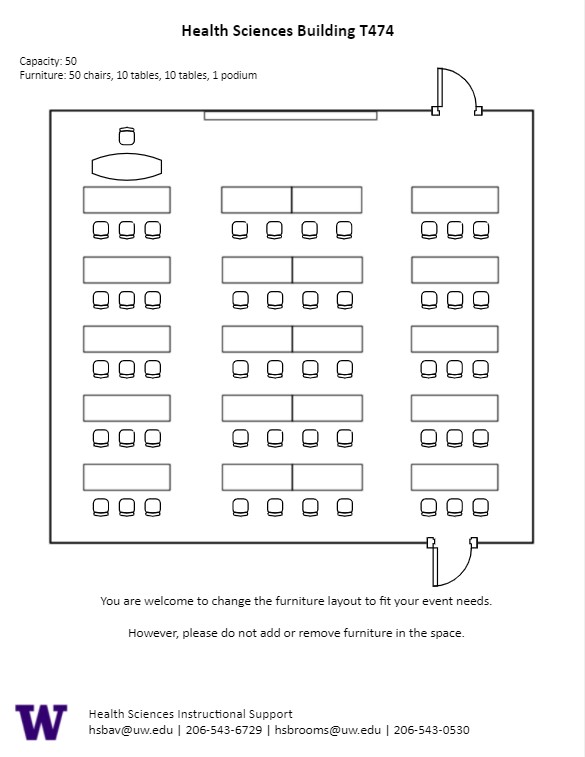
T 474, located in UWS Magnuson Health Sciences, is a general assignment classroom with seating for 50 people.
AV Tutorials
AV Tutorial
VIDEO
Basic Instructions
Turn on the room by touching the touch panel
Connect your device with the HDMI cable with adaptors to fit your device
Select Laptop or Wireless
Select how you would like to display your device on the touch panel
You can adjust the volume of your device with the program volume
If you are using mics, the mic tab on the bottom right will show you
Make sure to select shut down when you are done with the space
Wireless
VIDEO
Windows Devices
Press Windows + K on your keyboard to open wireless display options
Select the room you’re in
Enter the 4-digit code on the screen
Apple Devices
Connect through Apple Airplay by going to the top right and select the Control Center
Select Screen Mirror
Select the room you are in
Input the 4-digit code that pops up on the room screen
Unable to Connect through Airplay
Download the Mersive Solstice app if not already installed
Open the Mersive Solstice app
There will be a pop-up that will ask for access to screen record, select Accept
Input the IP address of the Solstice pod into your app
Input the 4-digit code that pops up on the room screen
Choose what content you want to display into the room
AV Bridge
Instructions for Zoom
Plug in the USB cable into your device
Once Zoom is opened up, click on the arrow by the camera
Select AV Bridge for the camera in the room
Click on the arrow by the microphone and select AV Bridge input for microphone
For the speaker, select Extron or Crestron
To confirm that the audio is working properly, select Test Speaker & Microphone
Instructions for Panopto
Plug in the USB cable into your device
Once Panopto is opened up, click on the video input tab
Select AV Bridge for the camera in the room
Click on the audio input tab
Select AV Bridge for the audio input
For additional information or assistance with Zoom or Panopto, please email UW-IT at help@uw.edu or call them at 206-221-5000.
How to Lock the Podium
Unlock
Insert the key and turn left
Door(s) should unlock and can be opened
Lock
Close the door(s)
Turn the key back to its original position
HST T474 Features
HST T 474 Features
Location: Health Sciences Building T-wing
50-person seating capacity
Rolling tables and chairs
Rolling spectrum podium
Whiteboards
Laser projector
Connection types: HDMI w/adaptor ring | wireless video
A/V bridge
Assisted listening device (available upon request)
Ceiling mounted cameras
Digital document camera
Microphones:
One (1) wireless lavalier (podium key required)
One (1) wireless handheld (podium key required)
Four (4) wireless boundary microphones (podium key required)
Food and drink are NOT permitted in this space.
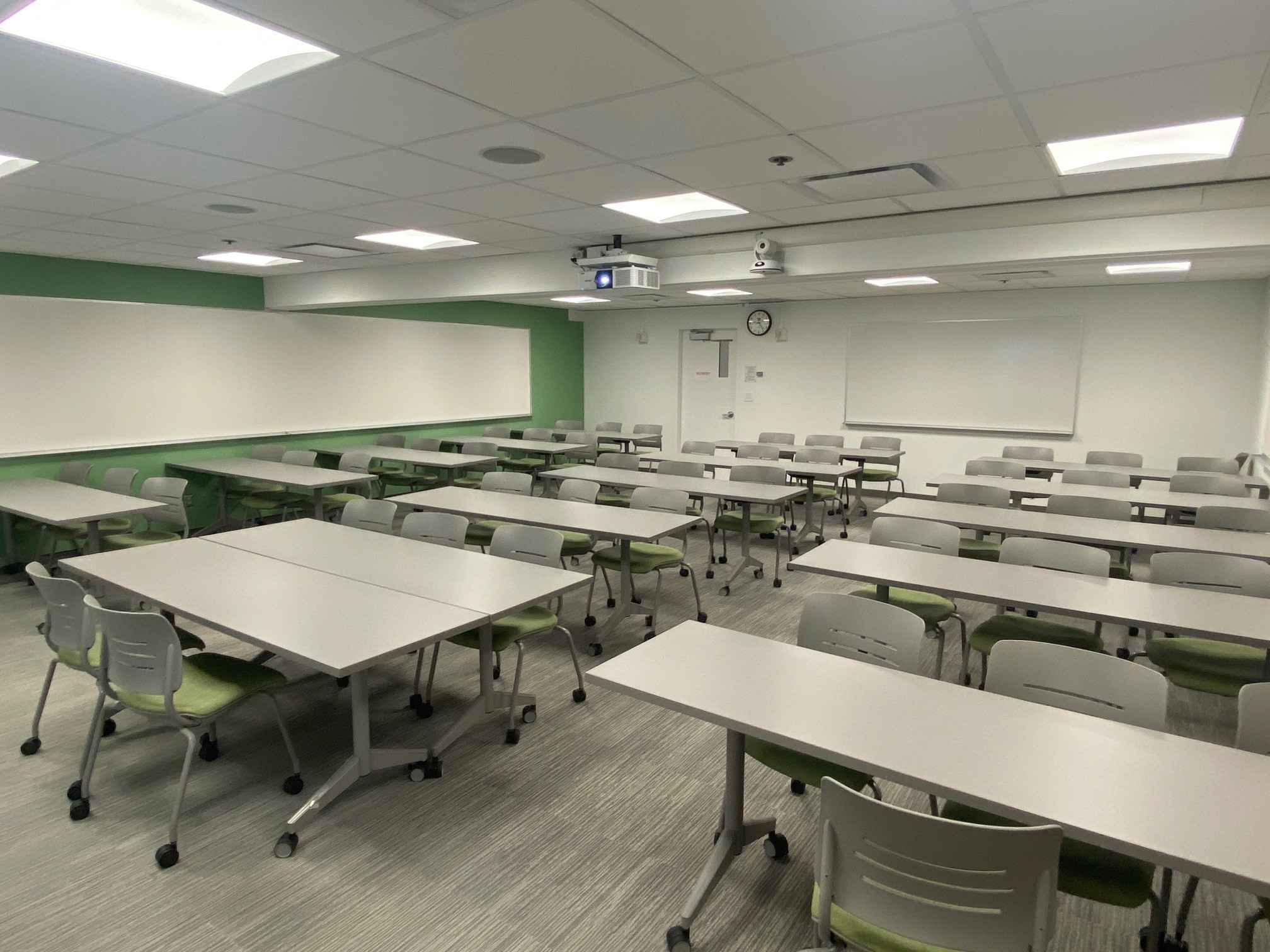
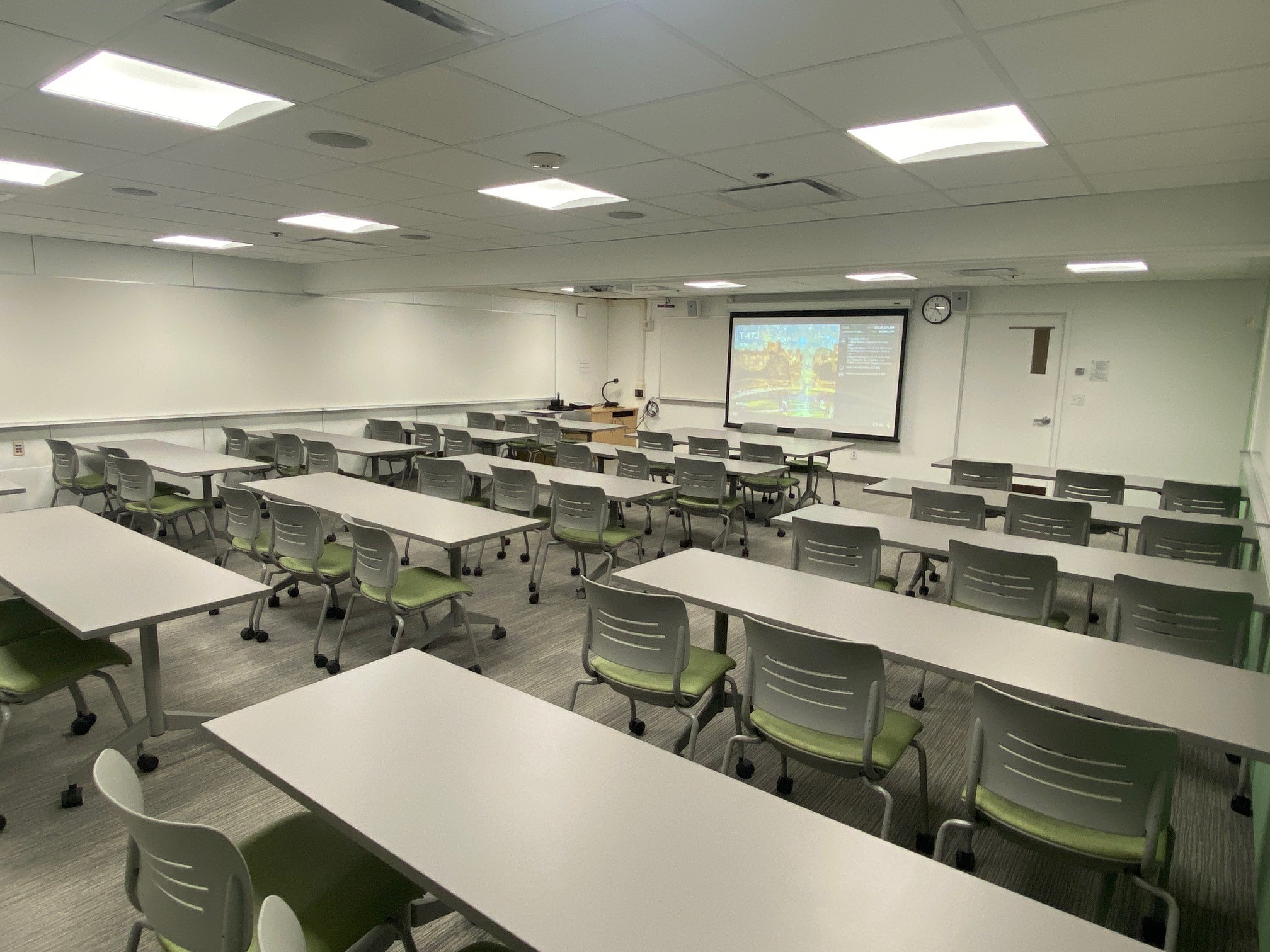
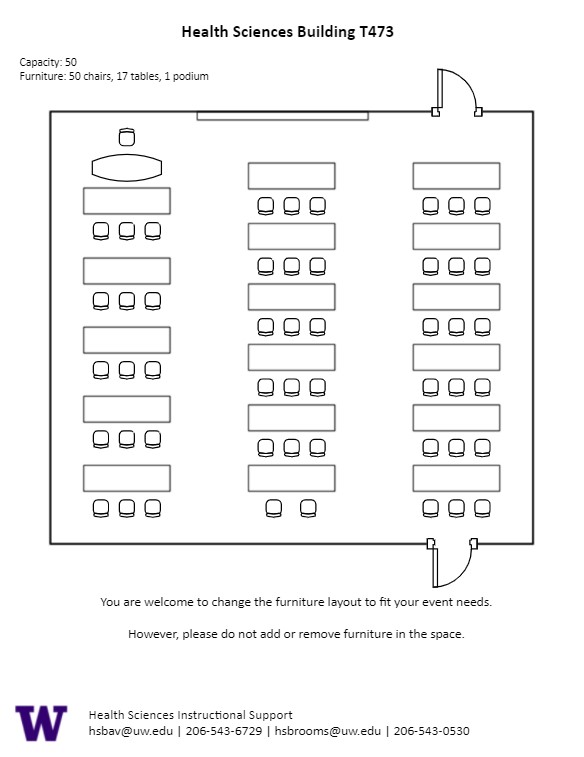
T 473, located in UWS Magnuson Health Sciences, is a general assignment classroom with seating for 50 people.
AV Tutorials
AV Tutorial
VIDEO
Basic Instructions
Turn on the room by touching the touch panel
Connect your device with the HDMI cable with adaptors to fit your device
Select Laptop or Wireless
Select how you would like to display your device on the touch panel
You can adjust the volume of your device with the program volume
If you are using mics, the mic tab on the bottom right will show you
Make sure to select shut down when you are done with the space
Wireless
VIDEO
Windows Devices
Press Windows + K on your keyboard to open wireless display options
Select the room you’re in
Enter the 4-digit code on the screen
Apple Devices
Connect through Apple Airplay by going to the top right and select the Control Center
Select Screen Mirror
Select the room you are in
Input the 4-digit code that pops up on the room screen
Unable to Connect through Airplay
Download the Mersive Solstice app if not already installed
Open the Mersive Solstice app
There will be a pop-up that will ask for access to screen record, select Accept
Input the IP address of the Solstice pod into your app
Input the 4-digit code that pops up on the room screen
Choose what content you want to display into the room
AV Bridge
Instructions for Zoom
Plug in the USB cable into your device
Once Zoom is opened up, click on the arrow by the camera
Select AV Bridge for the camera in the room
Click on the arrow by the microphone and select AV Bridge input for microphone
For the speaker, select Extron or Crestron
To confirm that the audio is working properly, select Test Speaker & Microphone
Instructions for Panopto
Plug in the USB cable into your device
Once Panopto is opened up, click on the video input tab
Select AV Bridge for the camera in the room
Click on the audio input tab
Select AV Bridge for the audio input
For additional information or assistance with Zoom or Panopto, please email UW-IT at help@uw.edu or call them at 206-221-5000.
How to Lock the Podium
Unlock
Insert the key and turn left
Door(s) should unlock and can be opened
Lock
Close the door(s)
Turn the key back to its original position
HST T473 Features
HST T 473 Features
Location: Health Sciences Building T-wing
50-person seating capacity
Rolling tables and chairs
Rolling spectrum podium
Whiteboards
Laser projector
Connection types: HDMI w/adaptor ring | wireless video
A/V bridge
Assisted listening device (available upon request)
Ceiling mounted cameras
Digital document camera
Microphones:
One (1) wireless lavalier (podium key required)
One (1) wireless handheld (podium key required)
Four (4) wireless boundary microphones (podium key required)
Food and drink are NOT permitted in this space.
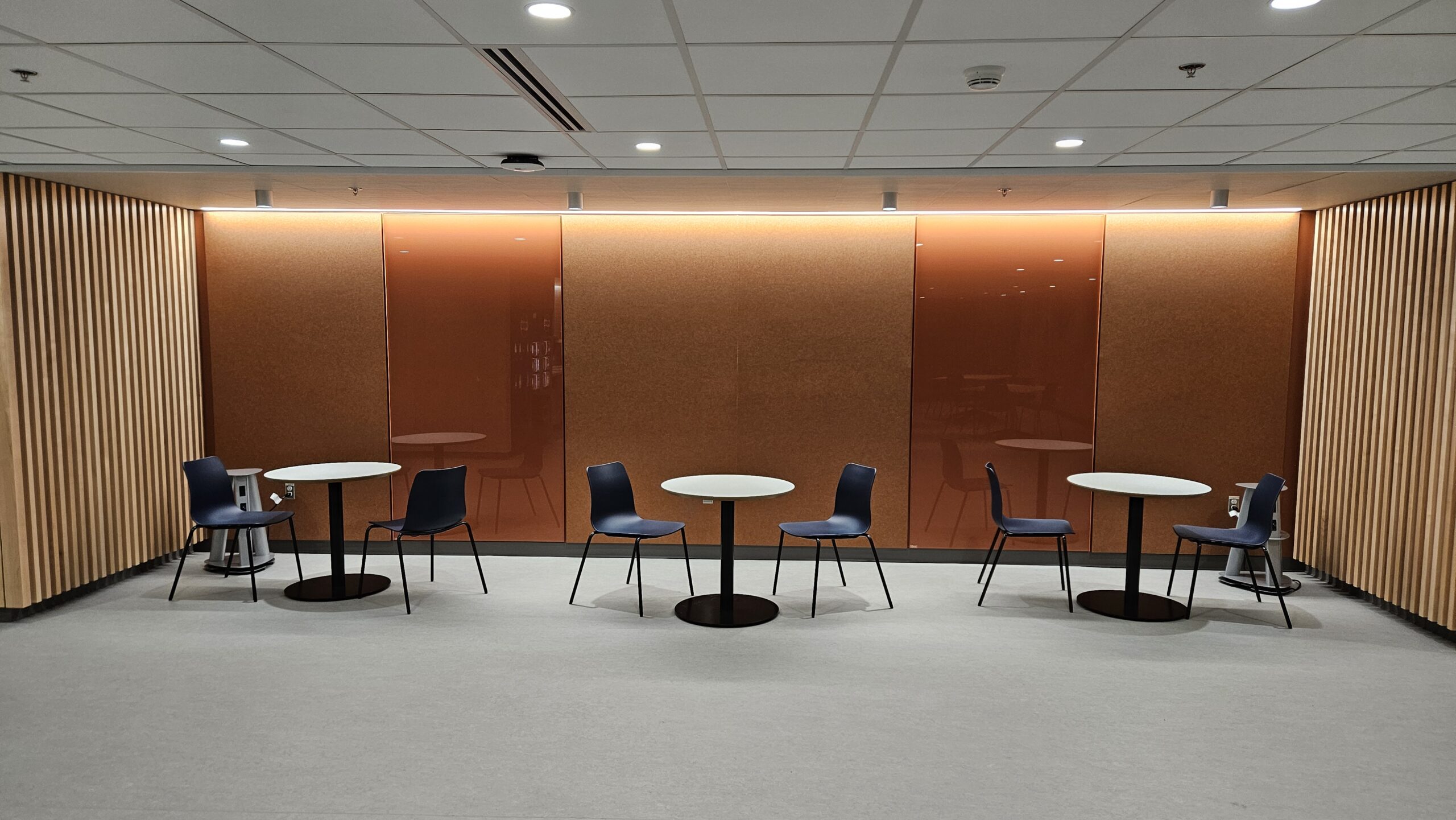
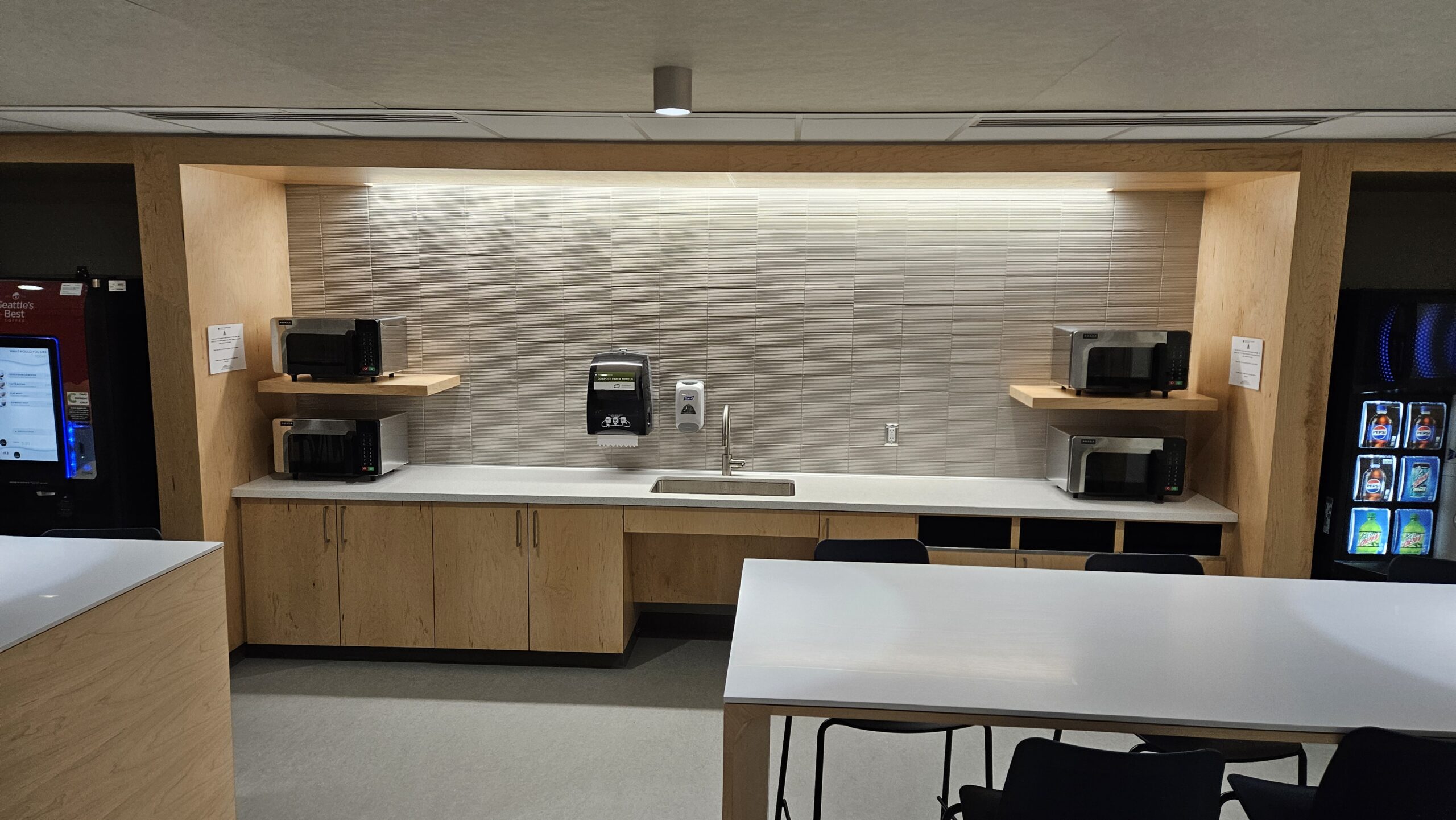
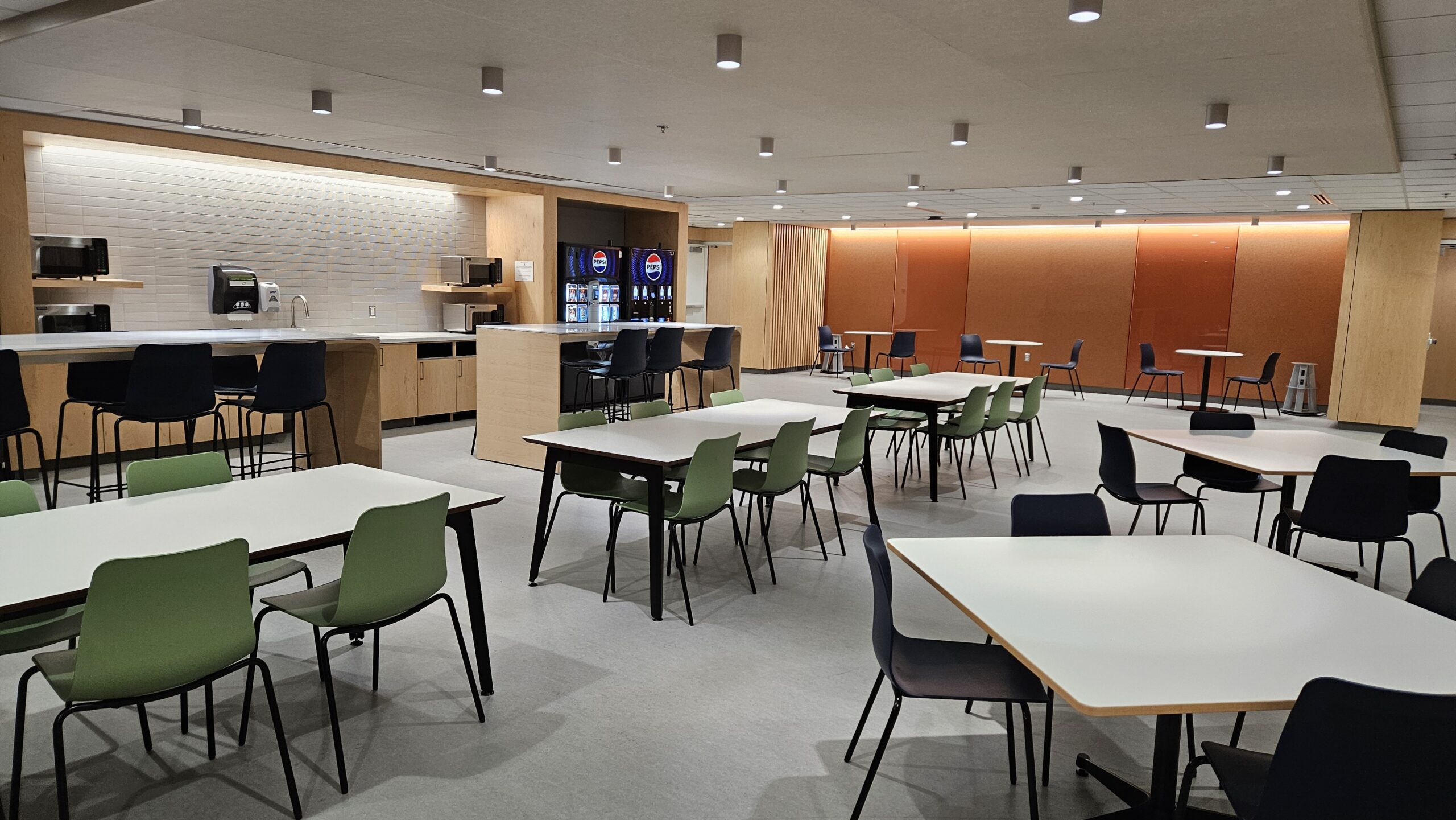
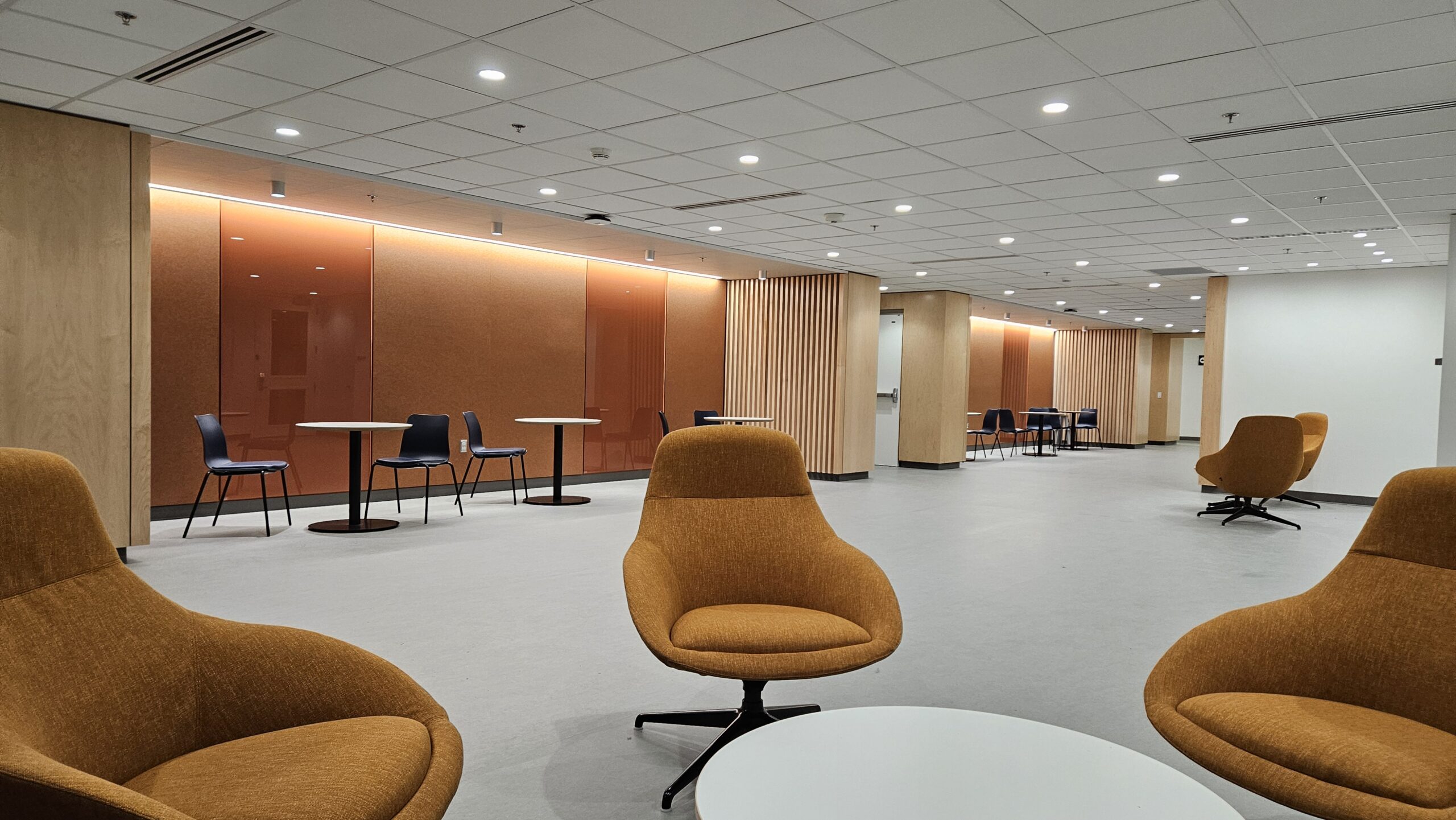
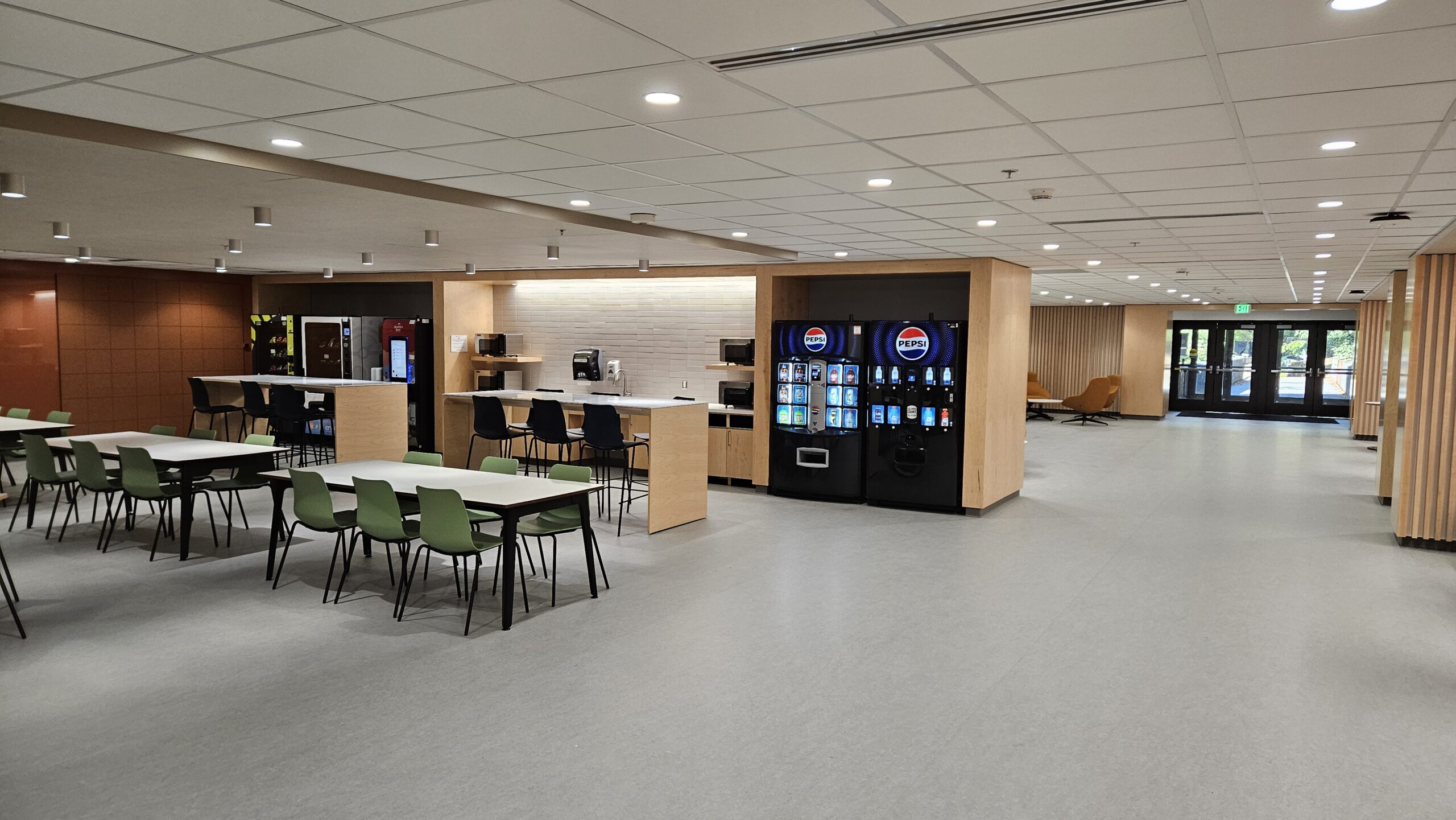
T 469, the Overpass Lounge, located in UWS Magnuson Health Sciences, is a special event space with a capacity of 50 people.
Overpass Lounge Features
HST T 469 Overpass Lounge Features
Location: Health Sciences Building T-wing
50-person seating capacity
Cafe tables and chairs
Lounge chairs
Sink
Four (4) microwaves
Food and drink are permitted in this space.
Not available for reservations before 3:30 p.m. on weekdays.
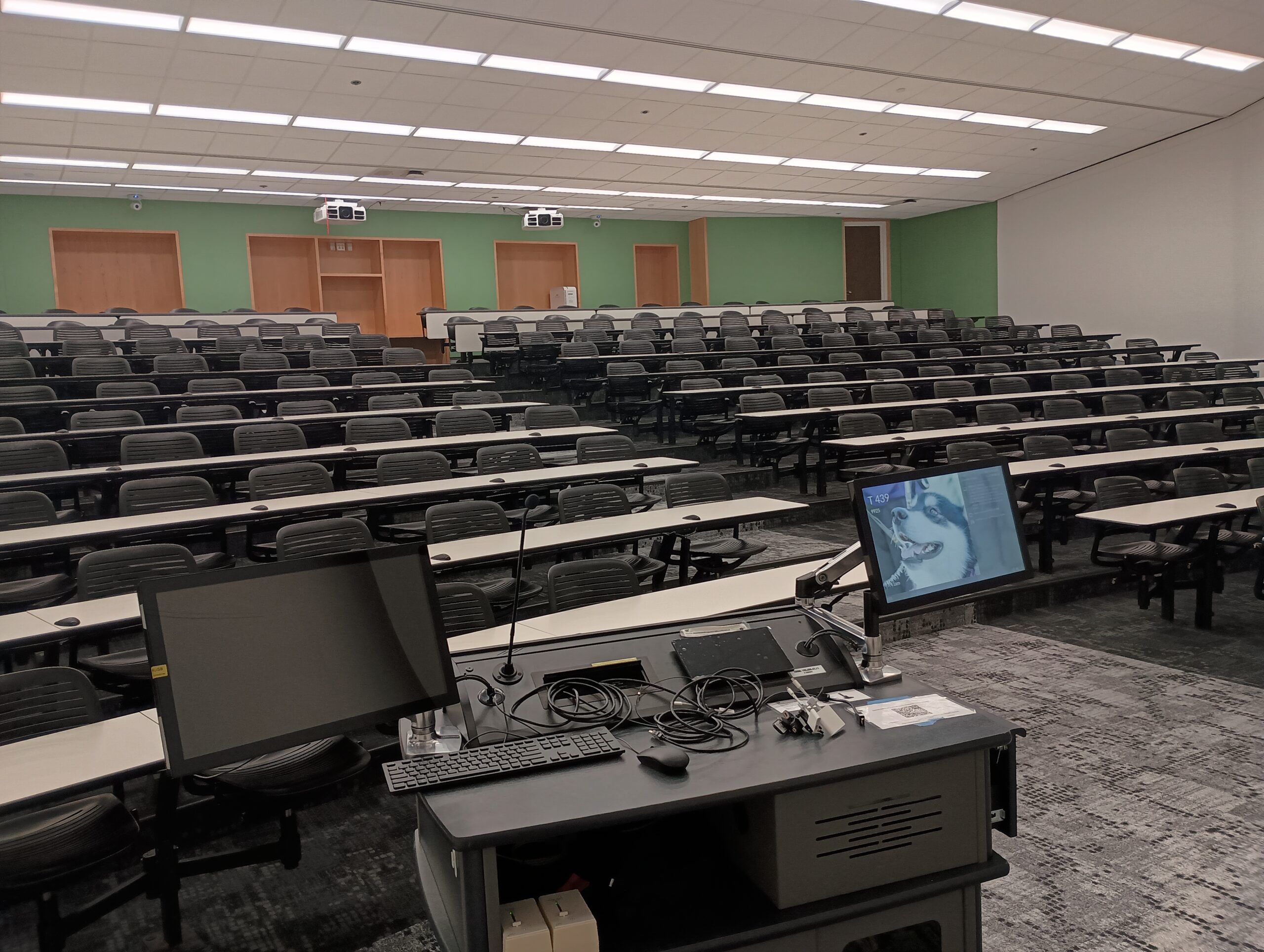
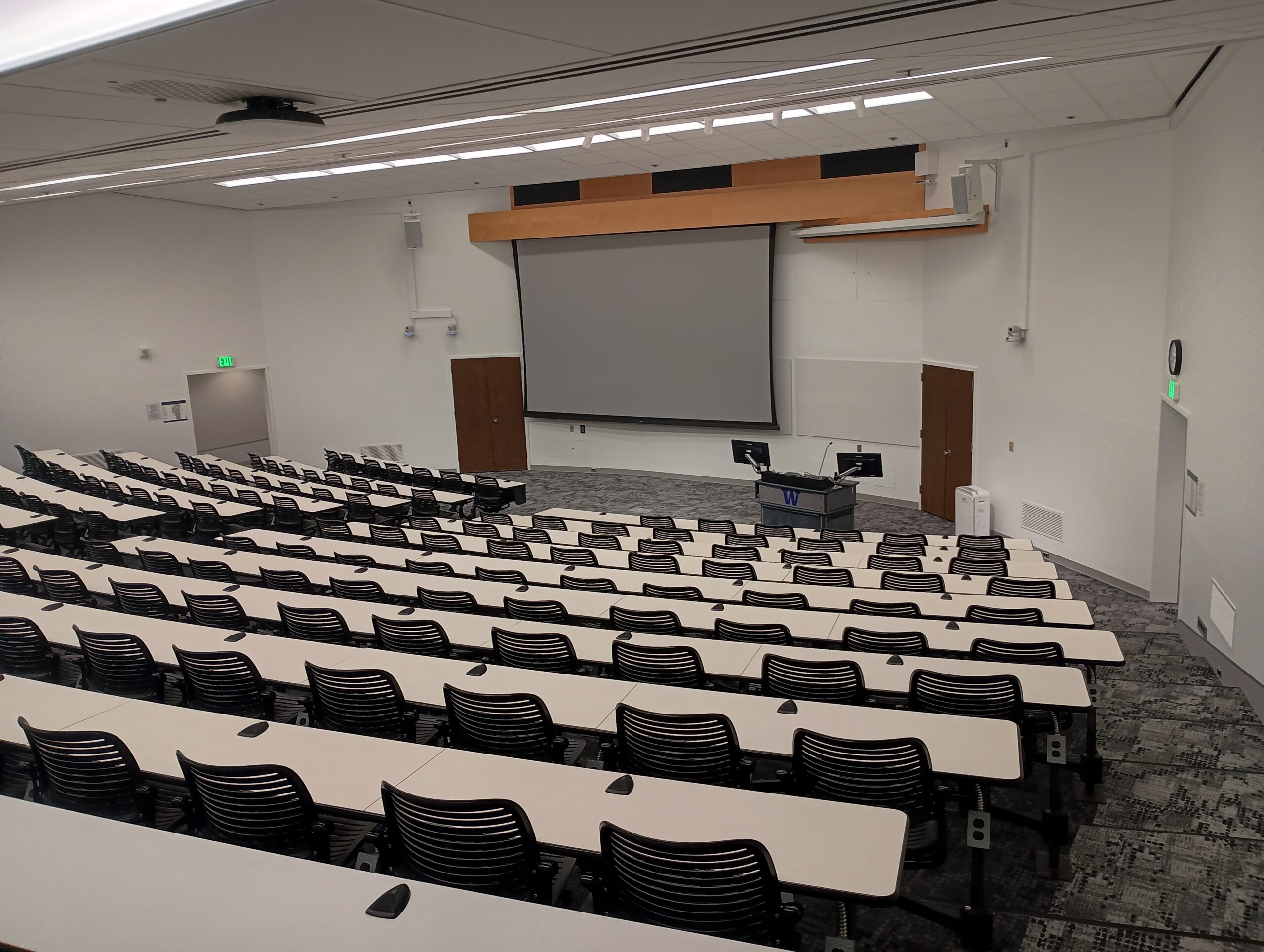
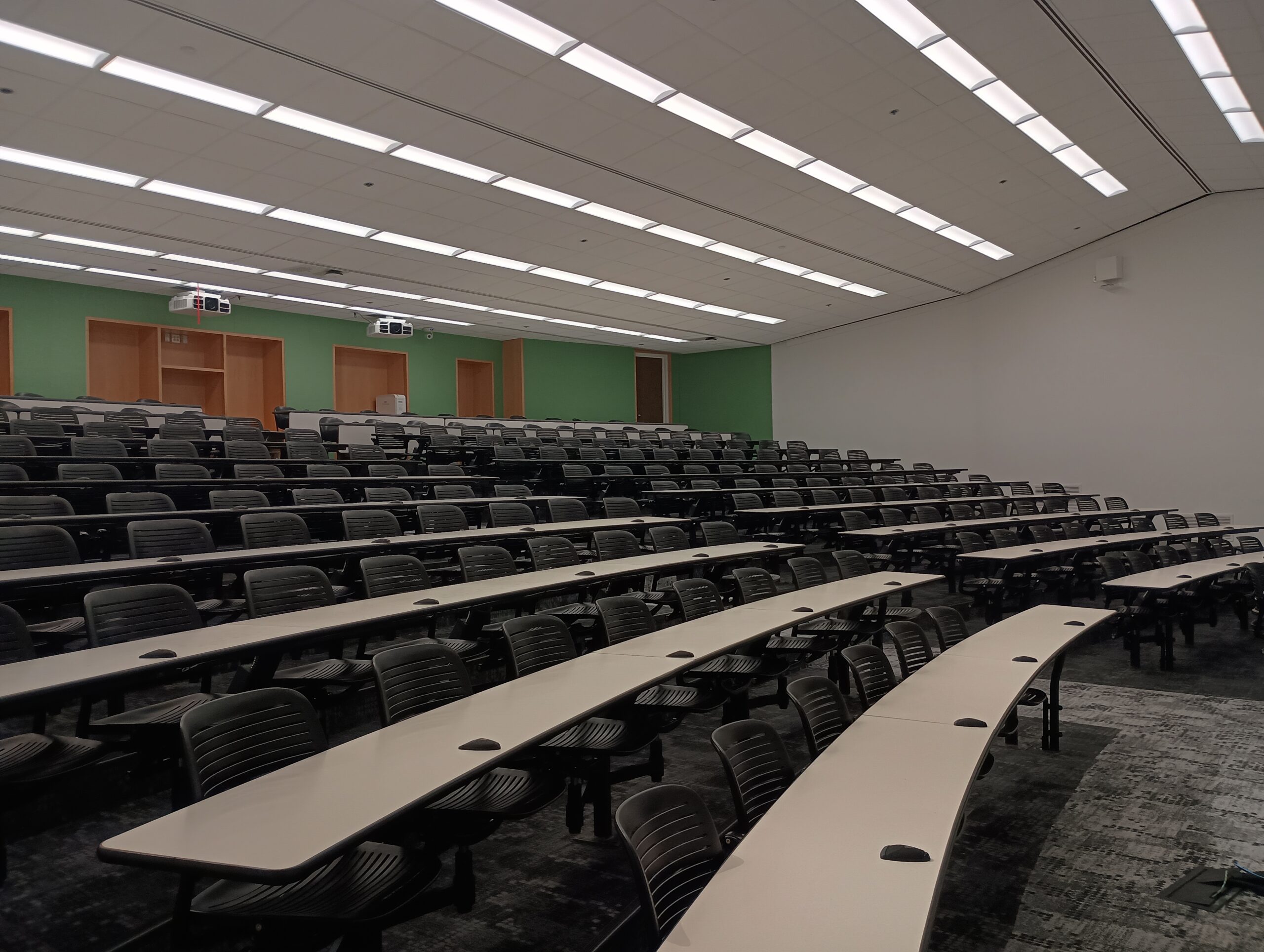
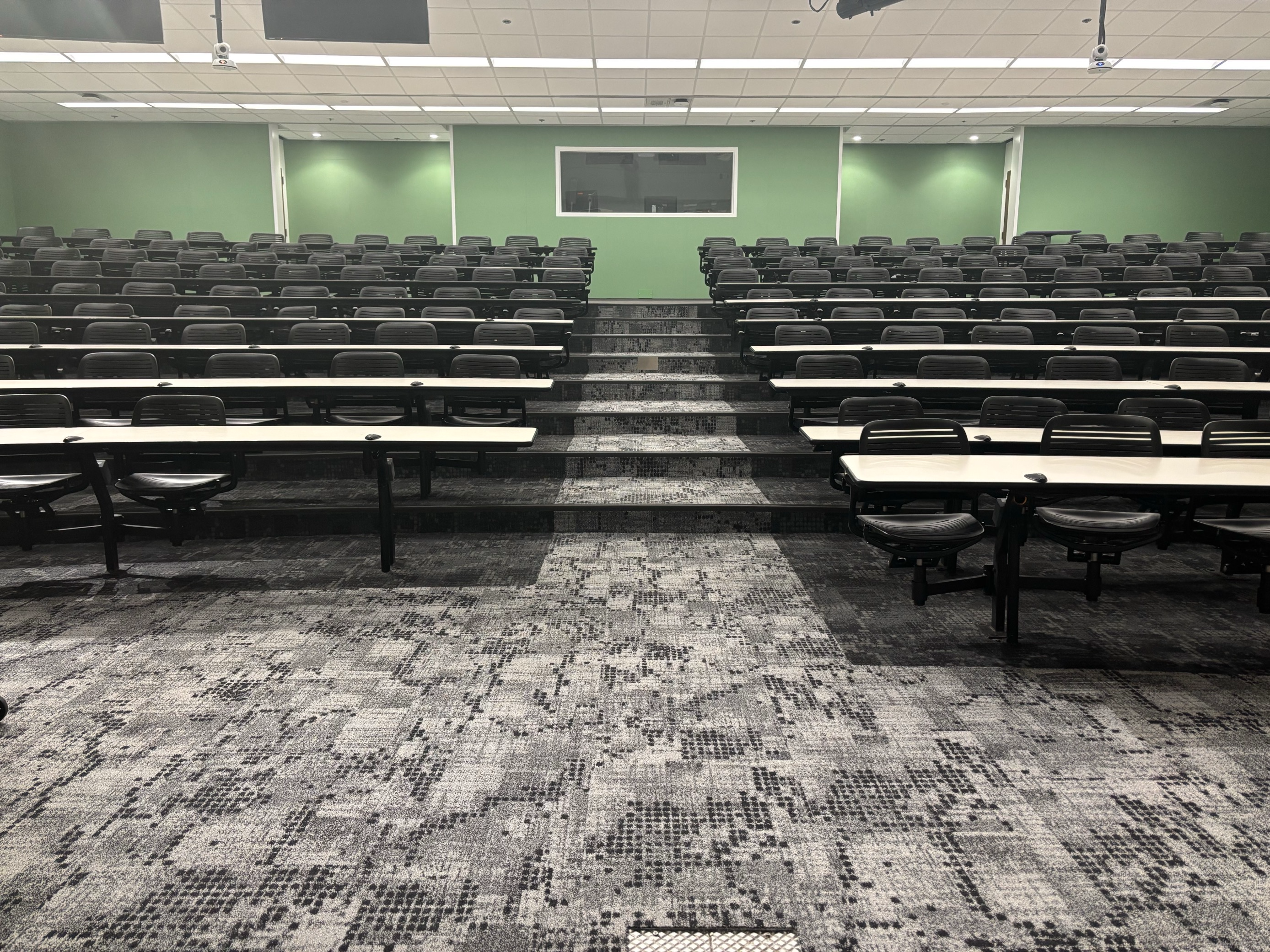
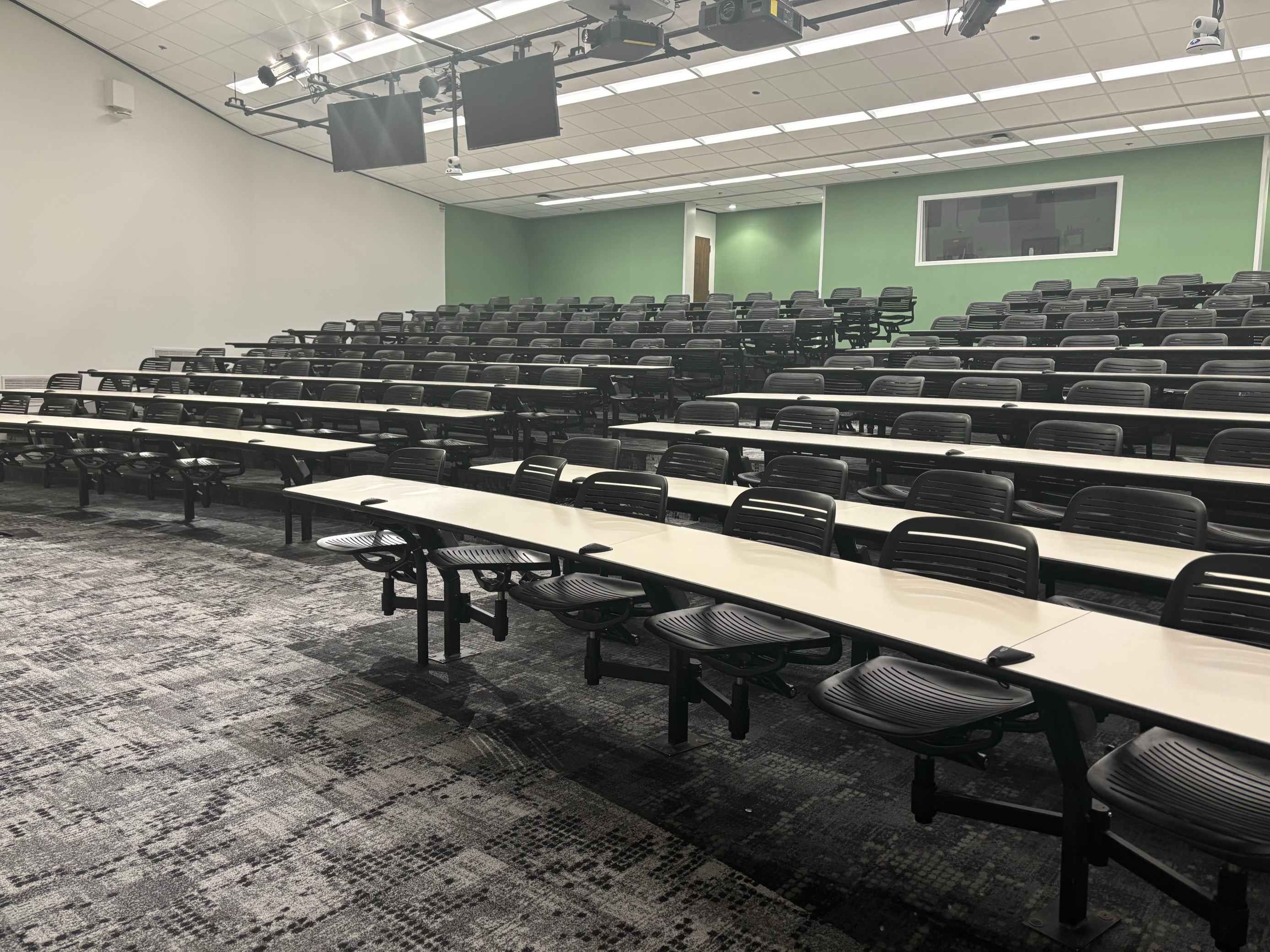
T 439, located in UWS Magnuson Health Sciences, is a general assignment lecture hall with seating for 229 people.
AV Tutorials
AV Tutorial
VIDEO
Basic Instructions
Turn on the room by touching the touch panel
Connect your device with the HDMI cable with adaptors to fit your device
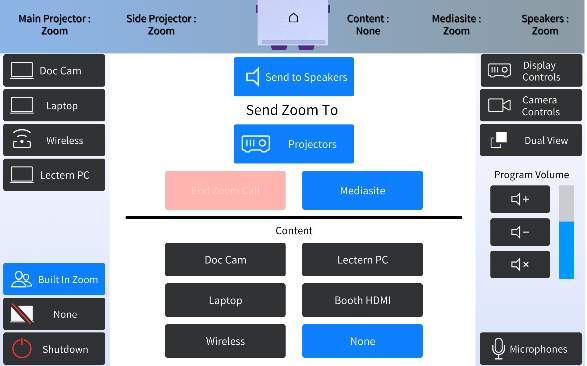
Select Laptop or Wireless
Select how you would like to display your device on the touch panel
You can adjust the volume of your device with the program volume
If you are using mics, the mic tab on the bottom right will show you
Make sure to select shut down when you are done with the space
Wireless
VIDEO
Windows Devices
Press Windows + K on your keyboard to open wireless display options
Select the room you’re in
Enter the 4-digit code on the screen
Apple Devices
Connect through Apple Airplay by going to the top right and select the Control Center
Select Screen Mirror
Select the room you are in
Input the 4-digit code that pops up on the room screen
Unable to Connect through Airplay
Download the Mersive Solstice app if not already installed
Open the Mersive Solstice app
There will be a pop-up that will ask for access to screen record, select Accept
Input the IP address of the Solstice pod into your app
Input the 4-digit code that pops up on the room screen
Choose what content you want to display into the room
AV Bridge
Instructions for Zoom
Plug in the USB cable into your device
Once Zoom is opened up, click on the arrow by the camera
Select AV Bridge for the camera in the room
Click on the arrow by the microphone and select AV Bridge input for microphone
For the speaker, select Extron or Crestron
To confirm that the audio is working properly, select Test Speaker & Microphone
Instructions for Panopto
Plug in the USB cable into your device
Once Panopto is opened up, click on the video input tab
Select AV Bridge for the camera in the room
Click on the audio input tab
Select AV Bridge for the audio input
For additional information or assistance with Zoom or Panopto, please email UW-IT at help@uw.edu or call them at 206-221-5000.
Zoom Room
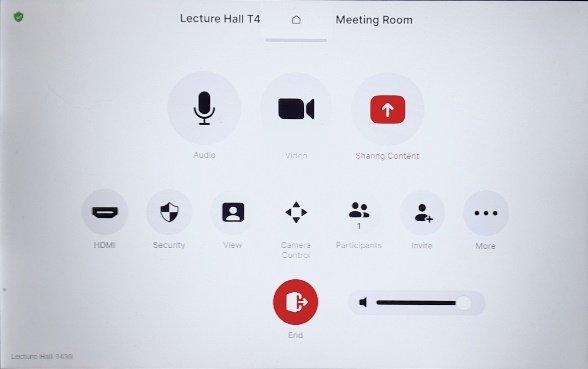
Tap the screen
connect the HDMI cable to your device
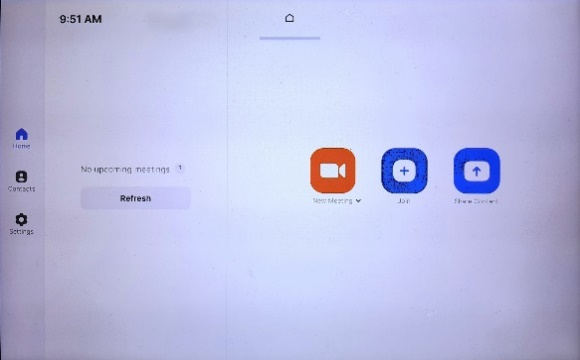
Tap the white Home button to select Zoom Room
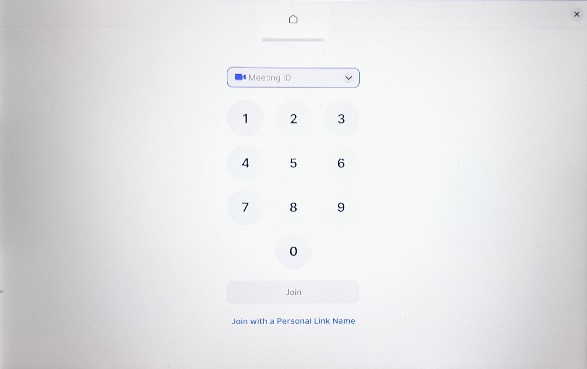
Select new meeting or join room
Enter Zoom meeting ID to join existing call or invite others to Zoom with meeting ID (968-399-3310)
Tap the white home button to return to touch panel menu
Select Built In Zoom & what content you want to send to Zoom
How to Lock the Podium
Unlock
Insert the key and turn left
Door(s) should unlock and can be opened
Lock
Close the door(s)
Turn the key back to its original position
HST T439 Features
HST T 439 Features
Location: Health Sciences Building T-wingThis room is on the Campus Automated Access Management System (CAAMS).
229-person seating capacity
Stadium seating with fixed desks
Fixed podium with built-in computer
Whiteboards
Two (2) laser projectors
Two (2) confidence monitors
Connection types: HDMI w/adaptor ring | wireless video
AV bridge
Built-in Zoom rooms
Document camera, Windows computer, annotation system
Blu-ray/DVD player
Additional equipment available to School of Medicine (contact SOMALT for more details)
Seats will come with outlets and boundary mics
Microphones:
One (1) gooseneck
Two (2) wireless lavalier (podium key required)
Two (2) wireless handheld (podium key required)
Two (2) boundary (podium key required)
Boundary affixed to tables
Cameras:
Two (2) facing stage
Three (3) facing audience
Food and drink may be served outside the room.
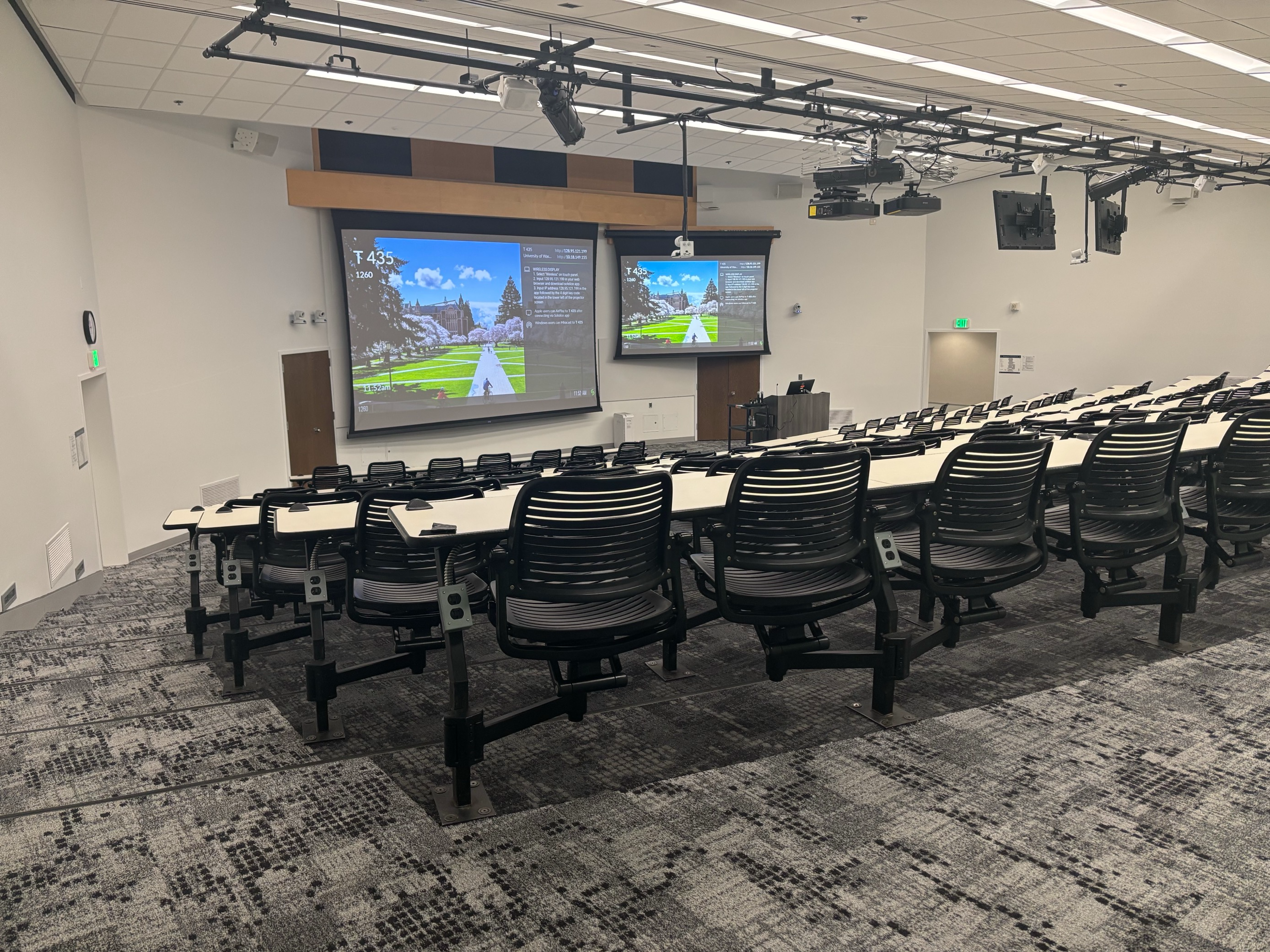
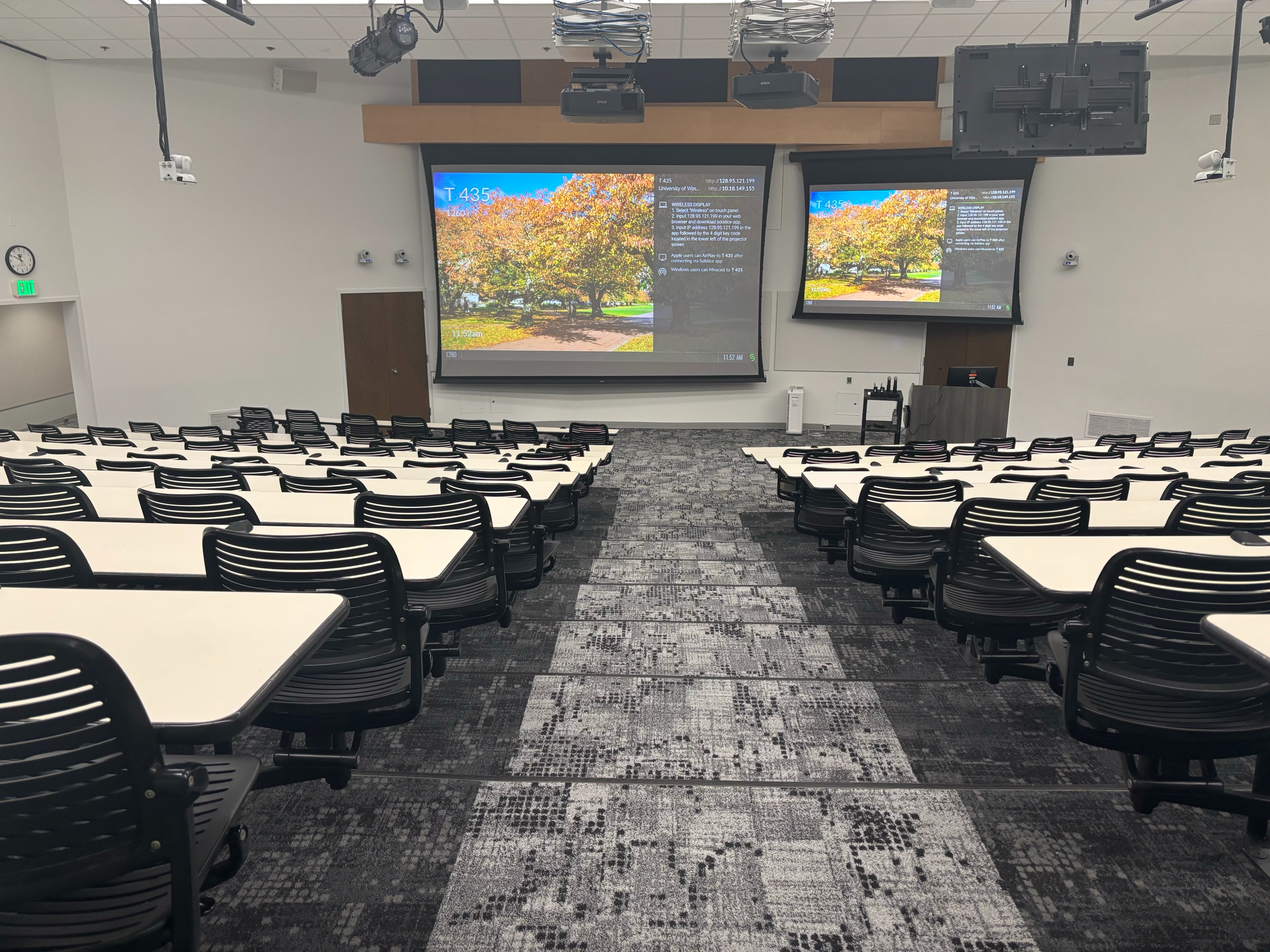
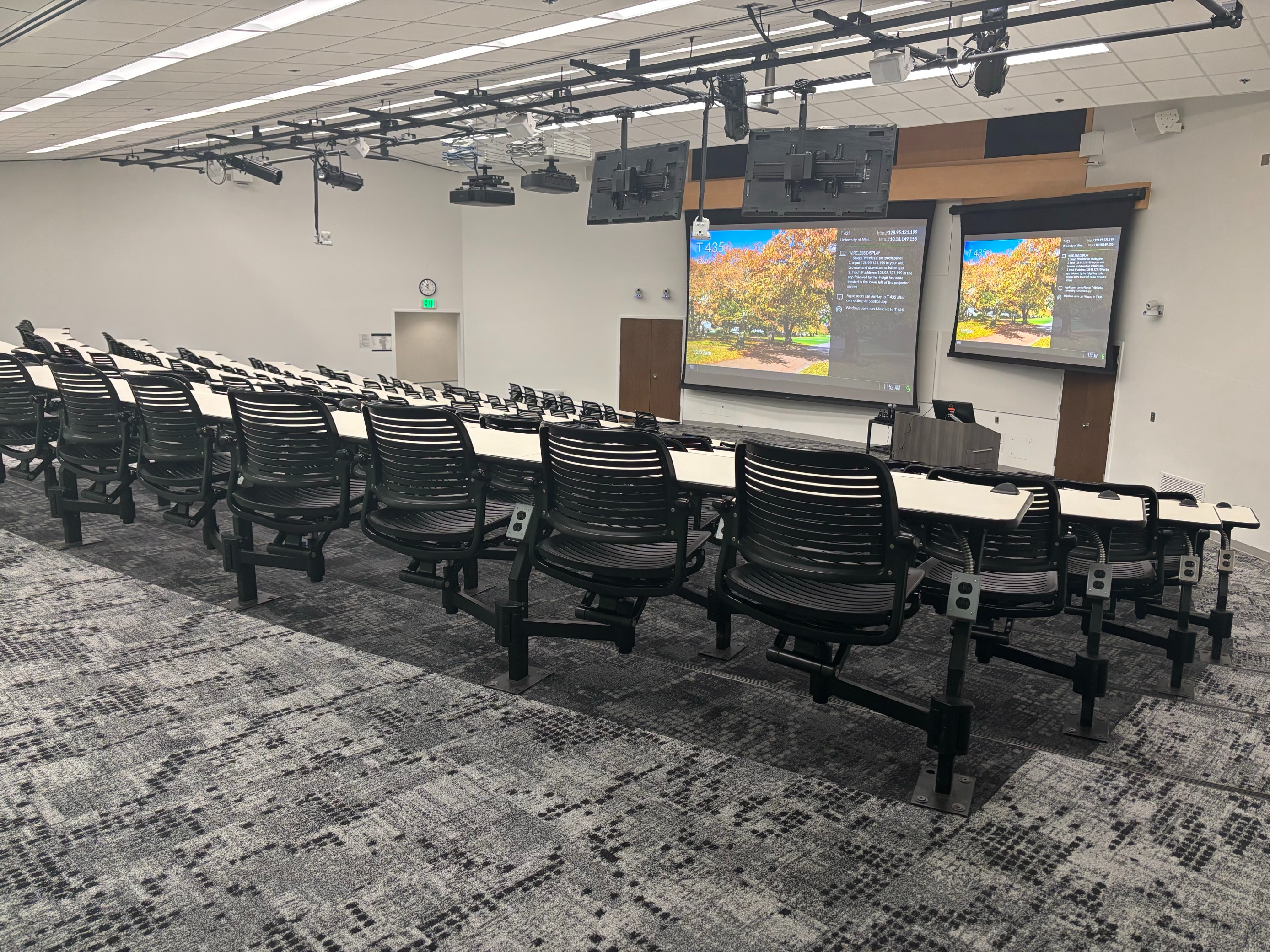
T 435, located in UWS Magnuson Health Sciences, is a general assignment lecture hall with seating for 185 people.
AV Tutorials
AV Tutorial
VIDEO
Basic Instructions
Turn on the room by touching the touch panel
Connect your device with the HDMI cable with adaptors to fit your device
Select Laptop or Wireless
Select how you would like to display your device on the touch panel
You can adjust the volume of your device with the program volume
If you are using mics, the mic tab on the bottom right will show you
Make sure to select shut down when you are done with the space
Wireless
VIDEO
Windows Devices
Press Windows + K on your keyboard to open wireless display options
Select the room you’re in
Enter the 4-digit code on the screen
Apple Devices
Connect through Apple Airplay by going to the top right and select the Control Center
Select Screen Mirror
Select the room you are in
Input the 4-digit code that pops up on the room screen
Unable to Connect through Airplay
Download the Mersive Solstice app if not already installed
Open the Mersive Solstice app
There will be a pop-up that will ask for access to screen record, select Accept
Input the IP address of the Solstice pod into your app
Input the 4-digit code that pops up on the room screen
Choose what content you want to display into the room
AV Bridge
Instructions for Zoom
Plug in the USB cable into your device
Once Zoom is opened up, click on the arrow by the camera
Select AV Bridge for the camera in the room
Click on the arrow by the microphone and select AV Bridge input for microphone
For the speaker, select Extron or Crestron
To confirm that the audio is working properly, select Test Speaker & Microphone
Instructions for Panopto
Plug in the USB cable into your device
Once Panopto is opened up, click on the video input tab
Select AV Bridge for the camera in the room
Click on the audio input tab
Select AV Bridge for the audio input
For additional information or assistance with Zoom or Panopto, please email UW-IT at help@uw.edu or call them at 206-221-5000.
Zoom Room
Tap the screen
connect the HDMI cable to your device
Tap the white Home button to select Zoom Room
Select new meeting or join room
Enter Zoom meeting ID to join existing call or invite others to Zoom with meeting ID (968-399-3310)
Tap the white home button to return to touch panel menu
Select Built In Zoom & what content you want to send to Zoom
How to Lock the Podium
Unlock
Insert the key and turn left
Door(s) should unlock and can be opened
Lock
Close the door(s)
Turn the key back to its original position
HST T435 Features
HST T 435 Features
Location: Health Sciences Building T-wingThis room is on the Campus Automated Access Management System (CAAMS).
185-person seating capacity
Stadium seating with fixed desks
Fixed podium with built-in computer
Whiteboards
Two (2) laser projectors
Two (2) confidence monitors
Connection types: HDMI w/adaptor ring | wireless video
AV bridge
Built-in Zoom rooms
Document camera, Windows computer, annotation system
Blu-ray/DVD player
Additional equipment available to School of Medicine (contact SOMALT for more details)
Seats will come with outlets and boundary mics
Microphones:
One (1) gooseneck
Two (2) wireless lavalier (podium key required)
Two (2) wireless handheld (podium key required)
Two (2) boundary (podium Key required)
Boundary affixed to tables
Cameras:
Two (2) facing stage
Three (3) facing audience
Food and drink are permitted outside this space.
T 365, located in UWS Magnuson Health Sciences, is a general assignment Wet Lab with seating for 24 people.
HST T365 Features
HST T365 Features
Location: Health Sciences Building T-wingThis room requires a key from Health Sciences Building Management. After you make a reservation, keys can be requested via the Health Sciences Key Checkout Request .
24-person seating capacity
Fixed tables and adjustable height stools
Chalkboards
Food and drink are NOT permitted in this space.
T 360, located in UWS Magnuson Health Sciences, is a general assignment classroom with seating for 50 people.
AV Tutorials
AV Tutorial
VIDEO
Basic Instructions
Turn on the room by touching the touch panel
Connect your device with the HDMI cable with adaptors to fit your device
Select Laptop or Wireless
Select how you would like to display your device on the touch panel
You can adjust the volume of your device with the program volume
If you are using mics, the mic tab on the bottom right will show you
Make sure to select shut down when you are done with the space
Wireless
VIDEO
Windows Devices
Press Windows + K on your keyboard to open wireless display options
Select the room you’re in
Enter the 4-digit code on the screen
Apple Devices
Connect through Apple Airplay by going to the top right and select the Control Center
Select Screen Mirror
Select the room you are in
Input the 4-digit code that pops up on the room screen
Unable to Connect through Airplay
Download the Mersive Solstice app if not already installed
Open the Mersive Solstice app
There will be a pop-up that will ask for access to screen record, select Accept
Input the IP address of the Solstice pod into your app
Input the 4-digit code that pops up on the room screen
Choose what content you want to display into the room
AV Bridge
Instructions for Zoom
Plug in the USB cable into your device
Once Zoom is opened up, click on the arrow by the camera
Select AV Bridge for the camera in the room
Click on the arrow by the microphone and select AV Bridge input for microphone
For the speaker, select Extron or Crestron
To confirm that the audio is working properly, select Test Speaker & Microphone
Instructions for Panopto
Plug in the USB cable into your device
Once Panopto is opened up, click on the video input tab
Select AV Bridge for the camera in the room
Click on the audio input tab
Select AV Bridge for the audio input
For additional information or assistance with Zoom or Panopto, please email UW-IT at help@uw.edu or call them at 206-221-5000.
How to Lock the Podium
Unlock
Insert the key and turn left
Door(s) should unlock and can be opened
Lock
Close the door(s)
Turn the key back to its original position
HST T360 Features
HST T360 Features
Location: Health Sciences Building T-wing
50-person seating capacity
Rolling tables and chairs
Rolling podium/desk (instructor area)
Individual whiteboards for students to hang on wall
Laser projector
Connection types: HDMI w/adaptor ring | wireless video
AV bridge
Assisted listening device (available upon request)
Camera directed toward podium
Document camera
Microphones:
One (1) wireless lavalier (podium key required)
One (1) wireless handheld (podium key required)
Four (4) wireless Boundary (podium key required)
Food and drink are NOT permitted in this space.
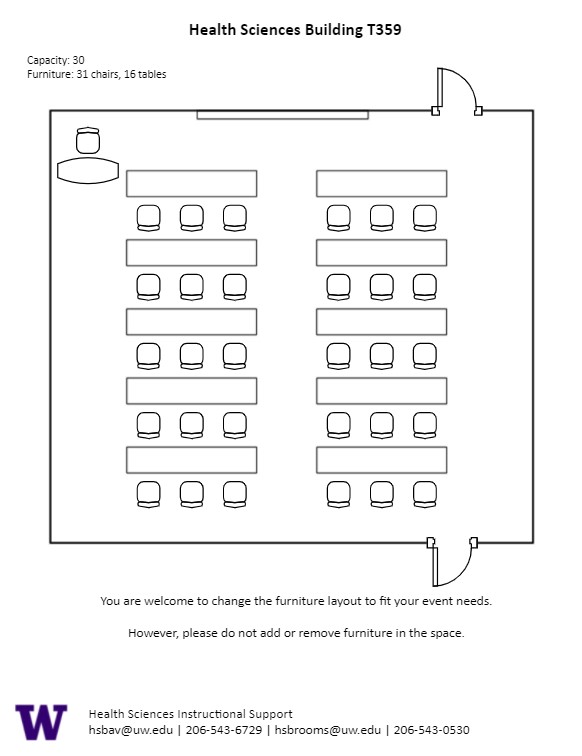
T 359, located in UWS Magnuson Health Sciences, is a general assignment classroom with seating for 30 people.
AV Tutorials
AV Tutorial
VIDEO
Basic Instructions
Turn on the room by touching the touch panel
Connect your device with the HDMI cable with adaptors to fit your device
Select Laptop or Wireless
Select how you would like to display your device on the touch panel
You can adjust the volume of your device with the program volume
If you are using mics, the mic tab on the bottom right will show you
Make sure to select shut down when you are done with the space
Wireless
VIDEO
Windows Devices
Press Windows + K on your keyboard to open wireless display options
Select the room you’re in
Enter the 4-digit code on the screen
Apple Devices
Connect through Apple Airplay by going to the top right and select the Control Center
Select Screen Mirror
Select the room you are in
Input the 4-digit code that pops up on the room screen
Unable to Connect through Airplay
Download the Mersive Solstice app if not already installed
Open the Mersive Solstice app
There will be a pop-up that will ask for access to screen record, select Accept
Input the IP address of the Solstice pod into your app
Input the 4-digit code that pops up on the room screen
Choose what content you want to display into the room
AV Bridge
Instructions for Zoom
Plug in the USB cable into your device
Once Zoom is opened up, click on the arrow by the camera
Select AV Bridge for the camera in the room
Click on the arrow by the microphone and select AV Bridge input for microphone
For the speaker, select Extron or Crestron
To confirm that the audio is working properly, select Test Speaker & Microphone
Instructions for Panopto
Plug in the USB cable into your device
Once Panopto is opened up, click on the video input tab
Select AV Bridge for the camera in the room
Click on the audio input tab
Select AV Bridge for the audio input
For additional information or assistance with Zoom or Panopto, please email UW-IT at help@uw.edu or call them at 206-221-5000.
How to Lock the Podium
Unlock
Insert the key and turn left
Door(s) should unlock and can be opened
Lock
Close the door(s)
Turn the key back to its original position
HST T359 Features
HST T359 Features
Location: Health Sciences Building T-wing
30-person seating capacity
Rolling tables and chairs
Rolling podium/desk (instructor area)
Whiteboards
Laser projector
Connection types: HDMI w/adaptor ring | wireless video
AV bridge
Assisted listening device (available upon request)
Camera directed toward podium
Document camera
Microphones:
One (1) wireless lavalier (podium key required)
One (1) wireless handheld (podium key required)
Four (4) wireless Boundary (podium key required)
Food and drink are NOT permitted in this space.